







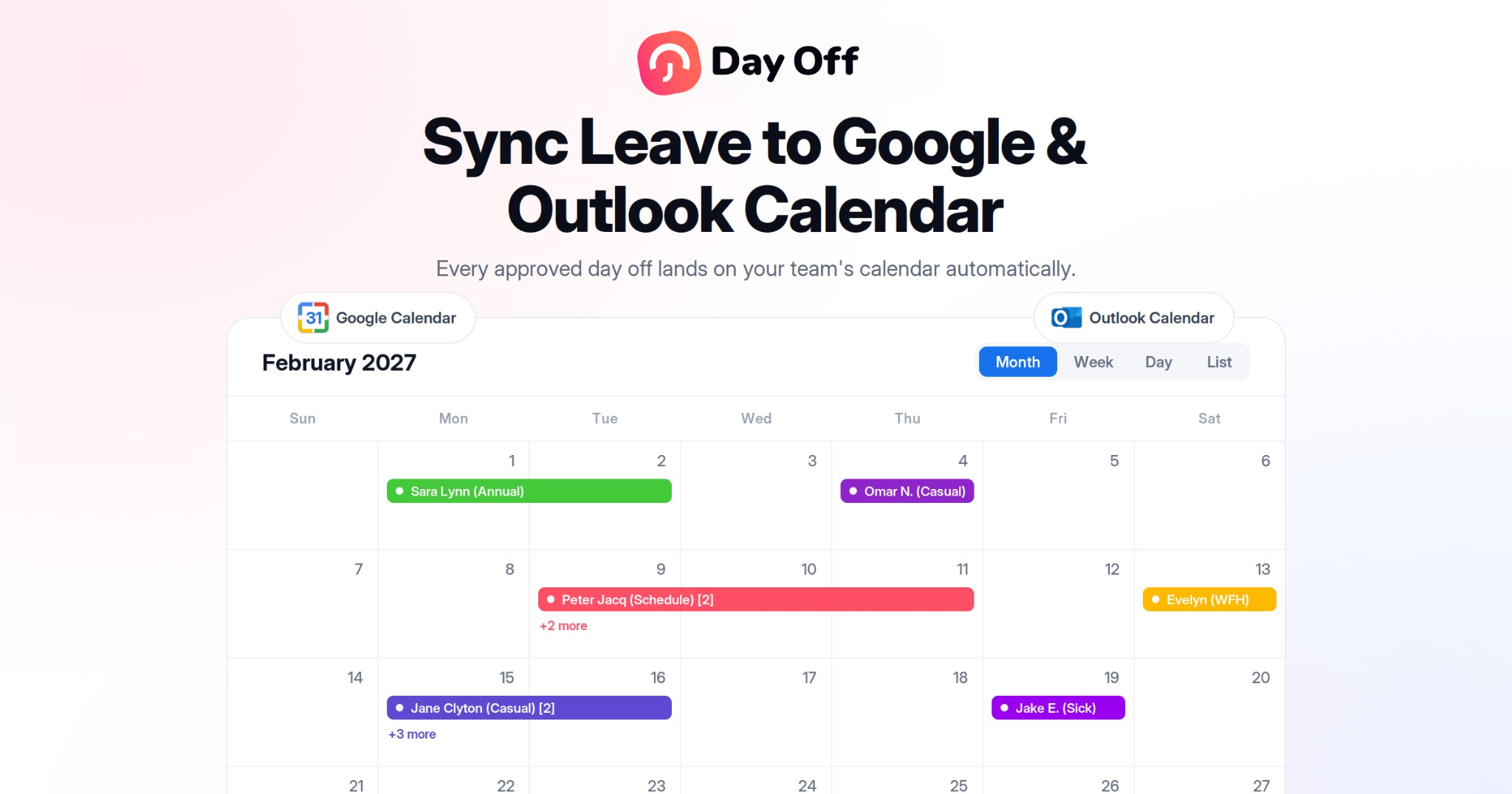
Approved leave that only exists inside an HR or leave management system is surprisingly easy for everyone else to miss, especially when employees and managers already rely on Google Calendar or Microsoft Outlook to organize meetings, deadlines, availability, and their day-to-day schedules.
Most people don’t open their leave management system every morning to see who is away that day. They open the calendar application that is already part of their normal workflow, which means an HR system can perfectly record an approved vacation request that is still invisible at the exact moment someone is deciding whether to schedule a meeting, assign a task, or plan team coverage.

That’s why syncing leave requests with Google Calendar or Outlook isn’t simply a convenience feature; it closes an important gap between leave management and everyday scheduling, making sure that approved time off is visible in the place where employees and managers are already making decisions about their availability.
The important part, however, is that not every “calendar integration” works in the same way. Some tools provide genuine automatic synchronization, while others simply let employees export an .ics file or manually add an event, and those approaches can feel very different once you’re managing leave for an entire organization.
If you’re comparing leave management software, the question shouldn’t just be whether a product supports Google Calendar or Outlook. You should also understand what gets synchronized, where it appears, how quickly it updates, what happens when leave changes, and how much information other employees can see.
Why calendar sync matters more than it sounds
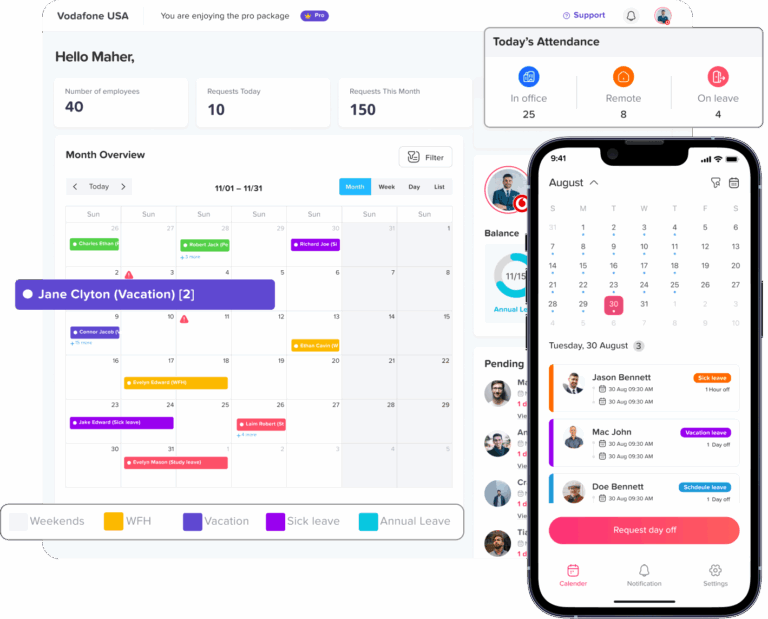
Leave management and calendar applications serve two different purposes, but employees need information from both systems when they’re planning their work.
Your leave management system is responsible for determining whether time off has been requested and approved, tracking balances, applying company policies, and maintaining an accurate record of employee absences. Your calendar, on the other hand, is where people actually look when deciding whether someone is available for a meeting or whether a particular week has enough capacity for an important project.
Without synchronization between the two, employees effectively have to maintain two separate versions of availability: the official record inside the HR system and the practical scheduling information inside their calendar.
That separation might not seem like a serious problem when a company is small, but it becomes increasingly frustrating as teams grow, employees work across departments, and managers need to coordinate schedules without constantly switching between different applications.
Common problems when leave and calendars are disconnected
When approved leave isn’t automatically reflected in the calendar, several predictable problems can appear throughout the organization:
Meetings get scheduled during approved leave because organizers are checking calendar availability rather than opening the HR system every time they want to schedule someone. The leave request may have been approved weeks earlier, but if the calendar still shows the employee as available, the organizer has no obvious way to know otherwise.
Managers have difficulty planning coverage because they need to check a separate system to understand who will be unavailable. This becomes especially inefficient when a manager is coordinating several people across multiple projects and needs a quick overview of team availability.
Cross-team visibility becomes inconsistent because employees outside the immediate team may not have access to, or even know about, the company’s leave management system. A calendar event, by comparison, can communicate availability naturally within the existing scheduling workflow.
Employees end up entering the same information twice, first in the leave management system and then manually in their calendar. Every additional manual step creates another opportunity for information to be forgotten, entered incorrectly, or left unchanged when the original leave request is modified.
Cancelled or changed leave can create misleading calendar information when someone added the original event manually. Someone may cancel a vacation request but forget to remove the corresponding calendar event, leaving coworkers with an inaccurate picture of their availability.
The underlying issue is simple: when “who is off” and “who appears available on the calendar” are maintained separately, the organization eventually ends up with conflicting information.
Calendar synchronization helps make the approved leave record visible without asking employees to maintain the same information in multiple places.
What should a good leave calendar sync actually do?
When a leave management vendor says that it offers Google Calendar or Outlook integration, don’t assume that every integration provides the same experience.
The difference between a genuinely useful integration and a basic calendar export often comes down to a handful of practical details: automation, updates, visibility, privacy, reliability, and how the integration handles unusual but common leave scenarios.
Here are the capabilities worth examining before choosing a platform.
Automatic synchronization after approval
The first question to ask is what happens immediately after a manager approves a leave request.
In a well-designed workflow, the process should be straightforward: an employee submits a request, the manager approves it, and the approved leave automatically appears on the relevant calendar without requiring another action from the employee or manager.
This matters because manual calendar updates don’t scale particularly well. Asking one employee to download an .ics file and add it to their calendar might not seem like much work, but repeating that process across hundreds or thousands of leave requests creates unnecessary administrative overhead and makes it much easier for calendar information to become incomplete.
If you’re evaluating a product, ask specifically whether calendar synchronization happens automatically when the request reaches an approved status, rather than simply asking whether the product can “export to calendar.”
Updates should happen when leave changes
Creating a calendar event when a manager approves leave is useful, but a reliable integration also needs to handle everything that happens after the original approval.
Employees sometimes change their plans, extend their vacation, shorten their leave, move the dates, or cancel the request entirely. If the leave management system changes but the calendar event remains untouched, the two systems quickly become inconsistent again.
For example, imagine that an employee originally receives approval for June 10–14 but later changes the request to June 12–14. A reliable integration should update the existing calendar information rather than leaving the original five-day event in place.
The same principle should apply when someone cancels, shortens, extends, or otherwise modifies leave after approval.
A good calendar integration should keep the calendar synchronized with the current leave record, not simply create a snapshot of what was true when the request was first approved.
Check whether duplicate events can occur
Another useful question is whether the integration can distinguish between synchronized leave events and events that employees create manually.
If an employee manually creates an “Annual Leave” event and the HR system later synchronizes the approved request, the employee could end up with two events representing the same absence.
Duplicate events aren’t just visually annoying; they can also make calendars look more complicated than they need to be and potentially interfere with scheduling workflows.
When evaluating a product, ask how synchronized events are identified and what happens if a user already has a manually created out-of-office event for the same dates.
One-way vs. two-way calendar synchronization
The phrase “two-way sync” often sounds like a more advanced or automatically better option, but whether you actually need it depends on what you want the integration to accomplish.
One-way synchronization
A one-way integration generally follows this model:
Leave management system → Calendar
An employee requests leave, the request is approved, and the approved absence is reflected in Google Calendar or Outlook.
For many organizations, this is exactly what they need because the leave management system remains the official source of truth while the calendar becomes a convenient way to communicate availability.
This approach also avoids a potentially confusing situation in which the system treats every calendar event as an official leave record.
Two-way synchronization
Two-way synchronization potentially allows information to move in both directions between the leave system and the calendar.
That can be useful for organizations that want calendar information to contribute to availability or conflict detection, but it also introduces an important distinction: not every calendar event represents leave.
An employee might have a doctor appointment, a customer meeting, a focus block, a personal commitment, or another event on their calendar without being officially absent from work.
For that reason, many organizations are better served by keeping leave approval inside the leave management platform while using calendar synchronization primarily for visibility.
The right question isn’t “Does this product offer two-way sync?” but rather:
Does the synchronization model solve the scheduling problem we’re actually trying to solve without creating unnecessary complexity?
Personal calendars vs. shared team calendars
One of the most important things to investigate is where the synchronized leave actually appears, because an integration that updates an employee’s personal calendar doesn’t necessarily provide the team visibility that managers need
Personal calendar visibility
When the system adds approved leave to an employee’s personal Google Calendar or Outlook calendar, the employee can see their upcoming time off alongside meetings and other commitments.
That’s useful, but it primarily solves the individual’s visibility problem.
It doesn’t automatically give a manager a simple way to understand how many people will be away during an upcoming project or whether a particular team has enough coverage.
Shared team calendar visibility
A shared team calendar can be considerably more useful for managers and coworkers who need to plan around employee availability.
Instead of opening individual employee records, a manager can look at the team’s schedule and immediately identify periods when several people are unavailable.
When comparing leave management platforms, check whether the product supports:
- Individual calendar synchronization for employees who want to see their own leave alongside their meetings.
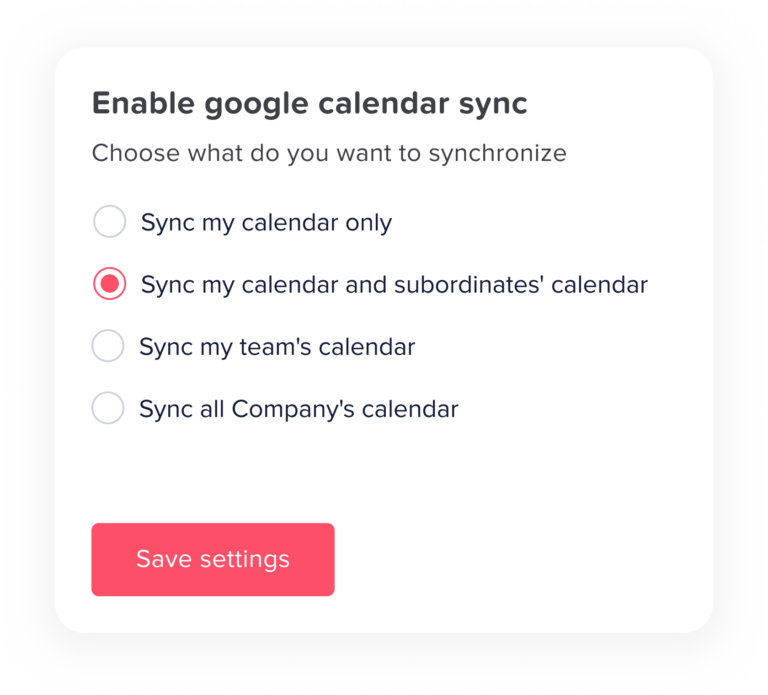
- Shared team calendars that provide a broader view of employee availability.
- Department-level visibility for organizations where teams operate independently.
- Manager-specific visibility so managers can see the people they are responsible for without exposing unnecessary information across the organization.
- Appropriate permissions that prevent employees from seeing leave information they shouldn’t have access to.
The best configuration isn’t necessarily the one that makes every leave request visible to everyone; it’s the one that makes the right availability information visible to the right people.
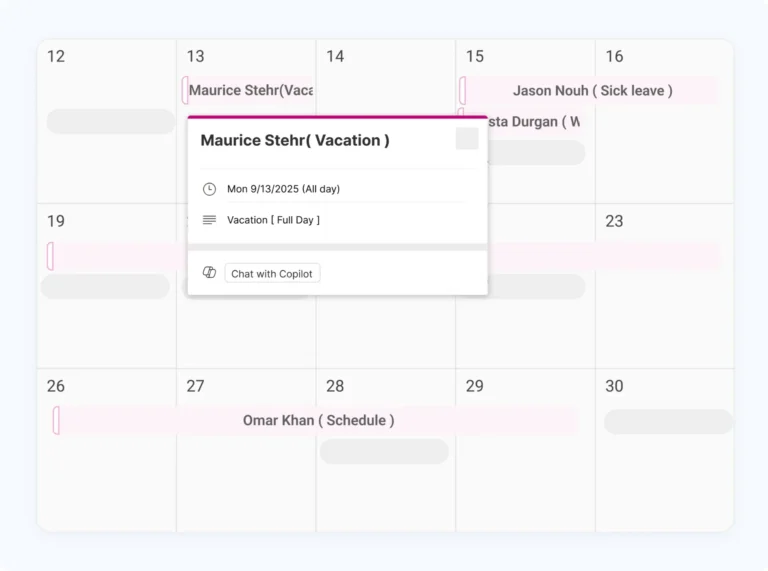
Privacy: how much information should appear on the calendar?
Calendar synchronization also introduces an important privacy consideration because a calendar event can potentially expose more information about an employee’s absence than the organization intends.
Depending on the system and configuration, an event might say “Vacation,” “Sick Leave,” “Personal Leave,” or another specific leave category.
That may be appropriate for some organizations, but others may prefer to display only a generic “Out of Office” event while keeping the underlying leave type visible only to authorized people inside the HR system.
Before enabling synchronization, decide exactly what information employees should see on shared calendars.
Ask:
- Should the event display the specific leave type or only “Out of office”?
- Who should be able to see the event?
- Should managers have more visibility than coworkers?
- Should people outside the employee’s department see the event?
- Should the system sync any notes or additional information?
- Does the calendar integration respect the organization’s existing permission structure?
A good approach is to treat the calendar as a visibility layer rather than a copy of the employee’s HR record.
The calendar needs to communicate availability, but it doesn’t necessarily need to expose every detail about why someone is away.
Google Calendar vs. Outlook: what actually differs?
The fundamental purpose of calendar synchronization is the same whether your organization uses Google Calendar or Microsoft Outlook: approved leave should become visible alongside the employee’s normal schedule.
However, the setup, permissions, authentication, and administration can vary depending on the platform and your organization’s environment.
Google Calendar and Google Workspace
Organizations using Google Workspace should understand how the leave management platform connects to Google and what permissions it requests.
Depending on the integration, the setup may involve OAuth authorization, administrator approval, or permission to create and manage events on specific calendars.
Before rollout, ask:
- Does the integration use Google’s supported calendar APIs?
- Does an administrator need to approve access?
- Which calendars can receive synchronized events?
- Can the integration work with shared calendars?
- What permissions does the integration request?
- Can an administrator revoke access if necessary?
The important point is that “Google Calendar integration” isn’t a complete technical description by itself. You want to know what the integration can access, where it can write events, and who controls that access.
Microsoft Outlook and Microsoft 365
Microsoft environments require similar questions, particularly because organizations can have different Exchange configurations.
If your organization uses Microsoft 365, determine whether the leave management platform uses Microsoft’s APIs and what permissions or administrator consent are required.
You should also confirm whether your organization is using Microsoft 365 / Exchange Online, a self-hosted Exchange environment, or a hybrid setup, because the available integration methods can differ significantly.
Before rollout, ask:
- Does the product support Microsoft 365 / Exchange Online?
- Does it use API-based synchronization?
- Does an administrator need to grant consent?
- What permissions does it request?
- Does the integration support shared calendars?
- Is an
.icsfeed being used instead of a deeper integration? - How quickly does it reflect changes?
These questions will give you a much clearer picture of what “Outlook integration” actually means in practice.
Don’t confuse an Outlook calendar feed with native synchronization
One of the easiest mistakes when comparing HR software is assuming that every product advertised as having “Outlook integration” works in exactly the same way.
Some platforms provide an .ics calendar feed that users subscribe to in their calendar application. This can be a perfectly reasonable solution for certain use cases, but it isn’t necessarily equivalent to an API-based integration that can create, update, and remove calendar events directly.
The difference becomes especially important when leave changes after approval.
With a basic feed, updates may depend on the calendar application refreshing the subscription, which can introduce delays. A more direct integration may be able to synchronize changes more immediately.
Therefore, when a vendor says:
“We integrate with Outlook.”
ask:
“What type of integration is it?”
Then find out whether it is an API-based Microsoft 365 integration, an .ics subscription, or another synchronization method, and ask how quickly additions, changes, and cancellations appear.
Time zones can create subtle but serious problems
Time zone handling is easy to overlook when testing a calendar integration in a single-office environment, but it becomes much more important for distributed companies with employees working across different countries or regions.
Imagine an employee working in London, a manager working in New York, and an organization headquartered in Singapore. If a full-day leave event is represented incorrectly, it could potentially appear to start or end on the wrong calendar date for someone viewing it from another time zone.
This is particularly important for:
- Remote and distributed teams.
- International organizations with employees in multiple countries.
- Employees who regularly travel between locations.
- Companies with teams working across several time zones.
- Shift-based organizations where the exact start and end time of an absence matters.
When testing an integration, don’t simply approve a standard vacation request and confirm that an event appears.
Create test accounts with different calendar time zones and verify that the leave remains on the correct dates, appears as a full-day event where appropriate, and doesn’t unexpectedly shift across midnight.
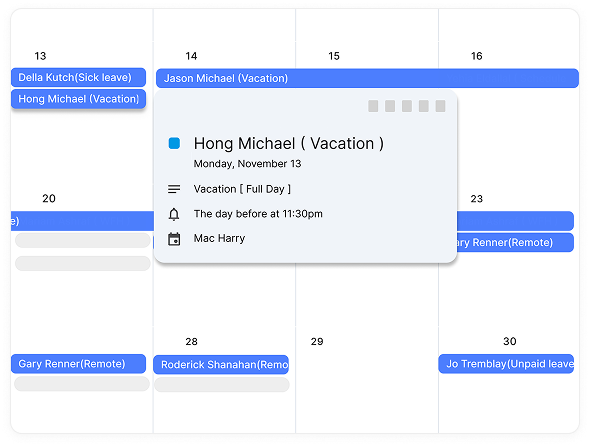
What about half-days and partial leave?
Full-day vacation is relatively straightforward, but real leave management often involves more complicated scenarios.
An employee might take Friday morning off while working Friday afternoon, or they might request only a few hours of leave during an otherwise normal working day.
If your organization supports partial-day leave, check how the calendar integration represents these requests.
For example, verify that:
- A morning half-day appears only during the appropriate part of the day.
- An afternoon half-day doesn’t incorrectly block the entire working day.
- The calendar shows hourly leave accurately if your policy supports it.
- Multi-day leave continues to display correctly.
- Leave spanning weekends behaves as expected.
- The integration handles public holidays correctly according to your organization’s leave policy.
These scenarios can reveal whether a calendar integration has been designed around real leave management requirements or whether it simply creates basic all-day calendar events.
What happens when a leave request is cancelled?
Cancellation is one of the most important tests you can perform because it tells you whether the integration is actually synchronized or simply creating one-time calendar events.
Consider a common scenario:
- An employee requests five days of vacation.
- Their manager approves the request.
- The five-day absence appears on the calendar.
- The employee later cancels the vacation because their plans changed.
- The employee now needs to work those days.
A reliable integration should recognize that the leave record has changed and update or remove the corresponding calendar event.
If the event remains on the calendar, the organization now has conflicting information: the HR system says the employee is available, while the calendar says they’re away.
That’s why cancellation should be part of every integration test, not an afterthought.
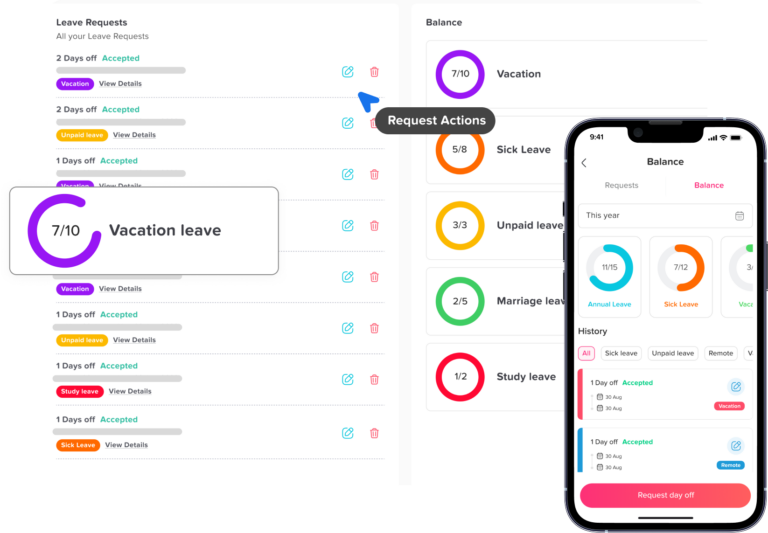
A practical calendar-sync checklist
Before choosing or rolling out a leave management platform, use the following checklist to evaluate whether its calendar integration is genuinely useful.
Calendar behavior
- Does approved leave synchronize automatically without requiring employees to export or manually add calendar events?
- Does the system update calendar events automatically when someone edits, shortens, extends, or moves an approved leave request?
- Does cancelling approved leave remove or update the corresponding calendar event?
- Does the integration prevent duplicate events when employees already have manually created calendar entries?
- Are full-day, half-day, and hourly absences represented accurately where applicable?
- Does synchronization continue to work correctly when someone changes a request after the original approval?
Visibility
- Does approved leave appear on the employee’s own calendar?
- Can managers get a practical view of team availability without opening individual leave records?
- Can the integration support shared team or department calendars where needed?
- Can you limit visibility according to existing organizational permissions?
- Can employees see the information they need without exposing unnecessary HR information to everyone else?
Privacy
- Can the event display a generic “Out of office” label instead of the specific leave type?
- Can administrators control how much information the system syncs?
- Do sensitive leave reasons stay inside the HR system?
- Does calendar visibility follow the organization’s privacy and access policies?
- Can different groups have different levels of visibility?
Google Workspace
- Does the integration use OAuth or supported Google Calendar APIs?
- Does administrator approval need to be granted before employees can use it?
- What permissions does the integration request?
- Can you sync events to shared calendars?
- Can administrators revoke or manage access centrally?
Microsoft 365
- Does the integration support Microsoft 365 / Exchange Online?
- Does it use API-based synchronization or an
.icssubscription? - Does Microsoft administrator consent need to be granted?
- What permissions does it require?
- Can the integration work with shared calendars?
- How quickly do changes and cancellations appear?
Reliability
- How quickly do newly approved requests appear?
- How quickly do edits and cancellations propagate?
- What happens if synchronization fails?
- Is there an error message, audit trail, or troubleshooting mechanism?
- Can administrators reconnect an expired or revoked calendar connection?
- What happens to synchronized events when an employee leaves the organization?
How to test a calendar integration before rolling it out
A product demonstration can show you that an integration works under ideal conditions, but a small real-world pilot will tell you much more about how dependable it will be after deployment.
You don’t need hundreds of employees to perform this test. A handful of representative accounts and several different leave scenarios can expose most of the problems you’re likely to encounter.
Test 1: Approve a normal full-day request
Create and approve a standard full-day leave request, then confirm that the expected calendar event appears automatically without any manual action.
Test 2: Change the approved dates
Modify the approved leave request and confirm that the system updates the original calendar event rather than leaving the old event in place or creating a duplicate.
Test 3: Cancel the request
Cancel an already synchronized leave request and verify that the calendar no longer shows the employee as unavailable.
Test 4: Test partial-day leave
Create a morning or afternoon leave request and make sure the calendar accurately reflects the portion of the day that the employee is unavailable.
Test 5: Test different time zones
Use accounts configured for different time zones and confirm that full-day and partial-day leave remains on the correct dates and times.
Test 6: Test shared-calendar visibility
If managers rely on shared team calendars, confirm that approved leave appears where expected and that employees without the appropriate permissions cannot see unnecessary information.
Test 7: Test privacy
View the synchronized event from different user accounts and make sure the information displayed matches your organization’s privacy policy.
Test 8: Test employee lifecycle changes
If possible, test what happens when a user is deactivated, leaves the organization, changes teams, or has their calendar permissions changed.
Teams often overlook this final test, but it becomes important in organizations with frequent employee changes.
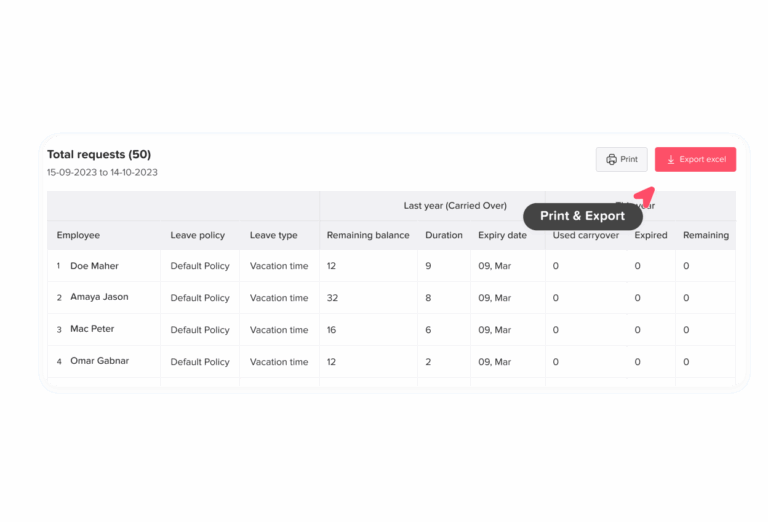
What HR and IT should agree on before enabling calendar sync
Calendar synchronization sits at the intersection of HR operations and IT administration, so it is worth deciding on the configuration together instead of treating it as a purely technical integration.
HR typically owns questions about leave policies, employee privacy, approval workflows, and which information should be visible, while IT usually handles authentication, application permissions, administrator consent, security controls, and account access.
Before enabling synchronization across the organization, both teams should agree on:
| Question | HR | IT |
|---|---|---|
| Which leave types should synchronize? | ✓Yes | —No |
| What should calendar events display? | ✓Yes | —No |
| Who should be able to see leave? | ✓Yes | ✓Yes |
| Which calendars should be used? | ✓Yes | ✓Yes |
| What permissions are required? | —No | ✓Yes |
| Is administrator approval required? | —No | ✓Yes |
| Does the integration meet security requirements? | —No | ✓Yes |
| Has the workflow been tested? | ✓Yes | ✓Yes |
| How will employees be informed? | ✓Yes | ✓Yes |
This collaborative approach helps prevent a common problem where IT successfully enables the integration from a technical perspective, only for HR to discover afterward that the resulting calendar visibility doesn’t match the organization’s privacy expectations.
Common mistakes to avoid
Choosing a product because it has a calendar logo
A Google Calendar or Outlook logo on a software integrations page tells you very little about the quality of the synchronization.
Instead of asking whether an integration exists, ask exactly what it synchronizes, where events appear, how quickly changes are reflected, and whether cancellations are handled automatically.
Assuming personal-calendar sync equals team visibility
An employee can have their own leave perfectly synchronized to their calendar while their manager still has no convenient way to see overall team availability.
If coverage planning is one of your main goals, evaluate shared-calendar and team-visibility capabilities separately.
Testing only the initial approval
It’s easy for a vendor to demonstrate a new approved leave event appearing on a calendar.
The more important tests are what happens when that request is changed, shortened, extended, or cancelled, because those are the situations that determine whether your calendars remain accurate over time.
Exposing more information than necessary
Calendar visibility should help people understand availability without unnecessarily exposing sensitive employee information.
Before rollout, decide whether the organization needs to show specific leave types or whether a generic “Out of office” event provides enough information.
Ignoring time zones
A synchronization workflow that works perfectly when everyone is in one office may behave differently when employees and managers are distributed across several countries.
If your organization is remote or international, include different time zones in your testing rather than assuming the default configuration will be sufficient.
Treating .ics feeds and API integrations as identical
Both approaches can provide useful calendar functionality, but they don’t necessarily behave in the same way.
An .ics subscription may have different refresh behavior and update timing than an API-based integration, so make sure you understand the underlying technology before comparing two products.
Making employees maintain the same information twice
The whole purpose of calendar synchronization is to reduce duplicate work.
If employees still have to manually create, modify, and delete calendar events every time their leave changes, the integration isn’t delivering the full benefit of automation.
How Day Off handles calendar synchronization
Day Off connects leave management with the calendar tools employees already use, helping organizations make approved time off visible without requiring employees to maintain duplicate records across multiple systems.
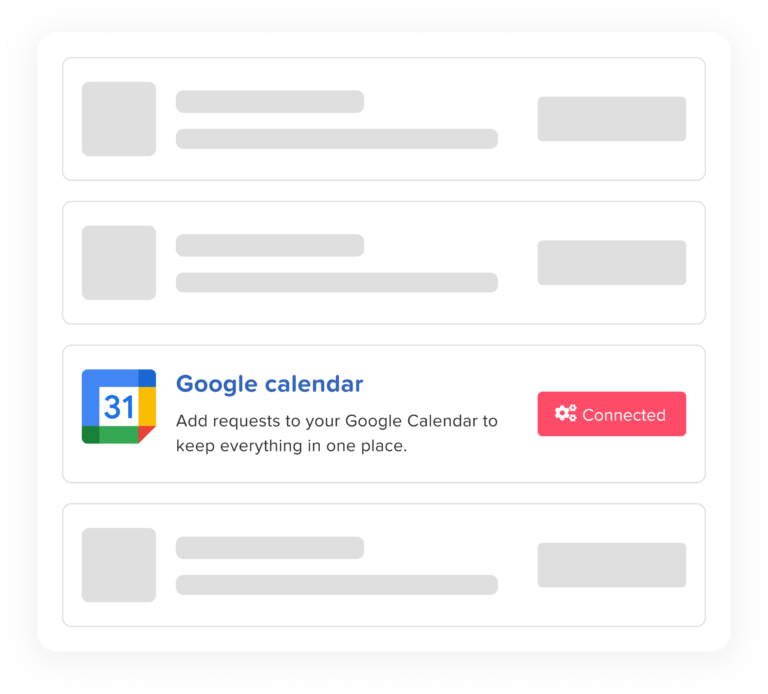
You can sync approved leave with Google Calendar and Microsoft Outlook/365, allowing employees and managers to see time off alongside their normal schedules and use that information when planning meetings, projects, and team coverage.
Key capabilities include:
Automatic synchronization after approval: Once a leave request is approved, the corresponding time off can be reflected on the connected calendar without requiring the employee to manually download an
.icsfile or create a second calendar event.Better visibility for planning: Teams can use calendar information alongside their existing scheduling workflow, making it easier for managers and coworkers to understand who will be unavailable without relying exclusively on the HR system.
Updates when leave changes: When an approved request is modified or cancelled, the synchronized calendar information is updated accordingly, helping prevent outdated leave events from remaining on employee schedules.
Support for Google Calendar and Microsoft Outlook/365: Organizations using Google or Microsoft calendar environments can connect their leave management workflow without having to replace the calendar platform their employees already use.
The important distinction is that the calendar doesn’t replace leave management itself. The leave system remains responsible for requests, approvals, balances, and policies, while calendar synchronization makes the resulting availability information accessible in the scheduling environment employees already use every day.
Is calendar sync enough for leave management?
No. Calendar synchronization solves an important visibility problem, but it doesn’t replace the broader functionality required to manage employee leave properly.
A complete leave management system may need to handle employee leave balances, accrual rules, approval workflows, public holidays, different policies by country or department, carryover rules, multiple leave types, reporting, employee self-service, and manager approvals.
The calendar should therefore be viewed as a visibility layer rather than the system of record for leave.
For example, an employee manually creating a “Vacation” event in Google Calendar shouldn’t automatically mean that they are officially approved to take vacation. The leave management system needs to remain the place where the request is submitted, evaluated against company policy, approved, and recorded.
Once the manager makes that official decision, calendar synchronization simply communicates the resulting availability to the people who need it.
This separation creates a much cleaner workflow:
Leave system: determines and records approved leave.
Calendar: communicates when the employee is unavailable.
That distinction becomes particularly important as organizations grow and need consistent policies, reliable reporting, and a clear record of employee absences.
Questions to ask a vendor before buying
If you’re evaluating leave management platforms, don’t settle for a simple “Yes, we integrate with Google Calendar and Outlook.”
Ask the vendor questions that reveal how the integration behaves in everyday use:
- Does approved leave synchronize automatically, or does the employee have to manually add an event?
- Does the integration use a native/API connection or an
.icscalendar feed? - How quickly do newly approved requests appear on calendars?
- What happens when someone edits an approved leave request or its dates change?
- What happens when someone cancels a previously approved request?
- Does the integration support half-day and partial-day leave?
- Can managers and teams see leave through shared calendars?
- Can administrators control who can see leave events?
- Can the calendar display a generic “Out of office” event instead of the specific leave type?
- What Google Workspace or Microsoft 365 permissions does the integration require?
- Does IT need to approve or authorize the integration?
- How does the system handle calendar connections when employees leave the organization?
- What happens when synchronization fails or permissions expire?
- Can administrators troubleshoot and reconnect calendar integrations?
- How does the system handle employees working in different time zones?
- Can the integration prevent duplicate calendar events?
- Can the organization test the integration with a small group before enabling it for everyone?
A vendor that can answer these questions clearly is giving you substantially more useful information than one that simply lists Google Calendar and Outlook under an integrations section.
FAQ
What is leave calendar synchronization?
Leave calendar synchronization automatically adds approved employee time off to a calendar such as Google Calendar or Microsoft Outlook. Instead of requiring employees or managers to manually create calendar events, the leave management system keeps calendar availability aligned with approved leave.
This makes it easier for employees, managers, and coworkers to see when someone is unavailable without having to open a separate HR or leave management application.
Why should I sync leave requests with Google Calendar or Outlook?
Syncing leave with your calendar helps prevent scheduling conflicts by making approved time off visible where people already plan meetings and manage their availability.
It can also reduce administrative work, improve team coverage planning, and prevent employees from having to enter the same leave information manually in both their HR system and calendar.
Does calendar sync happen automatically when leave is approved?
A good leave management integration should synchronize approved leave automatically, without requiring the employee to download an .ics file or manually create a second calendar event.
When comparing providers, check whether synchronization happens immediately after approval and whether the same automation applies when a request is subsequently changed or cancelled.
What happens when an approved leave request is changed?
A reliable integration should update the corresponding calendar event when the dates or duration of approved leave change.
For example, if an employee originally books five days of vacation but later shortens the request to three days, the calendar should reflect the new dates rather than continuing to show the employee as unavailable for the original period.
What happens if an employee cancels their leave?
When an employee cancels approved leave, the system should remove or update the associated calendar event automatically so that coworkers don’t continue to see an outdated absence.
This is an important feature to test before choosing a leave management platform because stale calendar events can create just as much confusion as missing leave information.
Can leave appear on a shared team calendar?
That depends on the leave management platform and the calendar configuration your organization uses.
If managers need a quick overview of team availability, look for a solution that supports team or shared-calendar visibility rather than only adding leave to each employee’s personal calendar.
Will everyone be able to see why an employee is off?
Not necessarily, and organizations should decide this before enabling calendar synchronization.
Depending on the system’s privacy controls, a calendar event may show a specific leave type such as “Vacation” or use a more general label such as “Out of office.” For sensitive leave categories, a generic calendar event can provide the necessary availability information without exposing unnecessary personal details.
Can I hide the type of leave from the calendar?
Many leave management systems allow organizations to control what information appears in synchronized calendar events, although the exact options vary by provider.
If privacy is important to your organization, confirm that you can display a generic “Out of office” event while keeping the detailed leave type inside the HR system.
Does leave sync to an employee’s personal calendar or a team calendar?
It can depend on the integration and configuration.
Some setups focus primarily on the employee’s own calendar, while others can also provide team-level or shared-calendar visibility. If your main goal is coverage planning, don’t assume that personal calendar synchronization automatically gives managers a useful view of the entire team.
Is Google Calendar integration the same as Outlook integration?
The goal is similar, but the technical implementation can be different.
Google Workspace integrations may use Google’s calendar APIs and OAuth authorization, while Microsoft environments may use Microsoft 365 APIs or, depending on the product, an .ics calendar feed.
When comparing platforms, ask exactly how each integration works, what permissions it requires, and how quickly changes and cancellations are synchronized.
What’s the difference between an .ics feed and a calendar integration?
An .ics feed allows a calendar application to subscribe to calendar information provided by another system, while a deeper API-based integration can provide more direct synchronization between the leave management platform and the calendar service.
An .ics feed may be sufficient for some organizations, but refresh timing and update behavior can differ. If real-time or near-real-time changes are important, ask the vendor how quickly edits and cancellations appear in Google Calendar or Outlook.
Does calendar sync support half-days and partial-day leave?
This depends on the leave management platform.
If your organization uses half-day or hourly leave, confirm that the integration represents partial absences accurately rather than simply blocking the employee’s entire day.
It’s worth testing morning leave, afternoon leave, and hourly leave during the evaluation process if those options are part of your company’s policies.
How does calendar sync handle different time zones?
A well-designed integration should preserve the correct leave dates and times for employees working in different time zones, but the exact behavior can vary between platforms.
International and distributed teams should test calendar synchronization using accounts configured for different time zones, paying particular attention to full-day events and leave that starts or ends near midnight.
Can employees manually edit a synchronized leave event?
This depends on the calendar integration and its configuration.
Because the leave management system is generally the official source of truth, organizations should understand what happens if someone manually changes or deletes a synchronized event. Ideally, the behavior should be clear and predictable so that a calendar edit doesn’t create confusion about whether the underlying leave has actually been approved or cancelled.
Does calendar synchronization replace a leave management system?
No. Calendar synchronization is primarily about visibility and scheduling, while a leave management system handles the underlying leave process.
A dedicated leave platform can manage requests, approvals, balances, accruals, public holidays, company policies, reporting, and other HR workflows. The calendar simply makes approved availability visible alongside the employee’s normal schedule.
Is two-way calendar sync better than one-way sync?
Not necessarily.
For most organizations, one-way synchronization from the leave management system to the calendar is enough to make approved time off visible while keeping the HR system as the source of truth.
Two-way synchronization can be useful for specific workflows, but calendar events don’t always represent official leave. An employee might have a personal appointment or another calendar event without actually being absent from work, so automatically treating every calendar event as a leave record can introduce unnecessary complexity.
What should I test before rolling out calendar synchronization?
At minimum, test an approved full-day leave request, a changed request, a cancelled request, and any partial-day leave scenarios your organization uses.
You should also verify shared-calendar visibility, privacy settings, different time zones, duplicate-event behavior, and what happens when calendar permissions or employee accounts change.
Does Day Off support Google Calendar and Outlook?
Yes. Day Off supports Google Calendar and Microsoft Outlook/365 synchronization, so approved leave shows up in the calendar tools teams already use for scheduling and availability.
This means employees and managers can keep using their existing calendar workflow while leave requests and approvals remain managed through the leave management system.
What should I look for when choosing a leave management tool with calendar sync?
Don’t choose a platform based solely on whether it lists Google Calendar or Outlook as a supported integration. Look for automatic synchronization, reliable updates and cancellations, appropriate privacy controls, team visibility, support for partial-day leave if needed, sensible time-zone handling, and a clear authentication and permissions model.
The best integration is one that keeps the calendar accurate without creating another manual task for employees or HR administrators.
Conclusion
If you’re evaluating a tool to sync leave requests to calendar, don’t stop at whether it supports Google Calendar or Outlook. The quality of the integration matters just as much as the integration itself. Approved leave should appear automatically, stay accurate when dates change, disappear when leave is cancelled, and provide the right level of visibility without exposing unnecessary employee information.
For teams using Google Workspace or Microsoft 365, reliable calendar synchronization can make leave planning much easier by bringing approved time off into the same workflow employees already use to schedule meetings and manage availability. The right leave management software should reduce duplicate work, improve team visibility, and keep your calendar aligned with your official leave records.