







Clocking in tells you when an employee started working and how long they worked, but it does not always show what they actually worked on during those hours. An employee might clock in at 9:00 AM and clock out at 5:00 PM, yet spend that time across different activities, such as developing a new feature, fixing customer issues, attending meetings, and testing a project. Task time tracking adds this missing level of detail by showing how employees divide their working hours across specific projects and tasks, giving businesses a clearer understanding of where time is actually being spent.

That is where task time tracking becomes useful.
Instead of recording only the beginning and end of the working day, employees track time against specific projects and tasks. Managers can then understand where working hours are going, compare estimated and actual task time, review project progress, and identify work that is consuming more time than expected.
This guide explains how to track time against tasks, when task-level time tracking makes sense, what businesses should measure, and how Day Off Time Tracker can connect attendance, projects, tasks, and employee time in one system.
What Is Task Time Tracking?
Task time tracking is the process of recording how much working time an employee spends on a specific task or activity.
Instead of creating a single record such as: 9:00 AM to 5:00 PM: 8 hours worked
a task-based record could look like this:
| Time | Project | Task | Duration |
|---|---|---|---|
| 9:00 AM – 11:30 AM | Website Redesign | Homepage Development | 2.5 hours |
| 11:30 AM – 12:30 PM | Internal | Team Meeting | 1 hour |
| 1:30 PM – 3:00 PM | Website Redesign | Mobile Testing | 1.5 hours |
| 3:00 PM – 5:00 PM | Client Support | Support Tickets | 2 hours |
The employee still worked seven productive hours after the lunch break, but the company now knows how those seven hours were distributed.
This information can be useful for:
- Project planning
- Client billing
- Workload management
- Task estimation
- Employee utilization analysis
- Project profitability
- Resource allocation
- Timesheet reporting
- Identifying tasks that regularly exceed estimates
Task tracking therefore answers a different question from attendance tracking.
Attendance tracking asks: How long was the employee at work?
Task tracking asks: What did the employee spend that working time doing?
Clock-In Tracking vs Task Time Tracking
Clock-in systems and task trackers are not necessarily competing systems. Many businesses benefit from using both.
| Feature | Clock In / Clock Out | Task Time Tracking |
|---|---|---|
| Records start of workday | Yes | Can |
| Records end of workday | Yes | Can |
| Calculates total working hours | Yes | Yes |
| Identifies specific work performed | No | Yes |
| Tracks time by project | No | Yes |
| Tracks time by task | No | Yes |
| Helps compare estimates with actual time | Limited | Yes |
| Useful for project reporting | Limited | Yes |
| Helps with client billing | Limited | Yes |
| Provides attendance visibility | Yes | Can complement attendance |
For companies mainly concerned with attendance, a simple clock-in and clock-out system may be enough.
For companies where employees work across projects, clients, tickets, assignments, or deliverables, task-level time tracking provides significantly more operational detail.
Related reading: How to Track Time Across Multiple Projects Without Slowing People Down
Is Task Tracking a Replacement for Employee Attendance Records?
Not always.
Businesses should distinguish between tracking hours worked for payroll or legal purposes and categorizing those hours by task or project.
In the United States, for example, employers covered by the Fair Labor Standards Act must maintain certain records for covered nonexempt employees, including hours worked each day and total hours worked each workweek. The Department of Labor does not require one particular timekeeping method. Employers may use a time clock, a timekeeper, employee-entered records, or another system, provided the information is complete and accurate.
Task tracking can add useful detail to those records, but businesses should ensure their setup still captures all working time that needs to be recorded.
Requirements vary by country, state, employee classification, and industry, so companies should review the rules that apply to their workforce.
Why Track Time Against Tasks?
The biggest advantage is simple: total working hours alone do not explain where the time went.
Imagine two employees both work eight hours.
Employee A completes three planned tasks within their estimates.
Employee B spends the entire day on one task originally estimated to require three hours.
A standard clock-in report shows:
| Employee | Hours Worked |
|---|---|
| Employee A | 8 |
| Employee B | 8 |
Nothing looks unusual.
Task-level reporting might reveal:
| Employee | Task | Estimated | Actual |
|---|---|---|---|
| Employee A | Task A | 3h | 2.5h |
| Employee A | Task B | 2h | 2h |
| Employee A | Task C | 3h | 3.5h |
| Employee B | Task D | 3h | 8h |
Now the manager has something useful to investigate.
That does not automatically mean Employee B was inefficient. The original estimate may have been unrealistic. Requirements could have changed. The employee may have encountered technical issues or dependencies.
Good task tracking provides information for better questions. It should not automatically be treated as an employee surveillance system.
Create Projects Before Tracking Tasks
A useful task-tracking system starts with clear project organization.
A project represents the broader piece of work being completed.
Examples include:
- Website Redesign
- Mobile Application
- Customer Onboarding
- Q4 Marketing Campaign
- Internal HR Portal
- Client ABC Support
- Product Launch
Tasks then sit underneath those projects.
For example:
Project: Website Redesign
Tasks:
- Homepage design
- Front-end development
- Mobile responsiveness
- Contact form development
- Browser testing
- Content migration
This hierarchy makes reports much easier to understand than allowing employees to enter completely unstructured descriptions every day.
Keep project names consistent
Avoid creating duplicate projects such as:
- Website Redesign
- Website Redesign 2026
- Website Project
- New Website
- Client Website
when all five refer to the same work.
Consistent project naming improves reporting accuracy and makes it easier for employees to select the correct project when starting their timer.
Break Projects Into Meaningful Tasks
Tasks should be detailed enough to explain where time was spent without becoming unnecessarily complicated.
A task called Work is too broad.
A task called Change padding on the third button in the mobile footer may be too narrow for normal time reporting.
A better level of detail might be:
- Homepage development
- Mobile UI testing
- Customer onboarding call
- Monthly financial report
- Product documentation
- Bug fixes
- Content review
The right level of detail depends on what management wants to learn from the data.
A useful test
Ask:
Would knowing the total hours spent on this task help us make a future decision?
If the answer is yes, the task is probably worth tracking separately.
Assign Tasks to the Right Employees
Employees should generally see the tasks relevant to their work.
If every employee must search through hundreds of unrelated tasks every time they start working, time tracking becomes frustrating and mistakes become more likely.
Assigning tasks provides structure.
For example:
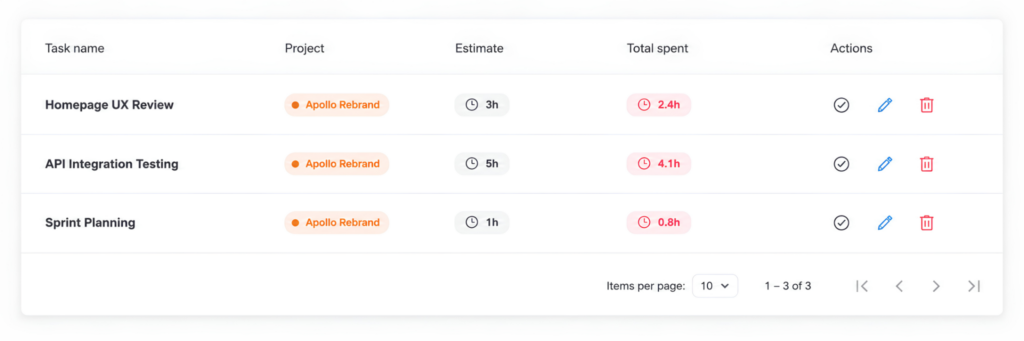
| Task | Assignee | Estimated Time |
|---|---|---|
| Homepage UI | Designer | 8h |
| Front-end Implementation | Developer | 16h |
| Cross-Browser Testing | QA Engineer | 6h |
| SEO Review | Marketing Specialist | 3h |
Assignments also make it easier to compare workload and project expectations.
Add Estimated Time Where It Is Useful
An estimate tells the team how long a task is expected to take.
Suppose a task is estimated at six hours.
When the task is completed, actual tracked time is eight hours.
The variance is:
Actual Time – Estimated Time = Variance
So:
8 hours – 6 hours = 2 hours over estimate
You can also express the difference as a percentage:
(Actual Time – Estimated Time) ÷ Estimated Time × 100
In this example:
(8 – 6) ÷ 6 × 100 = 33.3%
The task took approximately 33% longer than estimated.
One task exceeding its estimate does not necessarily indicate a problem. Repeated differences across similar tasks, however, can help managers improve future estimates.
Start the Timer When the Task Starts
Task tracking is usually most accurate when employees record time while the work is happening instead of reconstructing the entire day from memory.
A simple workflow is:
- Start working.
- Select the relevant project.
- Select the task.
- Start the timer.
- Stop the timer when the task ends or the employee moves to another activity.
- Select the next task and continue.
For example:
9:00 AM: Start “Homepage Development”
11:15 AM: Stop Homepage Development
11:15 AM: Start “Project Meeting”
12:00 PM: Stop Project Meeting
1:00 PM: Start “Homepage Development” again
The final report can combine the separate entries to show the total time spent on each task.
Switch Tasks When the Work Changes
One of the most common task-tracking problems occurs when an employee leaves the same timer running all day.
Suppose an employee starts:
Project: Client Website
Task: Development
at 9:00 AM.
During the day, however, they spend:
- 4 hours developing
- 1 hour in a company meeting
- 1 hour helping another project
- 2 hours testing
If the original timer runs for all eight hours, the report incorrectly shows eight hours of development.
Employees should stop the current task and start a new one when there is a meaningful change in the work being performed.
Not every two-minute interruption needs its own time entry. The goal is useful accuracy, not excessive administrative work.
Add Descriptions When Extra Context Is Needed
A project and task may provide enough information in many cases.
Sometimes a short description makes the record more useful.
For example:
Project: Website Redesign
Task: Bug Fixing
Description: Fixed checkout validation issue
This provides more context than simply recording “Bug Fixing” for three hours.
Descriptions can be particularly helpful for:
- Client work
- Support tasks
- Development work
- Consulting
- Maintenance
- Research
- Design revisions
- Customer requests
However, companies should define how much detail employees are expected to provide. Requiring long descriptions for every time entry can make the system unnecessarily difficult to use.
Separate Billable and Non-Billable Time
Companies that bill clients for work should consider identifying whether tracked time is billable or non-billable.
Billable time
Time that can normally be charged to a customer or client.
Examples:
- Client development
- Consulting sessions
- Design work
- Client-specific research
- Implementation
- Customer training
Non-billable time
Working time that supports the business but is not directly invoiced to a client.
Examples:
- Internal meetings
- Employee training
- Administrative tasks
- Company planning
- Internal documentation
Tracking both categories gives managers a better picture of how employee capacity is being used.
For example:
| Type | Hours |
|---|---|
| Billable | 26 |
| Non-billable | 12 |
| Total tracked | 38 |
This information can support utilization and project profitability analysis.
Compare Estimated Time With Actual Time
One of the most useful benefits of task tracking is the ability to improve future planning.
Suppose a development team estimates five similar tasks:
| Task | Estimated | Actual |
|---|---|---|
| Task 1 | 4h | 5h |
| Task 2 | 4h | 5.5h |
| Task 3 | 4h | 5h |
| Task 4 | 4h | 6h |
| Task 5 | 4h | 5.5h |
The original estimate was consistently four hours, but actual completion time averaged:
(5 + 5.5 + 5 + 6 + 5.5) ÷ 5 = 5.4 hours
Future tasks of the same type may therefore need an estimate closer to five or six hours.
Without task-level time data, the team may continue making the same unrealistic four-hour estimate.
Review Task Time Without Turning It Into Micromanagement
Time-tracking data should provide operational visibility, not encourage managers to judge employees based on every minute of the day.
There are many legitimate reasons a task may take longer than expected:
- Requirements changed
- The task was incorrectly estimated
- Another employee needed help
- Technical problems occurred
- A client requested revisions
- Research was required
- The task was more complex than expected
- Dependencies caused delays
Managers should look for patterns and context, not assume that longer task duration automatically means poor performance.
Useful questions include:
- Are certain tasks consistently underestimated?
- Which projects consume the most employee time?
- Is one team carrying an unusually large workload?
- Are employees switching between too many projects?
- Which clients require more support than expected?
- How much project time is billable?
- Are recurring tasks becoming faster or slower?
- Do actual project hours match planned capacity?
These questions turn time tracking into a planning tool rather than simply a monitoring tool.
How Day Off Helps Track Time Against Projects and Tasks
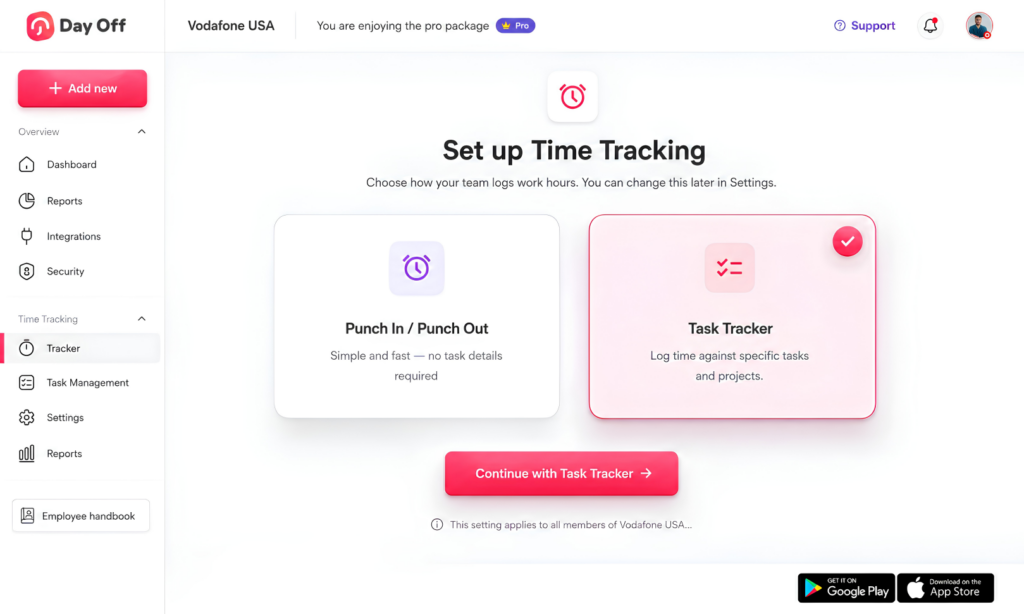
Day Off gives companies the choice between simple attendance tracking and more detailed task-based tracking.
Admins can choose between Clock In / Clock Out and Task Tracker, depending on how much detail the company needs from its employee time records.
Clock In / Clock Out
This method is useful when the company mainly wants to know when employees begin and finish their working day.
Employees use Start Time when work begins and End Day when the working day finishes.
Task Tracker
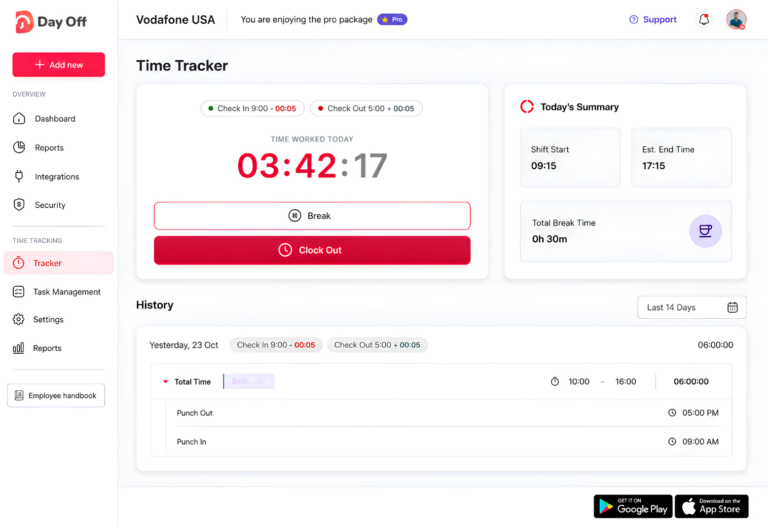
For companies that need project-level visibility, employees can start their working time and then select the project and assigned task they are working on.
When the employee changes work, they can stop the current task and begin tracking the next project or task.
This provides considerably more information than a basic attendance record.
Create and Assign Tasks in Day Off
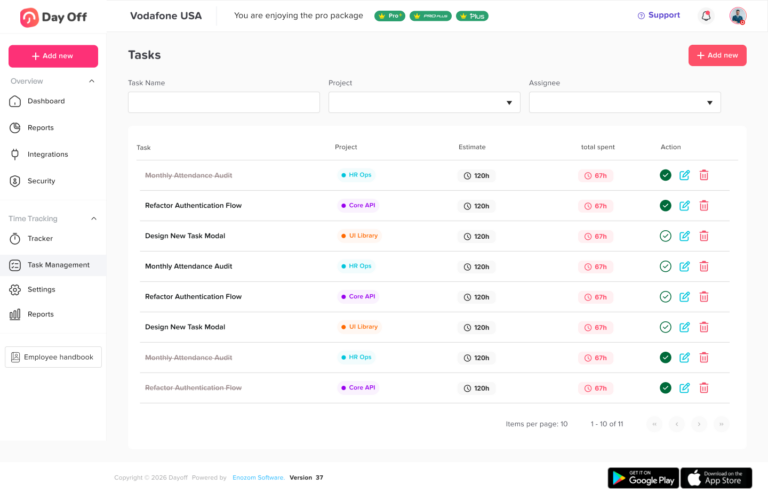
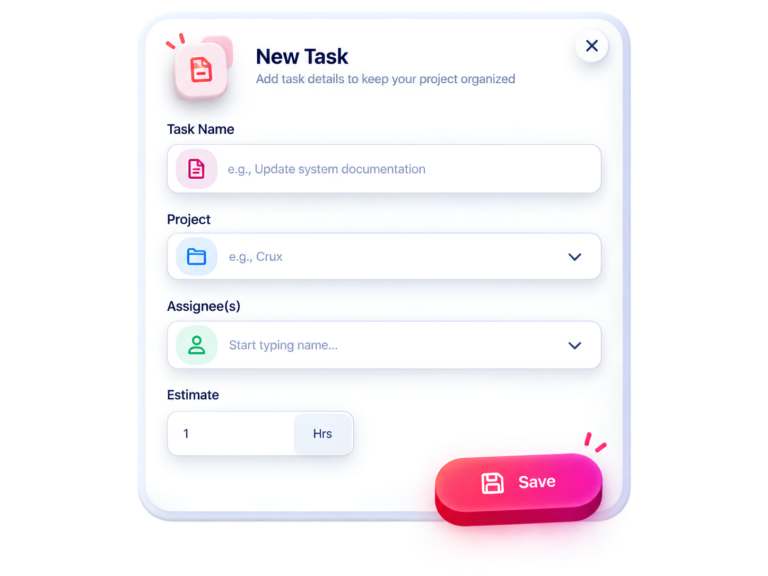
Admins can create tasks through Day Off’s Task Management area.
A task can include information such as:
- Task name
- Assignee
- Estimated time
Once assigned, the task becomes available to the relevant employee when they start tracking their work.
This keeps task selection organized rather than requiring employees to create random task names every day.
Track Projects, Clients, Estimates, and Actual Time
Day Off’s Projects functionality adds another layer of organization.
Projects can be created and associated with clients, while estimated project time can be compared with the total time employees actually log. Projects can also be marked as billable where appropriate.
That creates a structure such as:
Client → Project → Task → Employee Time
For example:
Client: Northstar Ltd.
Project: Mobile App
Task: Checkout Testing
Employee: QA Engineer
Estimated: 5 hours
Actual tracked: 6.25 hours
Managers now have information they can use for both project review and future planning.
Use a Live Timer Instead of Rebuilding the Day Later
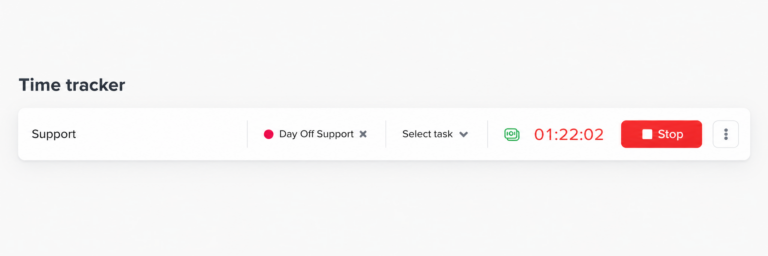
Day Off’s Time Tracker includes a live start/stop timer. Sessions can be associated with projects and tasks, and completed entries are saved with start time, end time, total duration, and other relevant details.
This makes it easier for employees to record work while it happens rather than trying to remember at the end of the week whether a task took two hours, three hours, or four hours.
If a timer was stopped too early or left running too long, Day Off also allows start and end times to be adjusted in the history log.
Review Time Tracking Reports
Tracking time only becomes valuable when businesses can use the information.
Day Off reporting can help admins review time by criteria including employees, clients, projects, tasks, teams, locations, and descriptions.
Instead of only asking:
“How many hours did everyone work?”
management can begin asking:
“How many hours did the team spend on Project A?”
“How much time did this client require?”
“Which task consumed the most time?”
“How much time did one team spend on a particular project?”
That is the main difference between simple clock-in data and useful project time data.
Example: Clocking In vs Tracking Tasks
Consider an employee who works from 9:00 AM to 5:00 PM with a one-hour lunch break.
Basic clock-in record
| Clock In | Clock Out | Working Time |
|---|---|---|
| 9:00 AM | 5:00 PM | 7 hours |
The company knows the employee worked seven hours.
But it knows nothing about what happened during those hours.
Task-based record
| Project | Task | Hours |
|---|---|---|
| Client Website | Development | 3.0 |
| Client Website | Testing | 1.5 |
| Internal | Team Meeting | 1.0 |
| Customer Support | Support Requests | 1.5 |
| Total | 7.0 |
Both records show seven working hours.
The second record, however, provides far more information for project planning, resource allocation, client reporting, and future estimates.
When Should a Company Use Task Time Tracking?
Task-level tracking is particularly useful when employees regularly divide their day between different pieces of work.
Examples include:
Software development teams
Developers can track time against features, bugs, testing, code reviews, and different products.
Marketing agencies
Employees can separate hours by client, campaign, content task, advertising account, or design project.
Consulting companies
Consultants can associate working hours with specific clients and engagements.
Design teams
Designers can track research, concepts, revisions, production, and client-specific projects.
Customer service teams
Teams may track implementation, onboarding, support, documentation, or different customer accounts.
Professional services
Businesses can separate billable client work from internal and administrative work.
Internal project teams
Even when companies do not bill by the hour, task tracking can show how much employee capacity different internal projects consume.
When Is Simple Clock-In Tracking Enough?
Not every company needs detailed task tracking.
Simple clock-in and clock-out tracking may be sufficient if:
- Employees generally perform the same type of work throughout the day
- The business primarily needs attendance records
- Project profitability is not being measured
- Employees do not regularly switch between clients or projects
- Task-level reporting would not influence management decisions
For example, if a business mainly needs to know whether employees arrived on time, completed their scheduled hours, and worked overtime, detailed project timers may add unnecessary complexity.
The tracking method should match the information the company genuinely needs.
Common Task Time Tracking Mistakes
Creating too many tasks
If employees must choose from hundreds of tiny tasks, they may stop tracking accurately.
Keep categories meaningful.
Creating tasks that are too broad
Tasks such as “Work” or “Daily Tasks” provide very little reporting value.
Forgetting to switch timers
Employees should change the active task when their work meaningfully changes.
Reconstructing timesheets days later
The longer employees wait to record time, the harder it becomes to remember exactly where the hours went.
Treating estimates as deadlines
An estimate is a planning assumption. Actual tracked time should help improve that assumption rather than automatically being used to judge an employee.
Tracking only billable work
Non-billable tasks still consume employee capacity. Ignoring them can make utilization and workload reports misleading.
Tracking tasks without projects
Individual task names become harder to analyze as the organization grows. A project and task hierarchy keeps reports organized.
Best Practices for Task-Based Time Tracking
A practical task tracking policy should be easy for employees to follow.
Consider these guidelines:
- Define clear projects.
- Create meaningful tasks within each project.
- Assign tasks to the employees responsible for them.
- Add estimates where estimates provide useful planning information.
- Ask employees to start tracking when work begins.
- Switch tasks when the type of work changes significantly.
- Use short descriptions only when extra context is necessary.
- Record internal work as well as client work.
- Review estimated versus actual hours regularly.
- Correct inaccurate entries rather than leaving known errors in reports.
- Keep the process simple enough that employees will actually use it consistently.
- Use time data to improve planning, not just to monitor individual employees.
Frequently Asked Questions About Tracking Time Against Tasks
How do you track time spent on tasks?
The simplest way is to start a timer when you begin a task and stop it when you finish or move to something else. Ideally, the time entry should be connected to a project and a specific task so the hours can be organized and reported later.
For example, instead of recording seven hours simply as “worked,” an employee might record:
- 2.5 hours on Website Development
- 1.5 hours on Testing
- 1 hour on a client meeting
- 2 hours on Customer Support
With Day Off Task Tracker, employees can start their working time, select an assigned project and task, and record how long they spend on that work. This gives managers both total working-time information and more detail about where those hours went.
What is the difference between tracking time by project and tracking time by task?
Project time tracking records time against a larger piece of work, while task time tracking breaks that project into individual activities.
For example:
Project: Website Redesign
Total time: 30 hours
Task-level tracking could show:
- Homepage Development: 12 hours
- Mobile Optimization: 7 hours
- Testing: 6 hours
- Client Revisions: 5 hours
Project-level tracking may be enough when managers only need to understand the overall cost or effort of a project. Task-level tracking is more useful when the business wants to understand which parts of the project consume the most time or compare individual task estimates with actual hours.
How detailed should employee time tracking be?
Time tracking should be detailed enough to answer useful business questions without making employees record every small action they take.
For many businesses, project and major-task level tracking provides a good balance. For example, “Homepage Development” is usually more useful than simply entering “Work,” but tracking every small design adjustment as a separate task would probably create unnecessary work.
A good test is to ask:
Will we actually use this level of detail in reporting, billing, estimating, or planning?
If the answer is no, the task probably does not need its own time category.
Should employees track every task they work on?
Not necessarily.
Employees should generally track the tasks that matter for project reporting, workload analysis, client billing, resource planning, or future estimates.
Trying to record every email, short conversation, or two-minute interruption can make time tracking frustrating and may actually reduce the quality of the data.
Instead, companies can create meaningful categories such as:
- Development
- Testing
- Client Support
- Research
- Design
- Meetings
- Administration
- Training
The purpose is to understand how working time is being used, not to create a record of every minute.
How do you track time when working on multiple projects?
Employees should create separate time entries for each project rather than recording the entire day under one project.
For example:
9:00 AM – 11:00 AM: Project A
11:00 AM – 12:30 PM: Project B
1:30 PM – 3:30 PM: Project A
3:30 PM – 5:00 PM: Project C
At the end of the day, Project A would have four hours, Project B would have 1.5 hours, and Project C would have 1.5 hours.
With a task-based timer, employees can simply stop one task and start another when they change projects. This produces much cleaner project reports than trying to divide the hours manually at the end of the week.
Should employees track meetings in their timesheets?
If meetings take a meaningful amount of working time, they should usually be included somewhere in the company’s time-tracking structure.
How they are categorized depends on the meeting.
A meeting about a specific customer project could be recorded against that project. A weekly company meeting could be recorded under an internal project or a task such as Internal Meetings.
This is important because meetings consume real employee capacity. If a team spends six hours per week in meetings but those hours never appear in project or workload reports, managers may overestimate how much time is actually available for other work.
Should employees track internal and non-billable work?
Usually, yes, especially if the company wants to understand how employee capacity is being used.
Non-billable activities can include:
- Internal meetings
- Training
- Administration
- Documentation
- Research
- Company planning
- Helping other team members
If a business tracks only billable work, an employee might appear to have recorded 25 hours during a 40-hour week even though the remaining 15 hours were spent on legitimate internal work.
Tracking both billable and non-billable activities provides a much clearer picture of the working week.
Should task hours equal total hours worked?
If a company expects employees to categorize all working time, the total task time should generally be close to the employee’s total recorded working hours after accounting for breaks and any intentionally untracked periods.
For example:
Total working time: 8 hours
- Project A: 3 hours
- Project B: 2 hours
- Internal Meeting: 1 hour
- Administration: 2 hours
Total task time: 8 hours
If the employee records eight working hours but only five hours against tasks, managers should identify what the remaining three hours represent.
That does not automatically mean three hours were wasted. They may simply belong to meetings, training, internal work, or another category that has not been included in the tracking structure.
What happens if an employee forgets to stop a task timer?
It happens. An employee may leave a timer running during lunch, after finishing work, or while working on another task.
The incorrect entry should be corrected as soon as the mistake is identified so it does not distort project totals, estimates, or reports.
For example, if an employee accidentally leaves a timer running for five hours when the task actually took two hours, keeping the original entry would make the task appear much more expensive and time-consuming than it really was.
A good time-tracking system should therefore provide a way to review and correct inaccurate entries rather than treating every timer record as permanently fixed.
What if an employee forgets to start the timer?
The employee should enter or correct the missing time according to the company’s time-tracking policy.
The important thing is to record the actual time worked as accurately as possible, rather than simply ignoring the work because the timer was not started.
Businesses should also look for repeated patterns. If employees frequently forget to start timers, the tracking process may be too complicated or employees may need clearer instructions about when task tracking should begin.
Is it better to use a timer or enter time manually?
Both methods can work, but they serve slightly different workflows.
A live timer is useful when employees regularly switch between projects or tasks because it records time as the work happens.
Manual entry can be useful when employees already know exactly how much time they spent on an activity or need to correct an existing record.
For many project-based teams, a timer reduces the need to remember on Friday how Monday’s working hours were divided between several projects.
The best approach is often to use live tracking for normal work and allow corrections when genuine mistakes occur.
How often should employees record their time?
For task and project tracking, recording time during the day or shortly after the work is completed generally produces better information than reconstructing an entire week from memory.
Imagine an employee works on four projects every day. By Friday afternoon, remembering exactly whether Tuesday’s Project A work lasted 75 minutes or two hours can be difficult.
Recording time closer to when the work occurs reduces guesswork and makes project totals more reliable.
Companies should establish a clear policy explaining when employees are expected to complete or review their time entries.
What should employees do when switching between tasks?
When the type of work changes significantly, the employee should stop the current task and start the new one.
For example:
10:00 AM: Website Development
11:30 AM: Stop Development
11:30 AM: Start Client Meeting
12:15 PM: Stop Client Meeting
12:15 PM: Resume Website Development
This prevents all of the time from being incorrectly attributed to Website Development.
Employees do not need to create a new entry for every tiny interruption. The goal is to separate meaningful changes in work.
Can an employee track the same task more than once in one day?
Yes.
An employee may work on the same task several times throughout the day.
For example, they might spend two hours on development in the morning, attend a meeting, work on another project, and then return to development in the afternoon.
Those separate sessions can still be combined in reporting to show the total time spent on the task.
This is often more accurate than leaving one timer running while unrelated work happens in between.
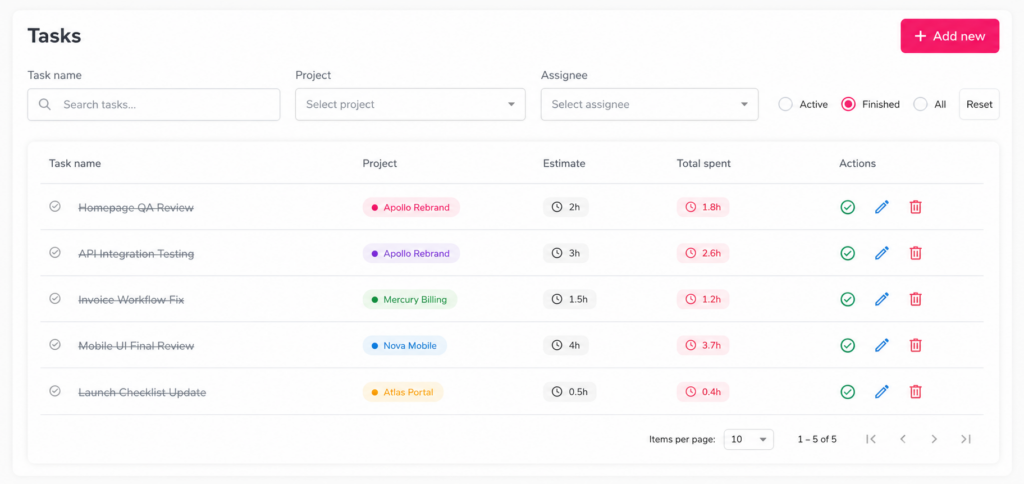
How do you compare estimated task time with actual time?
First, assign an expected duration to the task. Once the work is completed, compare the estimate with the time actually tracked.
For example:
Estimated time: 5 hours
Actual time: 6.5 hours
Difference: 1.5 hours over estimate
The percentage variance can be calculated as:
(Actual Time – Estimated Time) ÷ Estimated Time × 100
In this example:
(6.5 – 5) ÷ 5 × 100 = 30%
The task took 30% longer than originally estimated.
The real value comes from reviewing patterns. If similar tasks repeatedly exceed their estimates, the business may need to adjust future estimates rather than assuming employees are simply working too slowly.
Why should businesses compare estimated and actual task hours?
Because estimates improve when they are based on real historical data.
Suppose a company continuously estimates a certain type of task at four hours, but completed tasks regularly take between five and six hours.
That information can help managers:
- Create more realistic deadlines
- Improve project budgets
- Allocate employees more accurately
- Avoid overloading teams
- Quote future projects more effectively
- Identify recurring project bottlenecks
Task tracking therefore does more than record past work. It can improve how future work is planned.
How can Day Off help employees track time by task?
Day Off Time Tracker allows companies to choose between simple Clock In / Clock Out tracking and more detailed Task Tracker functionality.
With Task Tracker, employees can start their working time and then select the project and assigned task they are working on. When they move to another task, they can change what they are tracking instead of recording the whole day as one block of working time.
Admins can create tasks with a task name, assignee, and estimated time, helping teams organize what employees can track.
This allows businesses to move from simply knowing:
“The employee worked eight hours.”
to understanding:
“The employee spent three hours on Project A, two hours on Project B, and three hours on other assigned work.”
That additional detail can make time reports more useful for project planning, workload reviews, estimates, and understanding where team capacity is actually being used.
Conclusion
Clocking in and out is enough to show how long employees worked, but task time tracking provides the extra context businesses need to understand where that time actually went.
By tracking hours against specific projects and tasks, companies can improve project estimates, understand team capacity, identify work that regularly takes longer than expected, and get a clearer picture of how employee time is distributed throughout the day.
The key is to keep the process simple. Employees should be able to select the right project, choose an assigned task, start tracking, and switch tasks when their work changes without adding unnecessary administrative work.
With Day Off Time Tracker, businesses can choose between simple Clock In / Clock Out tracking and more detailed Task Tracker functionality. Teams that need project-level visibility can organize work into projects and assigned tasks, compare estimated and actual time, and review detailed time reports alongside attendance and time off data.
Instead of only knowing that an employee worked eight hours, Day Off helps businesses understand what was accomplished during those eight hours, giving managers better information for planning projects, balancing workloads, and making more informed decisions.