







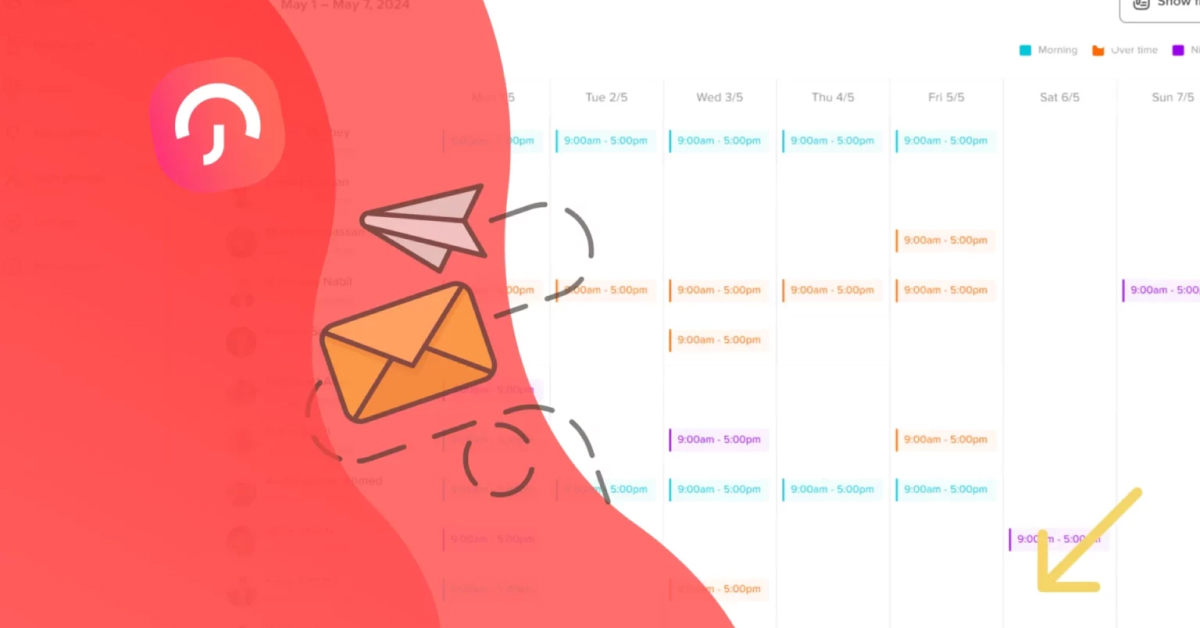
The Work Schedule is a brand new feature on Day Off, and we’re excited to announce its launch. This powerful addition allows employers to create and assign custom work schedules to teams or individual employees. Whether your company operates on fixed hours, rotating shifts, or flexible working arrangements, Work Schedules enables accurate leave tracking based on each employee’s actual working time.
With this update, time off requests are now validated against real work schedules ensuring that leave is only deducted when it overlaps with scheduled working hours.
Why a Work Schedule Matters for Leave Tracking
Many organizations today employ diverse working styles: hybrid models, part time roles, flexible arrangements, and rotating shifts. When you treat all employees as though they work the same schedule, it creates challenges in managing leave balances fairly.
The Work Schedules feature directly addresses this issue. It allows admins to:
Set exact working days and hours for each team or employee
Define rules around shift breaks, split shifts, and rotating cycles
Configure how leave requests are submitted and approved based on real-time availability
Ensure leave is only deducted during scheduled working hours
Provide employees with full visibility into their work and leave conditions
This level of customization eliminates miscommunication and ensures that both managers and team members are operating on the same page.
An In-Depth Look at Day Off’s Work Schedule Types
We’ve developed powerful schedule types designed to cover the full spectrum of modern workplace needs. Here’s how each one works with real world examples and benefits:
Fixed Work Schedule
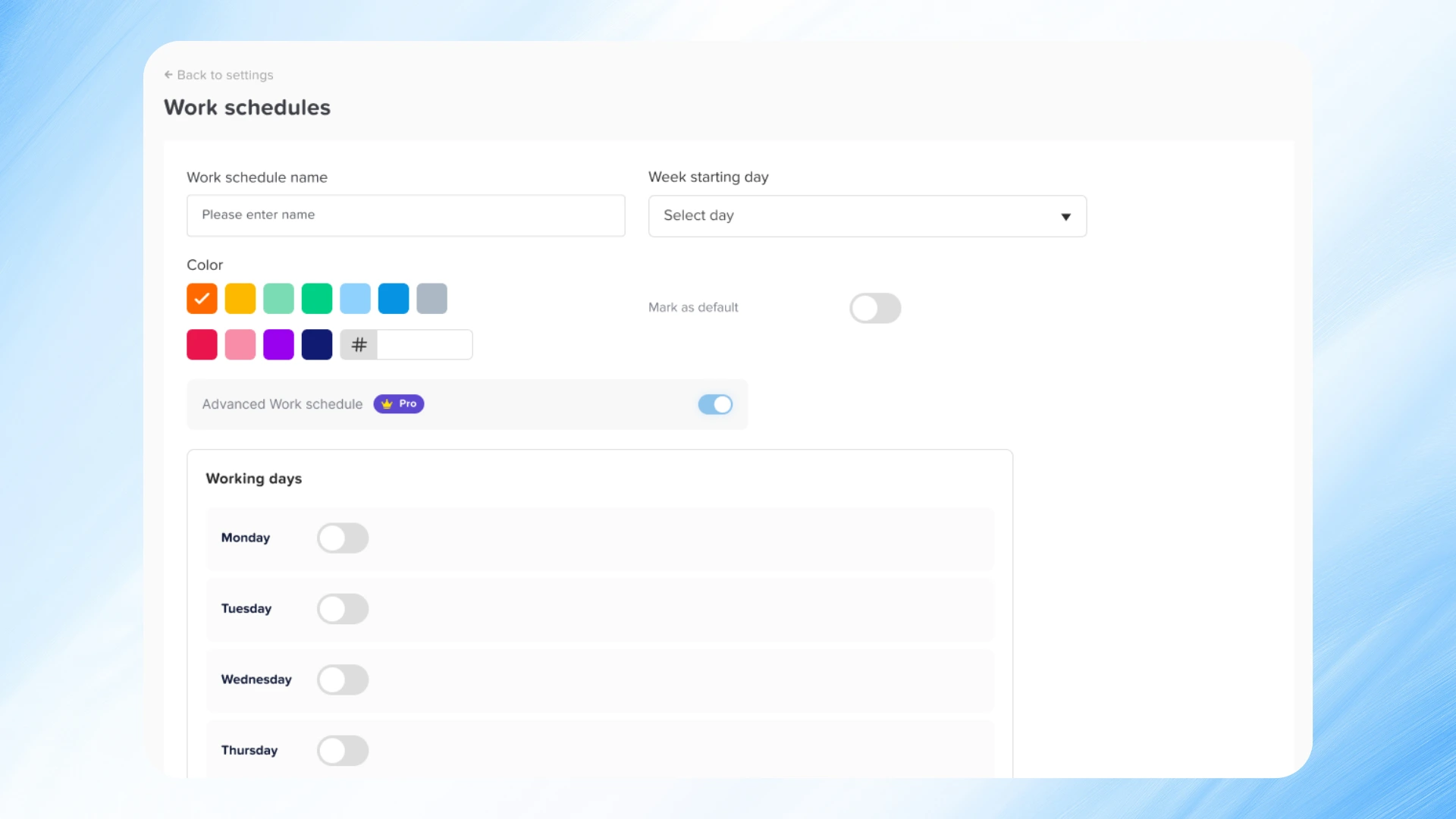
The Fixed Schedule is the most basic but essential format. It allows employers to specify which days of the week are official working days and which are not.
How It Works:
You simply choose which days are “on” (working days) and which are “off” (weekends or other days off). There are no specific start or end hours just a day based structure.
Why It’s Useful:
This is perfect for teams working a standard weekly routine like Monday through Friday. As a result, Day Off only counts leave requests on the days the employee actually works.
Example:
If your team works Monday to Friday and someone requests Monday off, Day Off counts it as a full day off. However, if they request Saturday, Day Off ignores it because it’s not a workday.
Best for: Office teams, salaried employees, small businesses with consistent hours.
Fixed Hours Work Schedule
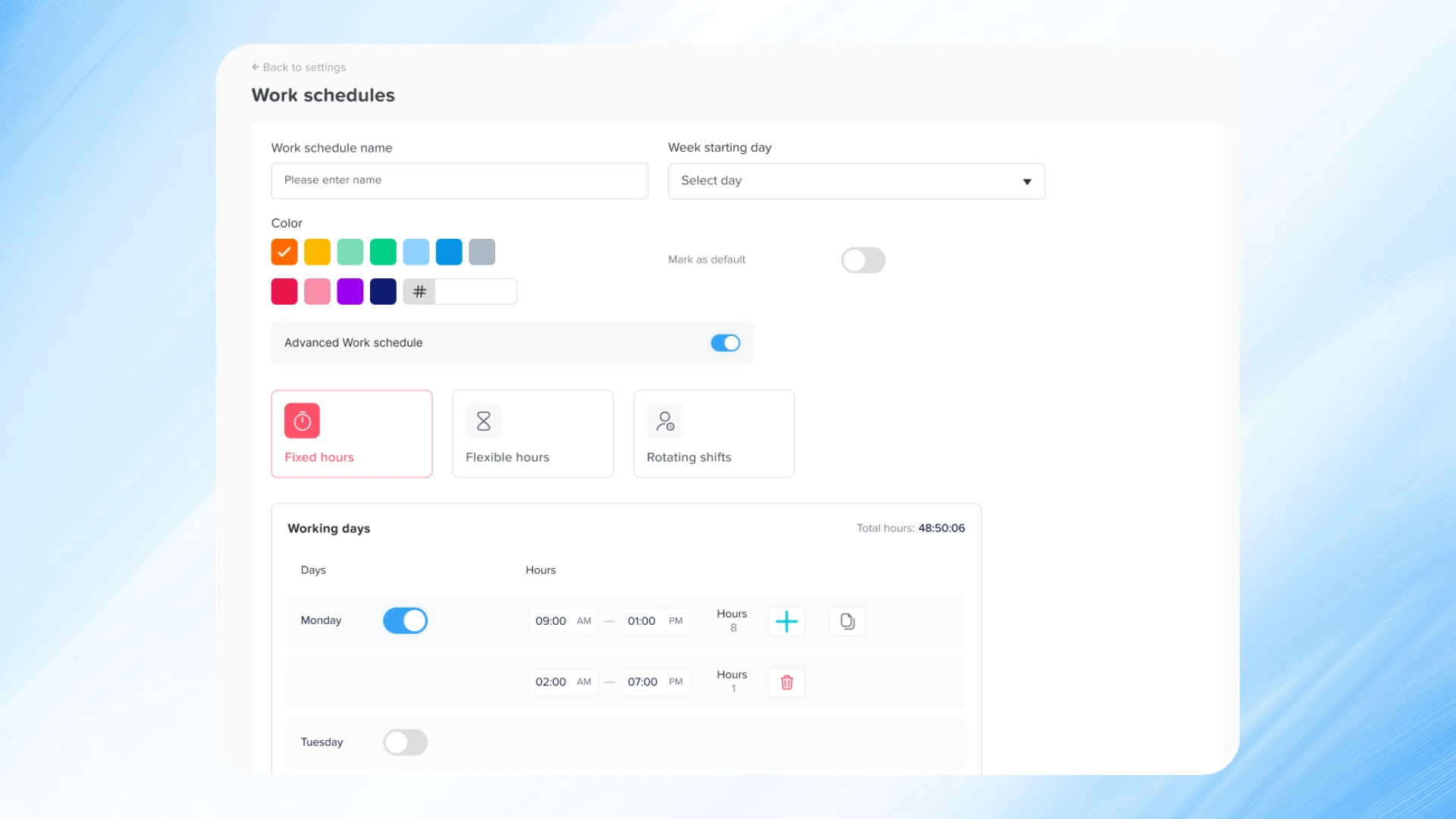
The Fixed Hours Schedule takes daily structure to the next level. It allows you to define exact start and end times for the workday, as well as optional split shifts and break deductions.
How It Works:
Set start and end times (e.g., 9:00 AM – 5:00 PM)
Optionally divide the shift into segments (e.g., 9–1, 2–6)
Deduct a specific break time (e.g., 1 hour lunch)
Requests are only valid within working hours
Why It’s Useful:
This model introduces precision into your leave tracking. In other words, Day Off calculates time off only during designated work periods. If an employee submits a leave request outside of these hours, it won’t count.
Example:
An employee requests time off from 3 PM to 6 PM on a day their shift runs from 9 AM to 5 PM. Since this overlaps with 2 working hours (3–5 PM), Day Off only deducts those hours. Meanwhile, Day Off ignores any time outside that range (like 5–6 PM).
Best for: Retail teams, logistics, hospitality, customer support, or businesses requiring exact shift control.
Flexible Hours Work Schedule
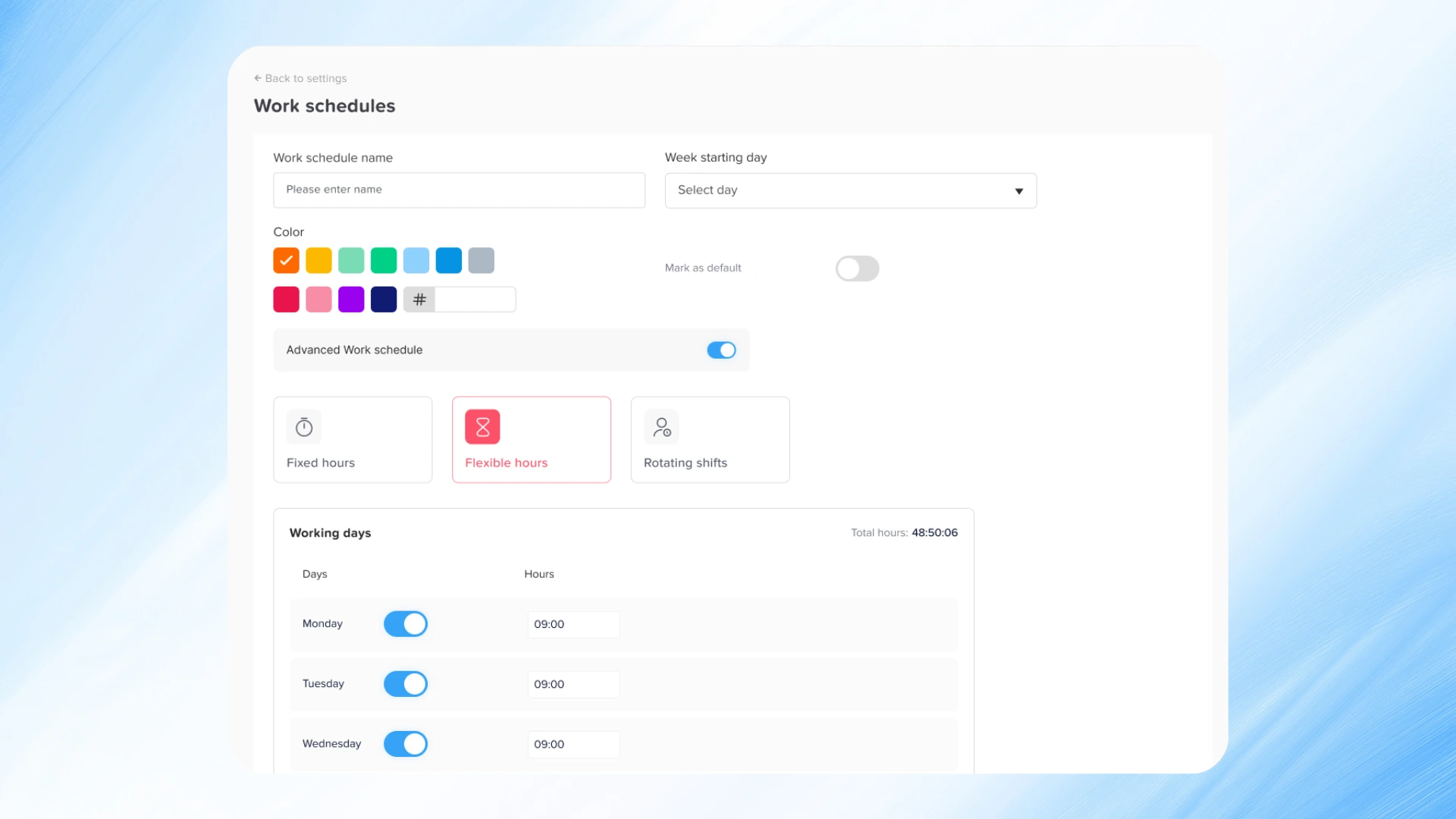
This schedule supports flexibility in when employees work, while maintaining control over how much they work.
How It Works:
You define the number of work hours required per day (e.g., 6 hours/day)
Employees can choose when to work those hours within the day
Leave is calculated by comparing requested hours against required daily hours
Why It’s Useful:
This is ideal for teams that prioritize autonomy, allowing employees to structure their day as they see fit without compromising on accountability.
Example:
An employee needs to take 2 hours off for a doctor’s appointment. As long as they fulfill their remaining 4 hours later in the day, they remain in compliance. So if they request those 2 hours as leave, Day Off deducts them fairly from their hour-based balance.
Best for: Remote teams, tech startups, creative roles, consultants.
Rotating Shift Work Schedule
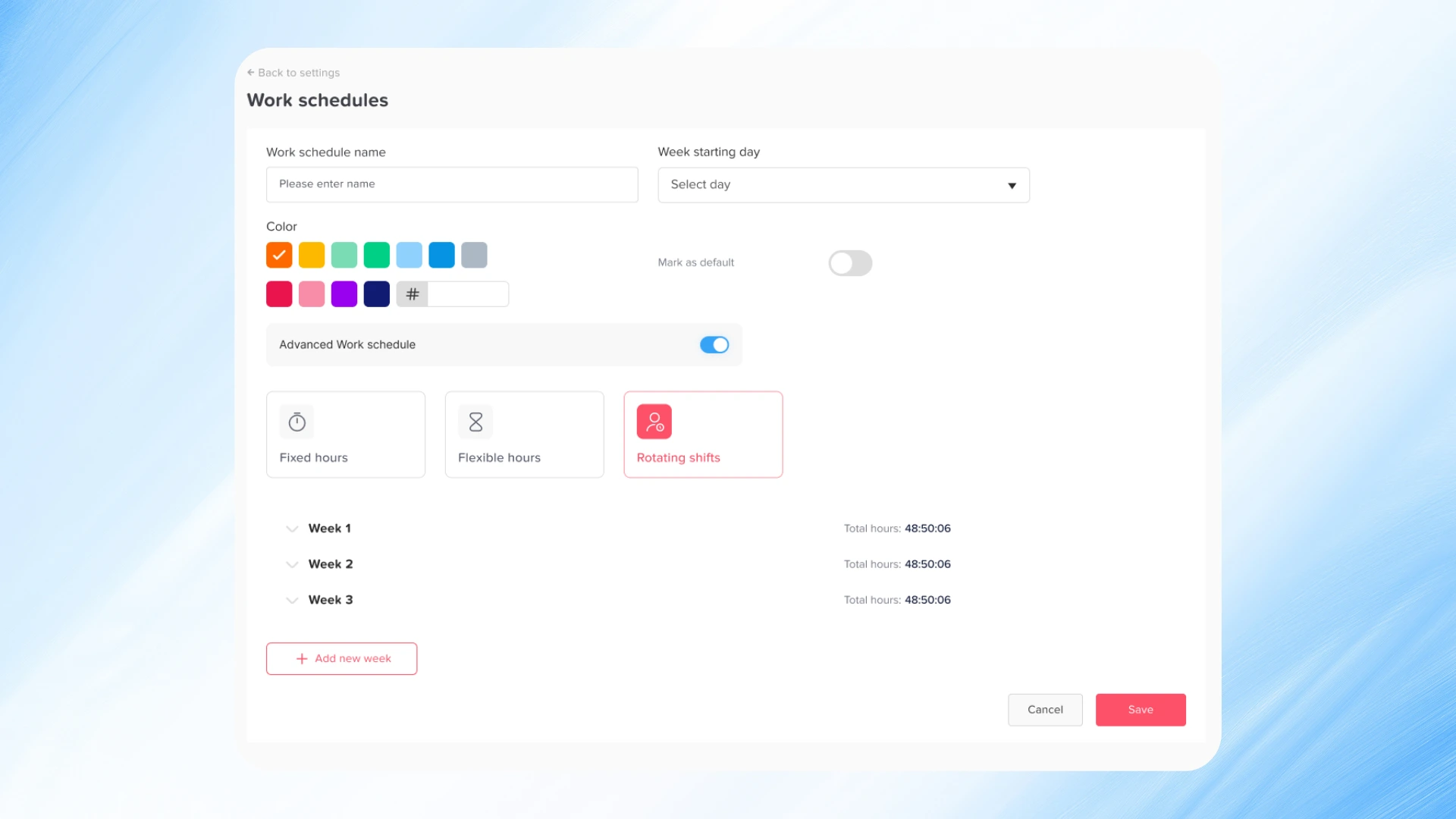
Rotating schedules are often complex, but essential for 24/7 operations. This option enables you to set up dynamic, repeating shift patterns that change weekly.
How It Works:
Define multiple weeks with different shift hours
For each week, set unique start/end times (e.g., Week 1: 9–4, Week 2: 12–7)
The schedule rotates automatically across weeks
Why It’s Useful:
Managing rotating shifts manually is time consuming and error prone. With Day Off, once you set up the rotation, everything runs on autopilot including leave tracking.
Example:
You create a 3-week rotating schedule:
Week 1: 8 AM – 3 PM
Week 2: 12 PM – 7 PM
Week 3: Off
Each team member cycles through these shifts every 3 weeks. Then, Day Off calculates their leave requests based on which shift is active that week.
Best for: Call centers, hospitals, factories, or any team operating on a 24/7 or variable basis.
Advanced Work Schedule (Hour-Based Leave Balances)
For organizations tracking leave in hours instead of days, the Advanced Schedule is the perfect fit.
How It Works:
Set the number of working hours per day
Employees request leave based on specific hours
The system deducts only the hours requested from their total balance
Supports partial day leave (e.g., 90 minutes off)
Why It’s Useful:
This format provides high-resolution control over leave usage. It allows employees to take time off without losing an entire day of balance and supports hourly tracking across all types of work.
Example:
An employee has 32 hours of available leave. They submit a request to leave early by 2 hours. After approval, Day Off deducts only 2 hours, leaving them with 30 hours remaining.
Best for: Hourly workers, freelancers, contractors, or companies offering micro-leave.
The Power of Precision and Flexibility
By introducing Work Schedules, Day Off helps you:
Avoid mistakes in balance deductions
Honor unique team structures and compliance policies
Simplify leave requests for employees with real time validation
Increase trust and transparency in time off processes
Scale HR operations with automation and customization
No matter your company size or industry, these tools will save time and reduce errors giving HR more bandwidth to focus on people, not paperwork.
How to Set Up a Work Schedule in Day Off
Getting started is quick and intuitive:
Log in to your Day Off Admin Dashboard
Go to the Settings
Go to the Work Schedules tab
Click Add New Schedule
Choose a type (Fixed, Fixed Hours, Flexible or Rotating)
Enter your parameters (days, hours, breaks, rotations, etc.)
Assign the schedule to a specific team or employee
The system takes care of the rest. From that point forward, Day Off automatically validates and calculates leave requests based on the assigned schedule.
Accessible Anywhere, Anytime
Work Schedules is fully integrated across all platforms:
iOS and Android apps for both managers and employees
Web version for complete schedule management via Day Off.
Employees can easily view their schedule and plan time off accordingly. Managers can approve requests with confidence, knowing they’re based on real working conditions.


Start Smarter Leave Planning Today
The Work Schedules feature is now live for all Day Off users. Whether you’re a team of 5 or 500, this update will bring clarity, fairness, and structure to your leave management process.
Set up your first schedule today and experience a smarter, more accurate way to manage time off.
FAQs
What is the Work Schedule feature in Day Off?
The Work Schedules feature allows employers to create customized working time templates for their teams. It supports multiple schedule types such as fixed days, fixed hours, flexible hours, rotating shifts, and advanced hour based tracking. Day Off validates leave requests based on these schedules, ensuring accurate balance deductions and better time off planning.
Can I assign different schedules to different teams or individuals?
Yes, You can create an unlimited number of work schedules and assign them to specific teams or even individual employees. This is especially useful for companies with multiple departments, varying roles, or locations operating in different time zones or work structures.
What happens if an employee submits a leave request outside their working hours?
If the employee is on a Fixed Hours or Advanced Schedule, any request that falls outside their scheduled working hours will not be counted toward their leave balance. As a result, time off only comes out of the balance when it overlaps with actual working time.
How do break times and split shifts work?
For Fixed Hours Schedules, you can define break times (e.g., 1-hour lunch) that are automatically deducted from total work hours. You can also split shifts into two parts (e.g., 9 AM–1 PM and 2 PM–6 PM) to better reflect real working conditions.
Can I use hour-based leave tracking instead of days?
Yes, With the Advanced Schedule option, leave is managed in hours, not days. Employees can request time off for specific hours (e.g., 1.5 hours), and the system will deduct that exact amount from their hour based balance.
How does the Rotating Shift Schedule work?
You can define multiple weekly shift patterns (e.g., Week 1: 8 AM–3 PM, Week 2: 12 PM–7 PM), and the schedule will rotate automatically. You assign employees to these patterns, and Day Off calculates their leave based on the current week’s shift.
What if an employee doesn’t have a work schedule assigned?
If no work schedule is assigned, Day Off will fall back on the default settings for your company (e.g., standard 5-day workweek). However, to ensure the highest accuracy in leave calculation, we recommend assigning a schedule to every team.
Can employees see their assigned schedule?
Yes, Employees can view their assigned work schedule directly from the Day Off mobile app (iOS & Android) or via the web dashboard. This helps them plan their leave more effectively and avoid conflicts with working hours.
Is it possible to change or update a work schedule after it’s created?
Absolutely. Admins can edit any existing schedule or reassign employees to a new schedule at any time. All changes take effect immediately and influence how new time off requests are calculated moving forward.
Does this feature cost extra?
No. The Work Schedules feature is included in your Day Off plan. If you’re on a free or trial tier, you may need to upgrade to unlock some advanced functionality check your plan details for more info.
What are some examples of companies that benefit from a Work Schedule?
Retail chains with varying store hours
Healthcare organizations with rotating shifts
Startups with flexible working environments
Manufacturing plants with day/night shifts
Freelancer teams or agencies using hourly billing
How do I get started with the Work Schedule feature?
Just log into your Day Off admin dashboard, navigate to the Work Schedules section, and click “Add New Schedule.” Choose a schedule type, customize it, and assign it to your teams. The entire setup takes only a few minutes.
Conclusion
The launch of Work Schedules marks a major step forward in making leave management more accurate, transparent, and adaptable for every type of workplace. Whether your team runs on fixed hours, rotating shifts, or flexible arrangements, this feature ensures that every leave request reflects real working conditions, saving time, reducing errors, and building trust across your organization.
Start creating your team’s schedules today and experience how effortless managing time off can be with Day Off, where smarter planning meets real flexibility.