





Day Off Knowledge Base
-
Approvals
- How can I assign approvers for an employee?
- How many approvers can I set per employee?
- How to set up "Auto Approval" for specific leave types (e.g., Bereavement)?
- What happens to a request if the designated approver is also on leave?
- What level of authority is assigned to an approver’s role?
- What's the difference between 2-step approvals and multiple approvers in a single step?
- What's the difference between approvers and watchers?
Print
You can easily assign approvers for each employee in Day Off through the web platform, using a flexible approval workflow.
Steps to Assign Approvers
To set approvers for an employee:
- Go to People → Employees
- Click the employee’s name
- Their profile opens
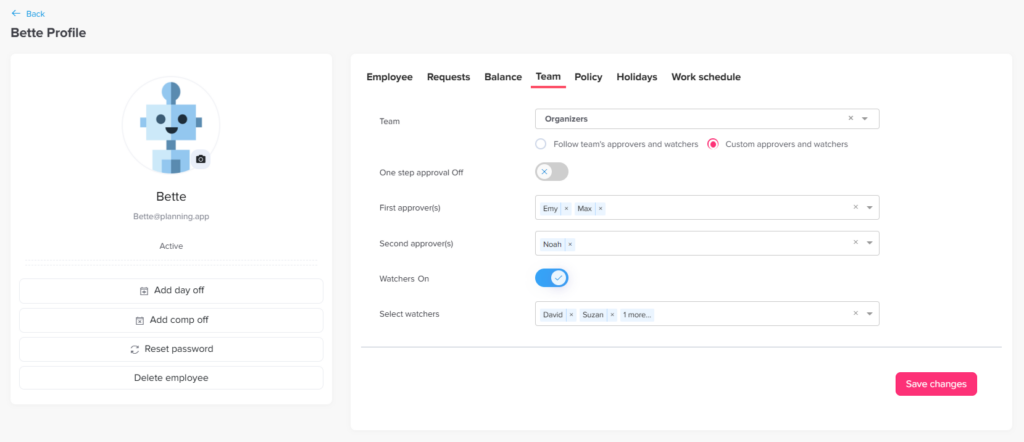
- Open the Team tab and select Custom approvers and watchers
- Assign approvers for:
- Step 1
- Step 2 (optional)
- Add one or multi approvers in each step
- Save your changes
How It Works
- The employee’s requests will be sent to Step 1 approvers first
- Once any approver approves, the request moves to the next step (if configured)
- After the final step is approved, the request is completed
Flexible Setup
- You can assign multiple approvers per step
- Only one approval per step is required
- You can also add watchers for visibility without approval access
Team Approvers and Custom Approvers
Each team in Day Off has its own approvers and watchers, which you set under People → Teams. Learn more about setting up departments and teams.
However, some employees need a different approval path. That is where the Custom approvers and watchers option in the employee’s profile helps. It lets you set approvers for one person without changing the whole team.
When to Assign Approvers Individually
Custom approvers are useful in situations like these:
- A team lead whose requests should go to their own manager.
- An employee who works across two teams.
- A senior role that needs an extra review step from HR.
Tips for a Smooth Approval Workflow
- Add a backup approver in each step, so requests keep moving when someone is away.
- Use watchers for people who only need updates. See the difference between approvers and watchers.
- Check how many approvers you can set per employee.
In short, a clear workflow means faster answers for employees and less follow-up for managers.
On this page