







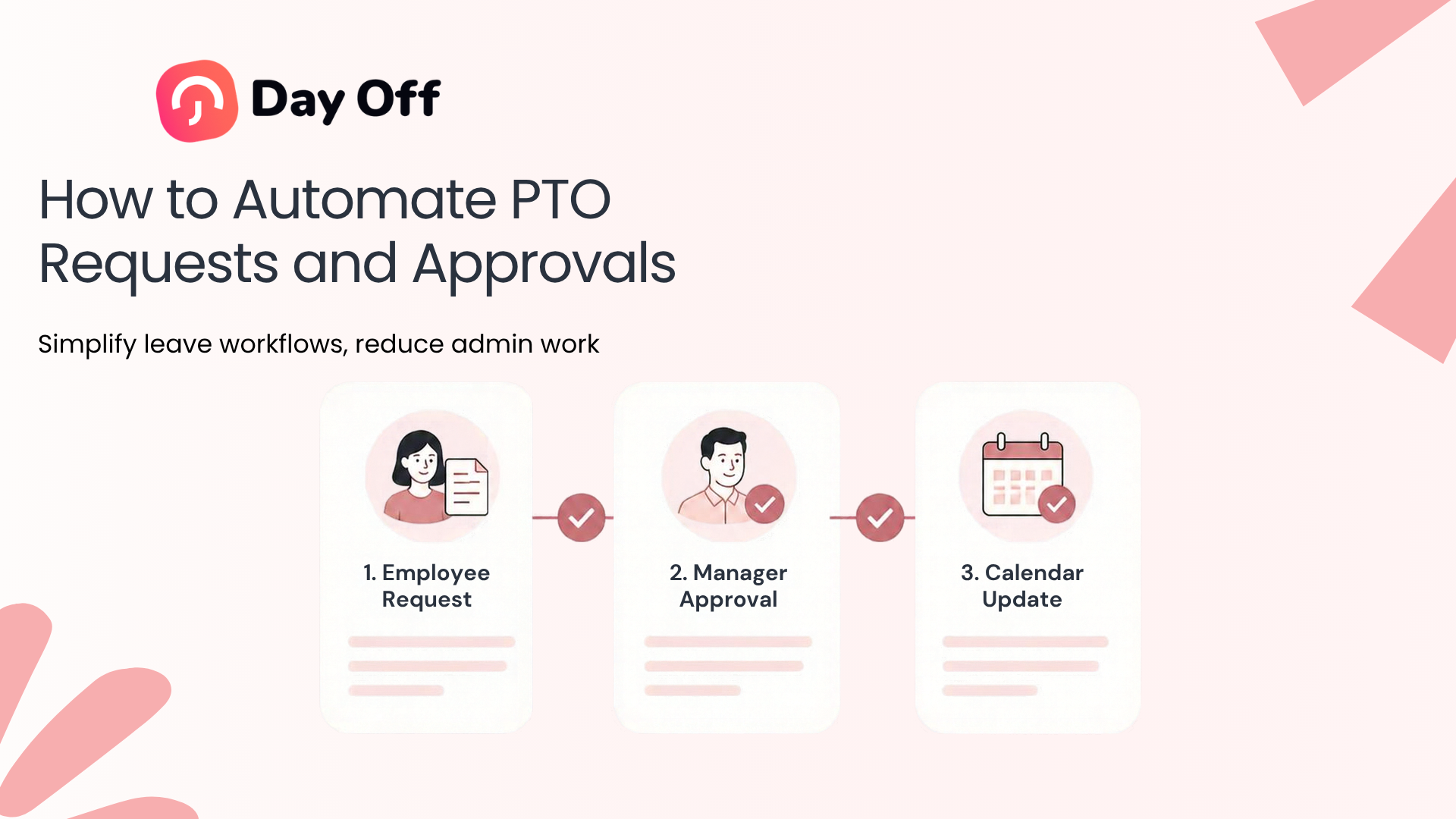
Managing PTO Requests manually may seem manageable when a company has only a few employees. As the team grows, however, emails, chat messages, spreadsheets, calendar updates, and manager follow ups can quickly turn a simple time off request into a complicated administrative process. Automating PTO requests and approvals gives employees a clear way to request leave while helping managers and HR apply policies consistently, check availability, maintain accurate balances, and keep everyone informed.

PTO automation does not mean removing managers from the decision making process. Instead, it removes repetitive administrative work around the decision. A well designed system can calculate balances, identify the appropriate approver, check policy rules, send notifications, update records, and synchronize approved absences with calendars automatically.
The result is a PTO approval process that is easier for employees to understand and easier for HR teams to manage.
What Does It Mean to Automate PTO Requests?
Automating PTO requests means replacing disconnected manual steps with a structured digital workflow.
In a manual process, an employee might email a manager asking for three vacation days. The manager then checks a spreadsheet, asks HR about the employee’s balance, checks whether another team member is already off, replies to the employee, updates a calendar, and asks HR to adjust the employee’s remaining balance.
With an automated PTO system, much of that work happens inside one workflow.
A typical automated process looks like this:
- The employee opens the PTO system.
- The employee selects a leave type and dates.
- The system checks the employee’s applicable leave policy.
- The system calculates the requested working days or hours.
- The request is sent to the appropriate approver.
- The manager reviews the request along with relevant information.
- The manager approves or rejects it.
- The employee receives a notification.
- The leave balance and team calendar are updated.
- The completed request remains available in the employee’s leave history.
Some requests may also qualify for automatic approval if the company’s policy allows it.
Day Off, for example, supports leave requests through web and mobile, approval workflows, multiple approvers, request notifications, automatic approval settings for selected leave types, and administrative override actions.
Why Manual PTO Approval Becomes Difficult as Teams Grow
Manual PTO management often depends on individual employees remembering several separate tasks.
The request itself may arrive through email. The leave balance may exist in a spreadsheet. Team availability may be tracked in Google Calendar. Policies may be stored in an employee handbook. HR may keep another record for payroll.
Each part may work independently, but the entire process becomes vulnerable to errors when people have to move information manually between systems.
| Manual PTO Process | Automated PTO Process |
|---|---|
| Employee emails or messages a manager | Employee submits a structured digital request |
| HR manually checks the balance | System displays or validates available leave |
| Manager searches calendars for conflicts | Team availability can be viewed during review |
| Approver must remember to respond | Notifications alert the appropriate approver |
| HR manually updates the balance | Approved leave updates the balance automatically |
| Calendar may require manual updating | Approved leave can sync with shared calendars |
| Records may be scattered across tools | Request history stays centralized |
| Policy rules depend on manual checking | Rules can be built into the leave configuration |
The advantage is not simply speed. Automation creates a repeatable process.
If every vacation request follows the same workflow, employees know where to submit requests, managers know where to review them, and HR knows where the final record is stored.
What Parts of PTO Management Should Be Automated?
A company does not need to automate every decision. The most effective PTO workflows automate predictable administrative work while keeping managers involved where judgment is needed.
Employee PTO Submission
The first step is giving employees one clearly defined place to request time off.
Instead of accepting requests through email, Slack messages, spreadsheets, paper forms, and verbal conversations, organizations can require employees to submit requests through the PTO system.
A good request form should capture information such as:
- Employee name
- Leave type
- Start date
- End date
- Full day, half day, or hourly leave when applicable
- Total requested duration
- Optional reason or note
- Supporting documentation when company policy requires it
The employee should also be able to see the status of the request after submission.
This reduces common questions such as:
“Did my manager receive my request?”
“Was my vacation approved?”
“How many PTO days do I have left?”
The system becomes the shared source for the request instead of relying on private email conversations.
PTO Balance Validation
One of the most useful parts of PTO automation is balance validation.
Before a request is approved, the system should be able to determine how much leave the employee has available and how much the request would consume.
For example, suppose an employee has:
Available vacation balance: 64 hours
They request:
3 working days × 8 hours = 24 hours
After approval:
64 – 24 = 40 hours remaining
This becomes more important when organizations use different work schedules.
An employee working eight hours Monday through Friday may have a very different deduction from someone working four 10-hour days or a rotating schedule. The system should calculate leave based on the employee’s assigned schedule and the company’s PTO rules rather than simply counting calendar days.
Automated balances can also account for policy rules such as accruals and carryover. Day Off supports configurable leave policies, including automated accrual schedules and carryover rules.
Routing Requests to the Correct Approver
One of the biggest weaknesses of email based PTO management is that employees may not know who needs to approve their leave.
Automation solves this with predefined approval workflows.
For example:
| Situation | Possible Approval Workflow |
|---|---|
| Regular vacation request | Direct manager |
| Department-specific request | Department manager |
| Extended vacation | Manager → HR |
| Senior employee request | Department head → HR |
| Simple eligible leave type | Automatic approval |
| Complex or exceptional request | Manager → HR or administrator |
The workflow should match the organization’s actual structure.
Smaller companies may only need one approver.
Larger organizations may require multiple stages.
For example:
Employee → Team Lead → HR
The request should move automatically from one stage to the next instead of requiring the employee or HR team to forward it manually.
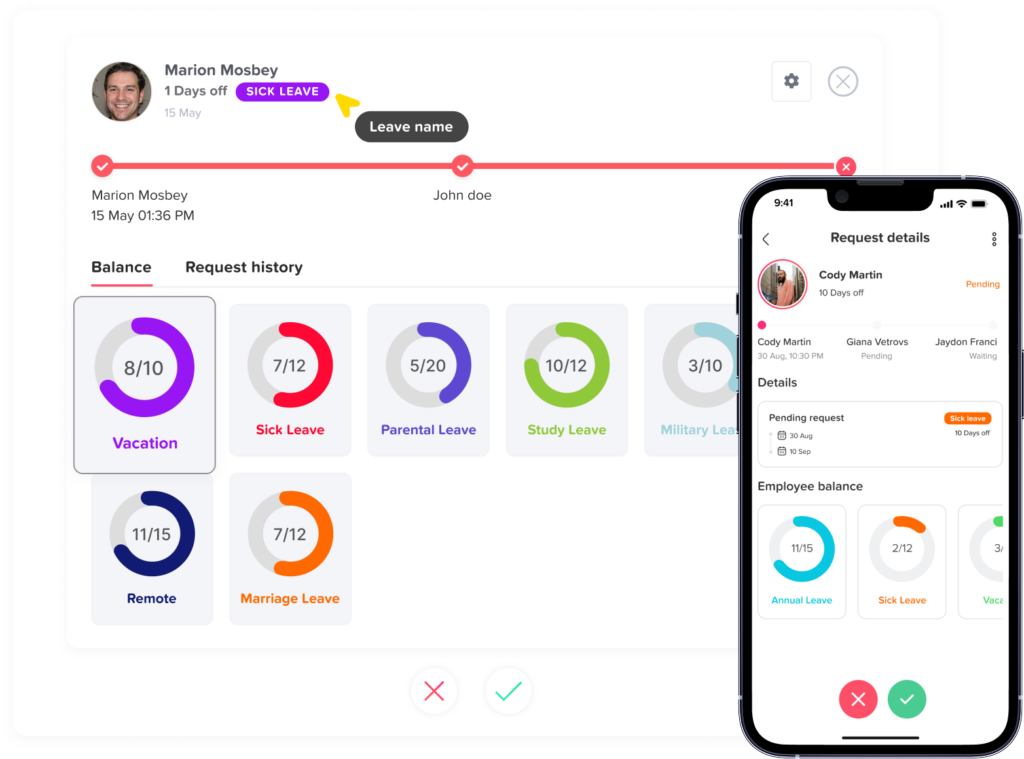
Day Off currently supports multi-step approval workflows and the ability to assign multiple approvers within an approval step, which can help prevent requests from depending entirely on one unavailable manager.
Approval Notifications
Automation is only useful if the right people know when action is required.
When an employee submits a PTO request, the approver should receive a notification containing enough information to review the request.
That may include:
- Employee name
- Leave type
- Requested dates
- Request duration
- Current status
- Remaining leave balance
- Notes provided by the employee
- Approval workflow
- Relevant team availability
After the manager takes action, the employee should also receive an automatic notification.
This eliminates the need for employees to repeatedly contact managers asking whether a request has been reviewed.
Day Off’s approval workflow provides approvers with request information and actions for approving or rejecting requests directly from the request view.
Policy Rule Validation
An automated PTO system should do more than send requests from one person to another. It should help enforce the leave rules established by the organization.
Examples include:
Minimum notice period
A company may require employees to request vacation at least seven days before the start date.
The system can identify requests that do not meet that requirement.
Maximum request duration
A policy might limit individual vacation requests to 10 consecutive working days unless additional approval is obtained.
Waiting periods
New employees may need to complete a defined waiting period before certain PTO becomes available.
Negative balance rules
Some organizations allow employees to request more PTO than they have currently accrued, while others prohibit negative balances.
Half day or hourly leave
Different leave types may allow employees to request full days, partial days, or hours.
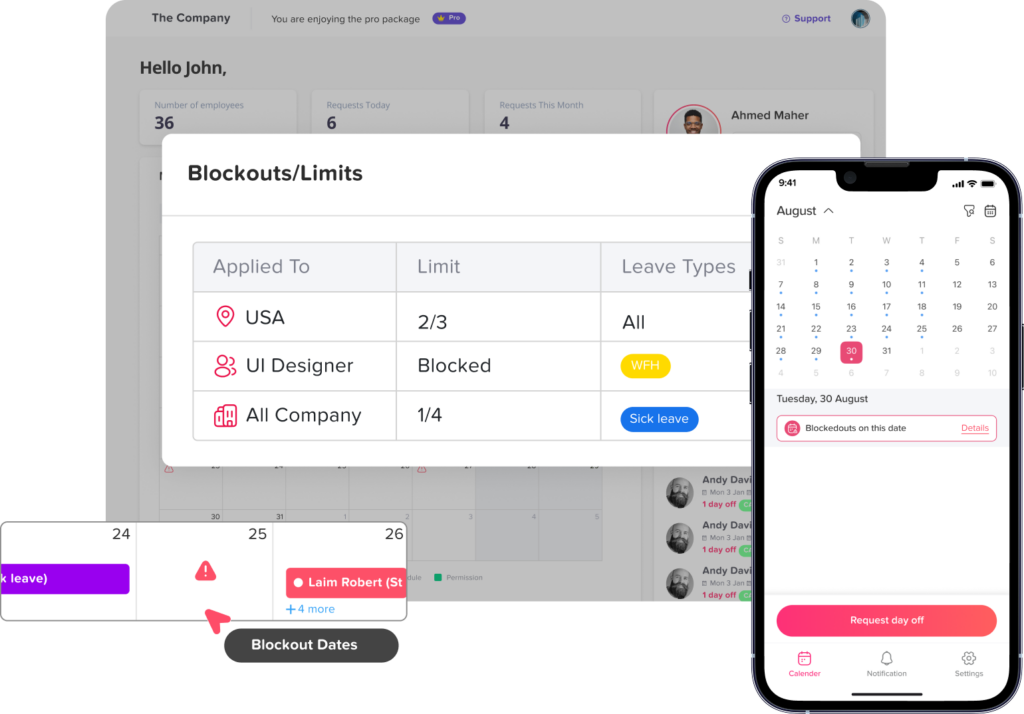
Blockout dates
Organizations may restrict time off during particularly busy periods.
For example, a retail business may limit vacation during certain holiday shopping periods, while an accounting department may apply restrictions near important financial reporting deadlines.
In Day Off, blockout periods can either prevent employees from submitting requests or limit how many requests can be accepted for designated dates.
Automating these rules helps managers apply the policy more consistently.
Team Availability Checks
An employee may have enough PTO available but still request dates that create a staffing problem.
For example, imagine a customer support team with six employees.
Two employees already have approved vacation for Friday. A third employee submits another request for the same date.
The manager needs more information than simply whether the third employee has a sufficient PTO balance.
The manager may need to consider:
- Who else is already off
- Required staffing levels
- Important deadlines
- Employee roles
- Team coverage
- Approved holidays
- Work schedules
This is why a shared PTO calendar is an important part of automated leave management.
Managers should be able to see approved absences while reviewing requests, reducing the need to search through separate calendars or spreadsheets.
Automatic Approval for Simple Requests
Not every PTO request necessarily needs manual approval.
Organizations may choose to automatically approve certain leave types or situations when predetermined conditions are satisfied.
For example, a company might automatically approve a particular leave type when there is no need for manager review.
Automatic approval should be used carefully. The objective is not to remove useful oversight, but to avoid creating unnecessary approval steps for predictable situations.
Day Off allows administrators to configure automatic approval for applicable leave types within a leave policy.
Organizations using this approach should clearly define which requests qualify for automatic approval and which still require manager review.
Updating PTO Balances Automatically
An approved request should not create another manual task for HR.
Once leave is approved, the system should update the employee’s available balance according to the applicable policy.
For example:
Employee balance before request:
15 days
Approved leave:
4 days
Remaining balance:
11 days
Without automation, someone may need to manually update a spreadsheet.
That creates several potential problems:
- HR forgets to update the balance.
- The wrong number is deducted.
- The spreadsheet is updated twice.
- The employee sees an outdated balance.
- Payroll and HR records no longer match.
Automated balance updates reduce these risks because the approved request and the balance calculation are part of the same workflow.
Calendar Synchronization
Approval is not the end of the PTO process.
Once an employee’s vacation has been approved, relevant employees and managers need visibility into the absence.
A PTO system can maintain a shared leave calendar showing approved absences. Integrations can also extend that information into calendars employees already use.
Day Off supports synchronization with Google Calendar and Outlook Calendar, along with integrations for Slack and Microsoft Teams.
This reduces situations where a manager approves an absence but another team member schedules a meeting because the approved leave was never added to the calendar.
Maintaining an Approval History
Every request should leave a reliable record.
Instead of searching through old email threads, HR should be able to see:
- Who submitted the request
- When it was submitted
- Requested dates
- Leave type
- Request duration
- Approval status
- Approval workflow
- Who reviewed the request
- Employee leave history
Centralized records are useful when answering employee questions, reviewing PTO patterns, preparing reports, and investigating discrepancies.
They also make it easier to understand how a particular request reached its current status.
How to Build an Automated PTO Approval Workflow
Companies should automate PTO gradually rather than simply turning on every available feature.
Step 1: Document Your Existing PTO Process
Start by mapping what happens today.
For example:
Employee asks manager → manager checks spreadsheet → HR verifies balance → manager approves → HR updates spreadsheet → manager updates calendar
Documenting the process makes unnecessary steps much easier to identify.
Ask:
- Where do employees currently submit requests?
- Who approves them?
- When does HR become involved?
- Where are balances stored?
- Who updates them?
- How are employees informed?
- How is team availability tracked?
The objective is to understand the real process, not just the written policy.
Step 2: Centralize Your Leave Policies
Automation depends on clear rules.
Before configuring software, document your leave types and policies.
Common leave types may include:
- Vacation
- Paid time off
- Sick leave
- Personal leave
- Unpaid leave
- Bereavement leave
- Maternity or parental leave
- Compensatory time off
- Custom company leave
For each leave type, define:
- Eligibility
- Allowance
- Accrual method
- Carryover rules
- Waiting periods
- Request units
- Approval requirements
- Documentation requirements
- Notice periods
- Applicable restrictions
When policies are unclear, automation may simply automate inconsistency.
Step 3: Assign Employees to the Correct Policies
Not every employee necessarily follows the same PTO policy.
Differences may exist because of:
- Location
- Department
- Employment type
- Seniority
- Work schedule
- Local requirements
- Contract terms
Employees should therefore be assigned to the policy that actually applies to them.
This is particularly important for international organizations, where holidays, working weeks, and leave rules can vary by location.
Step 4: Configure Approval Paths
Next, define who should approve each employee’s requests.
Avoid adding approval stages simply because the software supports them.
Every stage should have a purpose.
A small company may use:
Employee → Manager
Another organization may use:
Employee → Department Manager → HR
The approval chain should be long enough to provide appropriate oversight but short enough that routine PTO requests do not remain pending unnecessarily.
Step 5: Configure Work Schedules and Holidays
PTO calculations depend on when an employee was actually expected to work.
Suppose an employee requests Friday through Monday.
If Saturday and Sunday are non-working days, the PTO system should not normally deduct four working days.
Likewise, an applicable public holiday within the requested period may affect how much leave should be deducted depending on the organization’s policy.
Correct work schedules and holiday calendars help automate these calculations.
Step 6: Configure Restrictions
Now add the controls that apply before or during approval.
Depending on the organization’s policy, these could include:
- Request notice requirements
- Blockout dates
- Maximum concurrent absences
- Negative balance limits
- Waiting periods
- Documentation requirements
- Maximum request duration
- Minimum request duration
Avoid creating unnecessary restrictions. Each rule should correspond to a real operational or policy requirement.
Step 7: Set Up Notifications
Determine who needs to receive information and when.
Useful notification events include:
- New PTO request
- Request approved
- Request rejected
- Request awaiting another approval stage
- Request edited
- Request canceled
Notifications should reduce follow-up work rather than create notification overload.
Step 8: Connect Calendars and Workplace Tools
Once the core PTO workflow works correctly, connect the systems employees already use.
Calendar integration can improve absence visibility.
Slack or Microsoft Teams integrations can help employees and managers receive leave-related updates without constantly opening another platform.
API access may also be useful when a company needs to connect leave data with its own internal systems. Day Off, for example, provides API access for retrieving and managing employee, leave, and company data through custom integrations.
Step 9: Test the Workflow Before Full Rollout
Create several test scenarios.
For example:
Test 1: Standard request
An employee has enough vacation balance and requests three normal working days.
Test 2: Insufficient balance
An employee requests more vacation than available.
Test 3: Holiday inside request
An employee requests a period containing an official holiday.
Test 4: Multi step approval
The manager approves the request and confirms that it moves correctly to the second approver.
Test 5: Restricted date
An employee attempts to request leave during a blockout period.
Test 6: Partial day request
An employee requests a half day or several hours.
Testing these scenarios before rollout can reveal configuration problems before they affect real employee balances.
What Should Not Be Fully Automated?
Automation works best for predictable rules.
Some leave situations still require human judgment.
Examples may include:
- Exceptional policy overrides
- Complicated medical or protected leave
- Extended absences
- Requests involving unclear eligibility
- Conflicting requests from employees with critical responsibilities
- Requests requiring sensitive supporting information
- Situations involving local employment regulations
A system can route and document these requests, but HR may still need to evaluate them individually.
In the United States, for example, ordinary vacation benefits are generally not required by the federal Fair Labor Standards Act, but employers may have obligations arising from company policies, contracts, state or local laws, and other applicable regulations.
Certain family and medical leave situations may also fall under the federal Family and Medical Leave Act for eligible employees of covered employers. FMLA leave follows specific eligibility, notice, documentation, and job protection requirements, so organizations should not treat every absence as a routine vacation request.
For this reason, PTO workflow automation should support compliance processes rather than attempt to replace qualified HR or legal review.
How PTO Automation Helps Employees
The benefits are not limited to HR.
Employees gain a clearer process for planning time off.
Instead of wondering whom to contact, they can submit the request through a known workflow.
Instead of asking HR for a leave balance, they can view it in the system.
Instead of waiting for a manager to respond to an old email thread, they can see whether the request is still pending.
A predictable PTO process can improve employee confidence in the policy because the same workflow is used consistently.
How PTO Automation Helps Managers
Managers receive structured information instead of incomplete messages.
Rather than receiving:
“Can I take Friday off?”
they can review a request containing the dates, leave type, duration, balance information, and surrounding team availability.
That makes the approval decision easier and helps managers consider coverage before approving overlapping absences.
How PTO Automation Helps HR
For HR teams, the biggest advantage is centralization.
Instead of managing PTO through multiple disconnected tools, HR can maintain policies, balances, requests, approvals, calendars, and reports within a structured system.
This reduces repetitive administration and provides cleaner data for questions such as:
- How much PTO does each employee have?
- Who is currently off?
- Which requests are still pending?
- How much leave has been used this year?
- Which employees have large remaining balances?
- What happened to a specific request?
- Which leave policy applies to an employee?
How Day Off Automates PTO Requests and Approvals
Day Off is designed to centralize leave and PTO management so employees, managers, and HR teams can manage the entire process from one platform.
Employees can submit leave requests from the web or mobile apps, and requests are routed through the configured approval workflow. Managers can review pending requests and approve or reject them, while organizations that require more complex routing can configure multiple approval steps and approvers.
Day Off also brings together important parts of PTO automation, including:
- Leave request management
- Approval workflows
- Multiple approvers
- Auto approved leave types
- PTO balances
- Leave policies
- Accrual rules
- Carryover rules
- Work schedules
- Blockout dates
- Shared leave calendars
- Google Calendar integration
- Outlook Calendar integration
- Slack integration
- Microsoft Teams integration
- Leave reports
- Mobile access
- API access
The goal is to create one connected workflow instead of requiring HR teams to manage requests, balances, approvals, and calendars separately.
FAQ
Can PTO requests be approved automatically?
Yes. A PTO system can automatically approve selected requests when the organization’s leave policy allows it. Auto-approval is generally most appropriate when the organization has clearly defined which leave types or circumstances do not require manager review.
Can managers still reject an automated PTO request?
Requests that require manager approval can be reviewed and either approved or rejected according to company policy. Fully auto-approved requests follow the automation rules configured by the organization, so companies should decide carefully which leave types use auto-approval.
Can a PTO system automatically calculate remaining balances?
Yes. Leave management software can calculate the amount deducted from an approved request and update the employee’s remaining balance according to the applicable leave policy, accrual rules, and work schedule.
Can PTO approvals have more than one approver?
Yes. Modern leave management systems may support multi-stage approval workflows. For example, a request could require approval from a team manager followed by HR.
How can companies prevent too many employees from taking PTO at the same time?
Companies can combine shared leave calendars, manager review, staffing rules, and blockout or limited-availability dates. Managers can then consider existing approved absences before approving another request.
Should every PTO request be automated?
No. Routine administrative steps are good candidates for automation, but exceptional, sensitive, legally protected, or policy-specific cases may still require HR review.
Can employees submit PTO requests from their phones?
That depends on the PTO system. Day Off supports time-off request submission through both its web platform and mobile apps.
What is the main benefit of automating PTO approvals?
The main benefit is creating one consistent workflow. Employees know how to request leave, managers receive the information needed to review requests, balances update correctly, and HR maintains centralized records without repeating the same administrative work for every absence.
Final Thoughts
Automating PTO Requests and approvals is not simply about replacing an email with an online form. Effective PTO automation connects the entire process: employee requests, policy rules, balances, work schedules, manager approvals, notifications, calendars, and leave records.
The best approach is to automate predictable administrative tasks while preserving human review for situations that require judgment.
Start with clear PTO policies. Define who approves each employee’s leave. Configure work schedules, balances, holidays, restrictions, and approval workflows accurately. Then use automation to make those rules easier to apply consistently.
For growing organizations, this creates a PTO process that can scale without creating more spreadsheets, email chains, and administrative work every time the team adds another employee.