





-
Balance reset
- Can I reset leave balances on anniversary dates instead of calendar /fisical year?
- Can I select a reset date for each leave type individually, for instance vacation to reset in January and sick leave to reset on the employee's anniversary?
- What is a leave balance reset?
- Will my leave balance automatically update after the reset?
Yes, this is fully supported. Day Off allows you to configure the balance reset date independently for each leave type within a policy, rather than forcing every leave type to follow a single company-wide reset schedule.
Where to Configure This
Go to Settings & integrations → Settings, then open Leave policies. Inside a policy, each leave type listed, like Annual Leave, PTO, or Sick Leave, has its own pencil/edit icon. Clicking it opens a configuration panel for that specific leave type, with a Leave balance tab containing a Balance Reset section.
The Three Reset Options
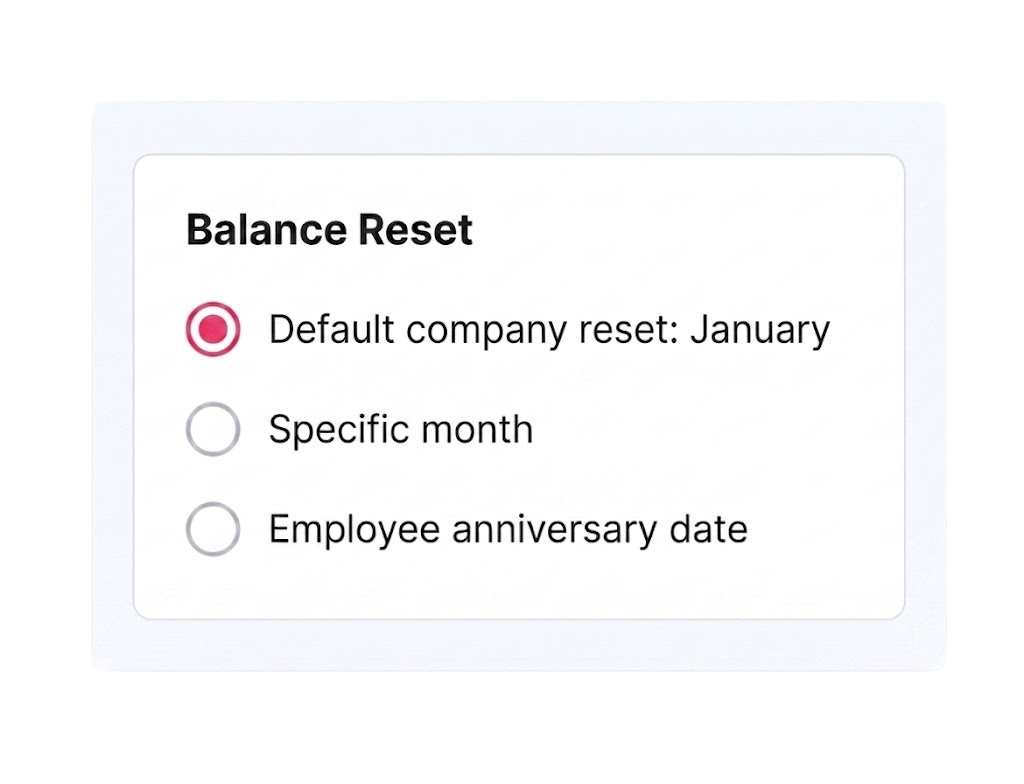
Within each leave type’s settings, you’ll find three mutually exclusive choices: Default company reset, which uses the standard reset month set for the whole company (in this case, January); Specific month, which opens a dropdown letting you choose any month of the year as the reset point for that particular leave type; and Employee anniversary date, which automatically resets the balance based on each individual employee’s hire date rather than a fixed calendar date.
Example
To achieve the setup you described, you would open the Annual Leave (vacation) type and select Specific month, choosing January from the dropdown. Separately, you would open the Sick Leave type and select Employee anniversary date instead. Since these settings are configured per leave type rather than globally, both rules can coexist within the same leave policy without conflict.
Saving Your Changes
After selecting the appropriate reset option for a leave type, click Save to apply it. Repeat this process for each leave type you want to customize, since each one retains its own independent reset configuration.