


Day Off Knowledge Base
-
Employees
- Can I request leave for past dates?
- How can I check my leave balance?
- How can I check the status of my request?
- How do I change my password?
- How do I check public holidays and weekends?
- How do I update my personal information?
- How do I upload or update my profile picture?
- How do I view my leave history?
Print
Can I request leave for past dates?
Yes, you can submit leave requests for past dates in Day Off, depending on your company’s policy. This is especially helpful if you forgot to log a previous absence or need to regularize time off that has already occurred.
To request leave for past dates on the web:
- Go to “My requests”
From your dashboard, click on My requests. This section gives you a complete overview of all your submitted, pending, and past leave requests, and is where you can manage new requests as well. - Click on “Request day off”
On the requests page, click the Add a day off button. This will open the request form where you can enter all the necessary details for your leave.
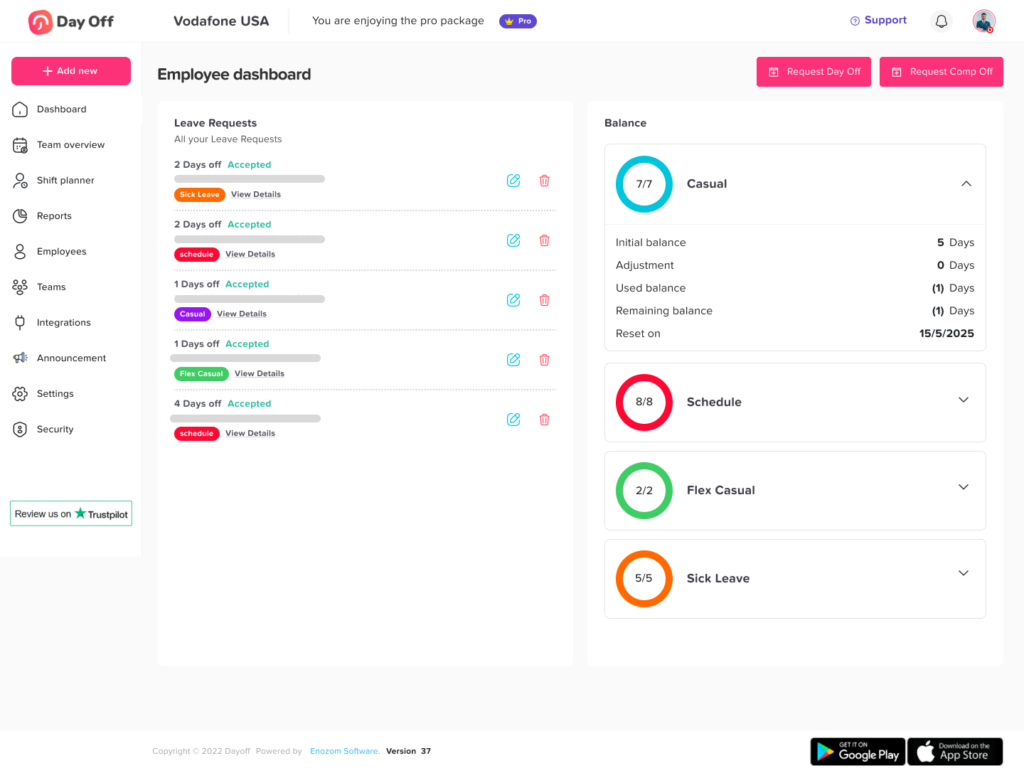
- Select leave type and dates
Choose the appropriate leave type (such as vacation, sick leave, or personal leave). Then select the dates for your request. You can choose past dates, allowing you to submit requests for days that have already passed if needed. - Review and submit your request
Double-check the details you’ve entered to ensure everything is correct. Once ready, click Submit to send your request for approval. Your manager or admin will then review it based on company policies.
To request leave for past dates on the mobile app
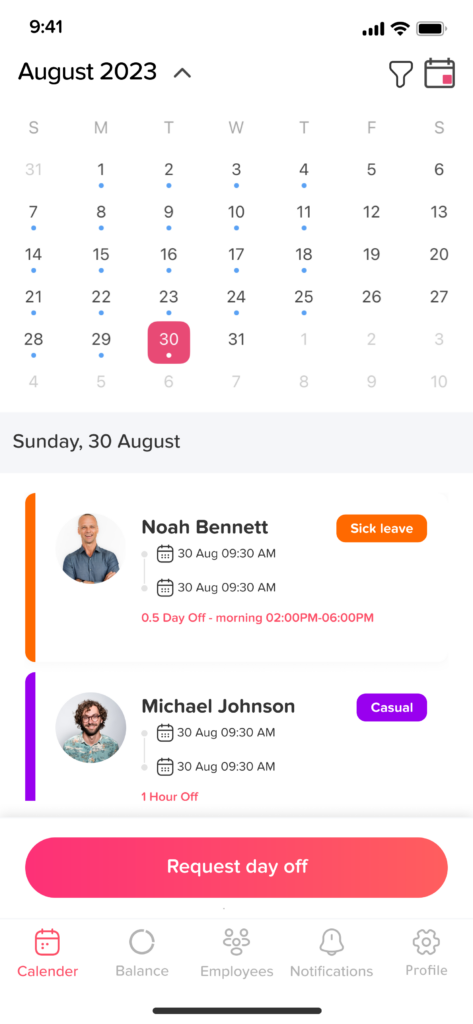
To request leave for past dates on mobile:
- Tap on “Add a day off”
From the main screen, tap the Add a day off button located in the center of the screen. This is the quickest way to start creating a new leave request. - Select leave type and dates
Choose the leave type that matches your request, then select the relevant dates. The app allows you to pick past dates, making it easy to log previous time off. - Review and submit your request
Before submitting, review your selections to make sure all details are accurate. Then tap Submit to send your request for approval.
Note: The ability to request leave for past dates may depend on your company’s internal policies and approval rules.
If you’re unsure whether past-date requests are allowed or need help with your submission, please contact your manager or HR administrator. Submitting accurate requests ensures your records stay up to date and helps maintain a smooth approval process.
On this page