





-
Work schedules
- Can I customize schedules for part-time or remote employees?
- Can I temporarily edit an employee's work schedule?
- How do I set working days and weekends?
- How to set a flexible hours schedule?
- How to set a shift-based schedule?
- How to set different working days for different employees?
- How to set the working hours?
- What are work schedules in Day Off?
- What Is the Shift Planner?
Admins can add a flexible hours schedule to define the total number of hours an employee must work per day. The system will then use this to deduct from their hourly leave balance accordingly.
How to Create a Flexible Hours Schedule
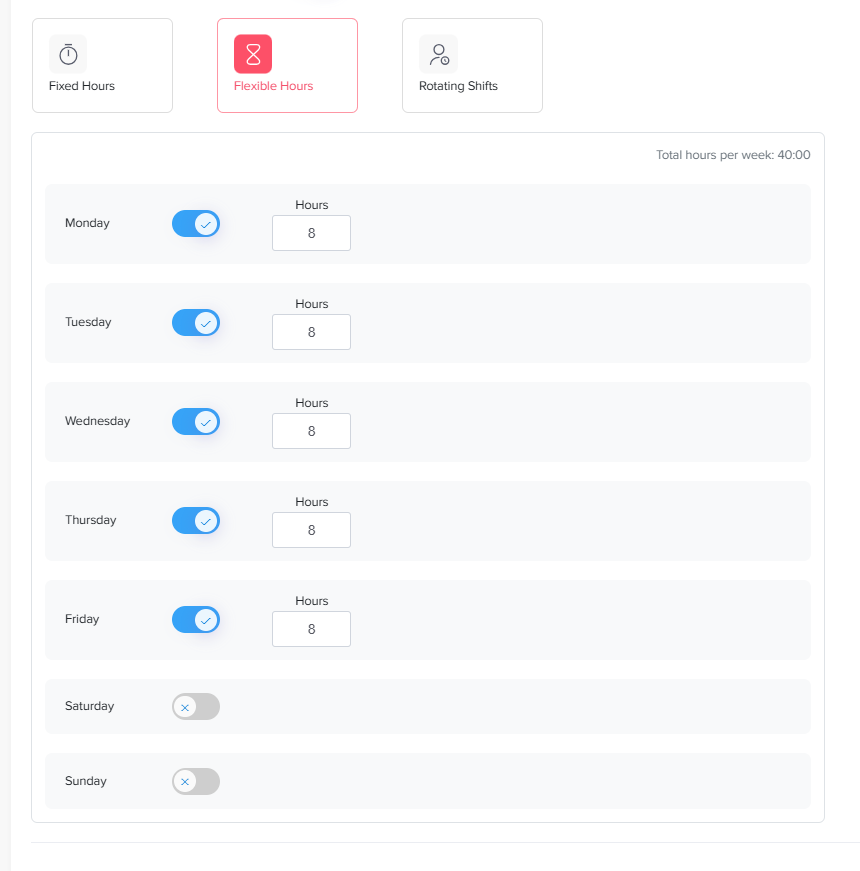
To create a flexible hours schedule:
Go to Settings & integrations → Settings and select Work schedules.
Add a new schedule or edit an existing one.
Enable the Advanced work schedule toggle.
Select Flexible hours.
Toggle ON the working days and leave weekends toggled OFF.
Enter the required number of working hours per day and click Save.
What Is Flexible Working?
With flexible working, employees choose when they start and finish their day. They still need to complete a set number of hours, though. You can read more about flextime and how it works in many companies.
In Day Off, this setup does not force strict start or end times. Instead, it only defines how many hours a person must work each day. Then, when the employee takes time off, Day Off uses those hours to deduct the right amount from their hourly leave balance.
When a Flexible Hours Schedule Works Best
- Remote or hybrid teams that work across time zones.
- Roles where results matter more than set office hours.
- Employees who balance work with study or family needs.
On the other hand, if your team keeps set start and end times, a fixed hours schedule may suit you better. See how to set the working hours for that option.
Helpful Tips
- Agree on the daily hours with your team before you save the schedule.
- Keep weekends toggled OFF so they are not counted as working days.
- Create separate schedules for groups with different daily hours.
To learn about all options, read the types of work schedules in Day Off.