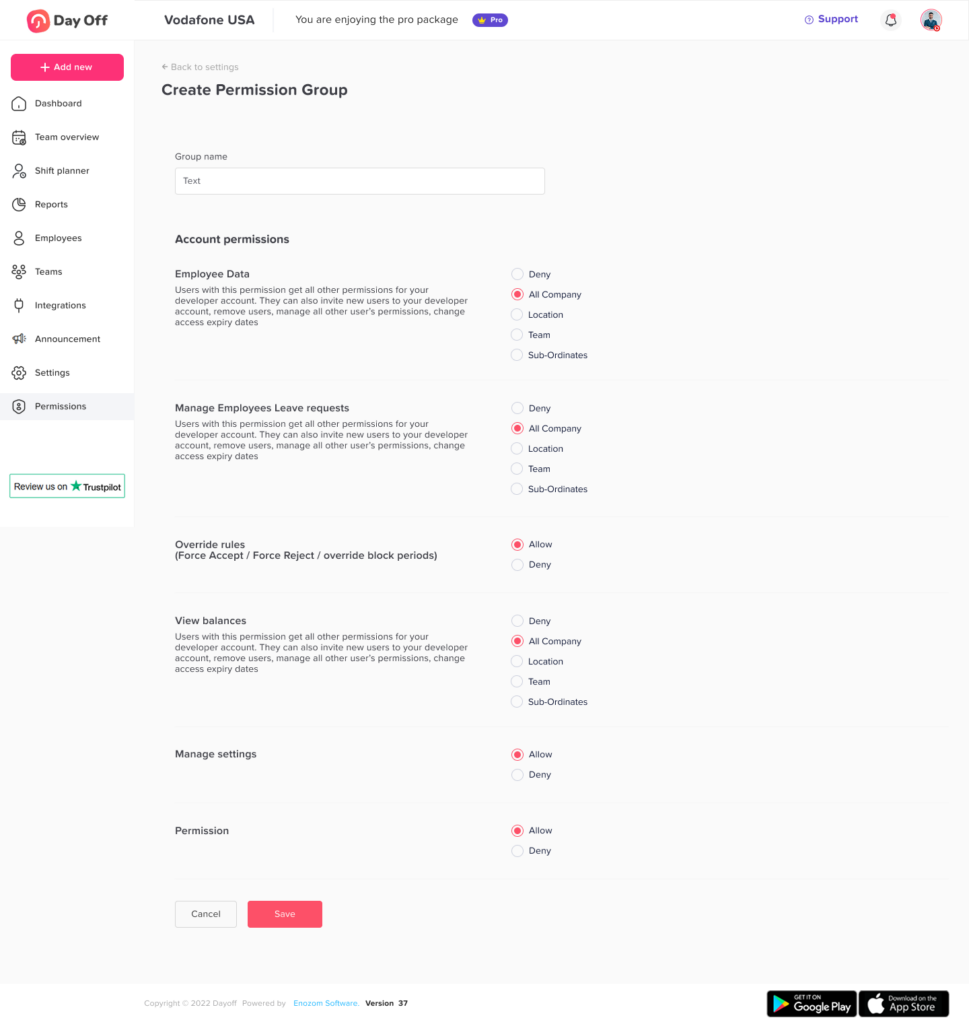
Main Permissions How to create different roles and access levels in Day Off? Print You can create and customize roles in Day Off to control what each user can access and manage. Steps to Create a Custom Role To add a role:Go to Settings & integrations → SecurityNavigate to PermissionsClick “Add permission group”Enter a role name (e.g., HR, Supervisor, Auditor)Select the required permissionsClick Save How Permissions Work The Admin role includes all permissionsWhen creating a new role, you can:Select specific permissions from the full listGrant limited or partial accessCustomize what users can see and doThis allows you to create roles tailored to different responsibilities. Assign Role to Employees After creating the role:Go to People → EmployeesOpen the employee’s profileSelect the Role fieldChoose the new roleClick Save