







PTO calendar permissions determine who can see employee leave, which teams or locations appear, how much request information is displayed, and whether users can access balances and reports. A well-designed permission setup gives HR the full company view, helps managers displayed plan their teams, and allows employees to coordinate time off without exposing private information.
Giving every user the same calendar view can create problems. Employees may see sensitive leave details they do not need, while managers may not have enough information to make approval or staffing decisions. HR may also struggle to review company-wide leave when information is divided across separate calendars or spreadsheets.

The better approach is to create different levels of access based on each person’s responsibilities.
This guide explains how to create PTO calendar views for HR, managers, and employees using custom roles, team access, location filters, privacy settings, and report permissions.
What Are PTO Calendar Permissions?
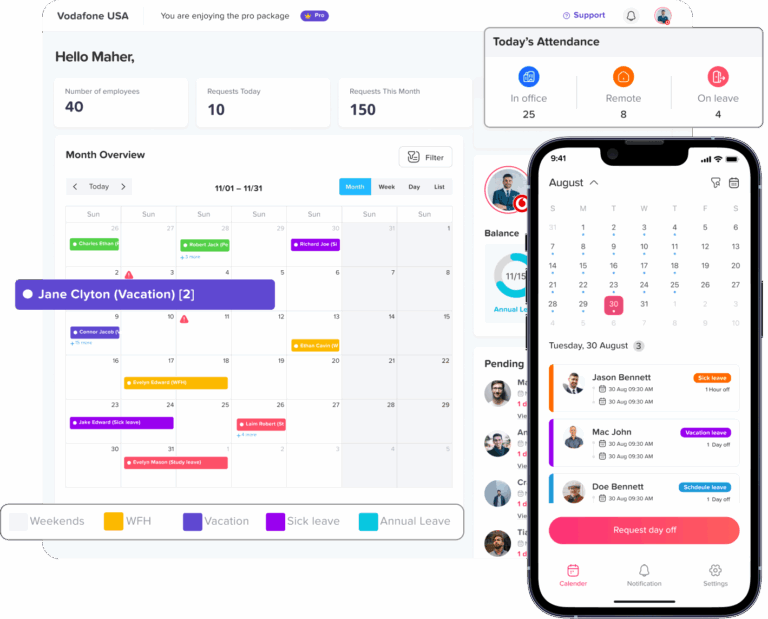
PTO calendar permissions are rules that control what each user can see and do inside a leave calendar.
They may control:
- Which employees appear on the calendar
- Which teams or departments are visible
- Which office locations are visible
- Whether pending requests appear
- Whether only approved leave appears
- Whether the exact leave type is shown
- Whether the reason for leave is visible
- Whether users can see employee balances
- Whether users can approve requests
- Whether users can open or export reports
- Whether users can make balance adjustments
- Whether users can manage company settings
PTO calendar permissions are not only about hiding information. They also help each user focus on the information needed for their work.
For example, an employee in the marketing department may only need to know when other marketing employees are unavailable. The marketing manager may also need to see pending requests and remaining balances. HR may need access to all teams, locations, policies, balances, and reports.
Why Should Different Users Have Different Calendar Views?
HR, managers, and employees use PTO calendars for different reasons.
Employees mainly use the calendar to plan time off and avoid conflicts with close colleagues. Managers use it to review coverage and make approval decisions. HR uses it to manage policies, investigate balance issues, and prepare reports.
Giving users more access than they need can expose unnecessary information. Giving them too little access can make planning and approvals difficult.
A useful access model follows the principle of least privilege. This means each person receives only the access needed to complete their responsibilities. The National Institute of Standards and Technology defines least privilege as restricting access to the minimum necessary for assign1search14
The goal is not to make the calendar secret. The goal is to provide useful visibility without showing unnecessary or sensitive details.
Recommended PTO Calendar Views by Role
| User group | Recommended calendar scope | Useful details | Additional access |
|---|---|---|---|
| HR and administrators | Entire company | Approved and pending leave, leave type, balances and policy details | Reports, adjustments, roles and settings |
| Managers | Direct reports or assigned teams | Approved and pending leave, scheduled dates and balances where needed | Request approval and team reports |
| Employees | Own team, location or close colleagues | Approved leave dates with limited details | Their own requests and balances |
| Payroll | Relevant employees or company-wide records | Approved paid leave and balance transactions | Payroll-related reports and exports |
| Auditors or accountants | View-only access | Historical records and approved transactions | Selected reports without editing rights |
This is only a starting point. A small company may use broader calendar visibility, while a larger company may need stronger limits by location, department, or legal entity.
The HR Calendar View
HR normally needs the widest calendar access because the department is responsible for maintaining accurate leave records and applying company policies consistently.
An HR calendar may include:
- All employees
- All departments
- All locations
- Approved requests
- Pending requests
- Partial-day absences
- Leave types
- Public holidays
- Blockout periods
- Work schedules
- Remote work days
- Approval history
HR may also need access to information that does not appear directly on the calendar, such as:
- Current PTO balances
- Accrual history
- Carryover amounts
- Negative balances
- Manual adjustments
- Employee policy assignments
- Detailed leave reports
- Exported records
Why HR Needs a Company-Wide View
A full calendar helps HR understand what is happening across the organization.
For example, HR can use it to check:
- Whether too many employees are away from one location
- Whether several departments have staffing problems
- Whether requests are waiting too long for approval
- Whether managers are applying the policy consistently
- Whether employees are assigned to the correct policies
- Whether leave has been approved during a restricted period
- Whether balance errors may affect payroll
Without company-wide access, HR may need to request information from several managers. This can slow down decisions and increase the risk of using incomplete records.
Should HR See Leave Reasons?
HR may need to know the reason for certain types of leave when processing benefits, protected leave, payroll, or documentation.
However, not every HR user needs access to every detail.
Sensitive medical or personal information should be limited to authorized users. A shared calendar should not display medical diagnoses, family problems, or detailed personal explanations.
The calendar can simply show that the employee is unavailable. Supporting documents and private notes should remain inside the restricted request record.
The PTO Calendar View for Managers
Managers need enough information to plan work and review requests, but they usually do not need access to the entire company.
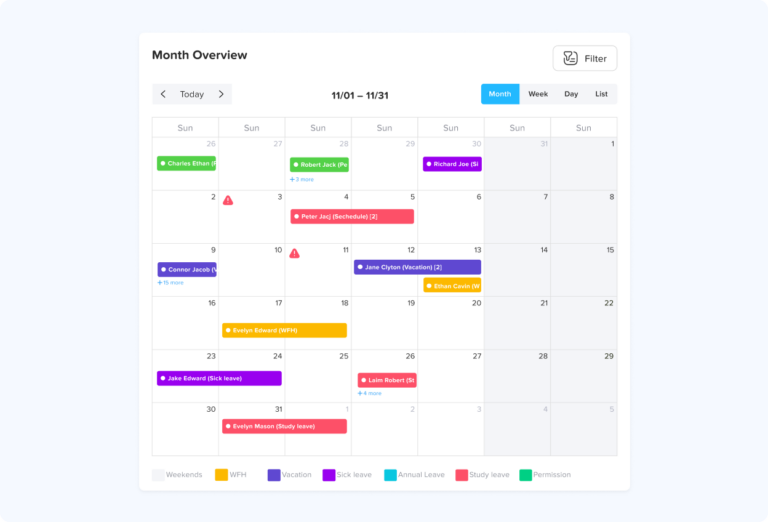
A manager’s calendar should normally focus on:
- Direct reports
- Assigned teams
- The manager’s department
- Approved leave
- Pending requests
- Partial-day absences
- Public holidays
- Blockout periods
- Team availability
Managers may also need permission to:
- Approve or reject requests
- Review overlapping requests
- View team PTO balances
- Submit a request for an employee
- Check upcoming staffing gaps
- Open selected team reports
Why Managers Should See Pending Requests
Showing pending requests helps managers understand possible future absences before making approval decisions.
For example, three employees may request the same day off. If the calendar only shows approved leave, the manager may review each request without noticing that the requests overlap.
A view that includes both pending and approved requests gives the manager a more complete picture of possible staffing issues.
Employees may not need to see pending requests because those requests can still change or be rejected. Managers and HR usually benefit more from this early visibility.
Should Managers See Employee PTO Balances?
Managers may need balance access when it helps them review requests.
For example, a manager reviewing a long vacation request may need to know whether the employee:
- Has enough available PTO
- Is allowed to use a negative balance
- Will earn more PTO before the leave date
- Has another approved request using the same balance
However, balance access should normally be limited to employees the manager supervises.
A manager should not automatically receive access to payroll records, company settings, or unrelated employee information.
The PTO Calendar View for Employees
Employees mainly need the calendar to plan their leave and understand when coworkers will be unavailable.
An employee calendar may show:
- The employee’s own requests
- Approved leave for team members
- Approved leave for employees at the same location
- Public holidays
- Company blockout periods
- General team availability
- Remote work status, when relevant
Employees should also be able to review their own:
- Available balance
- Used balance
- Pending requests
- Approved requests
- Rejected requests
- Canceled requests
- Request history
- Upcoming leave
How Much Colleague Information Should Employees See?
The correct level depends on the size and structure of the company.
Possible employee views include:
Direct Reports Only
The employee sees their own leave and requests from people who report directly to them.
This can be useful for team leaders who have limited management responsibilities.
Team or Department
The employee sees approved absences for people in the same team.
This is useful when team members depend on one another for daily work and coverage.
Location
The employee sees approved leave for employees at the same office, branch, or work site.
This is helpful for businesses with local staffing needs.
Entire Company
The employee sees approved absences across the full organization.
This may work well for small businesses, but it can become crowded and unnecessary in larger companies.
Employees Usually Should Not See Other Employees’ Balances
Employees need to know when coworkers are away. They usually do not need to know how much PTO each coworker has.
Balances can vary because of:
- Hire dates
- Employment status
- Weekly schedules
- Carryover
- Seniority
- Different leave policies
- Location requirements
- Manual adjustments
Showing these balances may create confusion or unnecessary comparisons.
Employees should normally see only their own balances. Managers and HR may receive wider access when their responsibilities require it.
Use Custom Roles for Better Control
The standard roles of employee, manager, and administrator may not be enough for every company.
An organization may also have:
- Team leaders
- Department heads
- Location managers
- Regional managers
- HR coordinators
- Payroll specialists
- Finance employees
- Project managers
- Auditors
- Temporary approvers
Custom roles allow the company to give each group the exact access it needs.
| Custom role | Calendar access | Other permissions |
|---|---|---|
| Team leader | Assigned team only | View requests without editing balances |
| Department manager | Entire department | Approve requests and view team balances |
| Location manager | Assigned location | Review local leave and staffing |
| HR coordinator | Entire company | Manage requests and view reports |
| Payroll specialist | Approved paid leave | Export payroll-related information |
| Auditor | Selected historical records | View-only report access |
Custom roles are useful because they prevent the company from giving full administrator access to someone who only needs one or two additional permissions.
For example, a payroll specialist may need reports and approved paid leave but should not be able to change PTO policies or approve vacation requests.
Use Team Access to Keep the Calendar Useful
Team access helps users focus on the people they work with most closely.
For example:
- Marketing employees see the marketing calendar
- Developers see the engineering calendar
- Support employees see the customer support calendar
- Finance employees see the finance calendar
This makes the calendar easier to read and removes unrelated absences.
Team-based calendar views also help managers identify:
- Several employees requesting the same date
- A lack of coverage for an important role
- Leave during a major deadline
- Repeated staffing pressure
- Weeks with low availability
A user should only be able to filter teams they already have permission to view.
A manager responsible for the marketing department should not automatically be able to open the finance or engineering calendars.
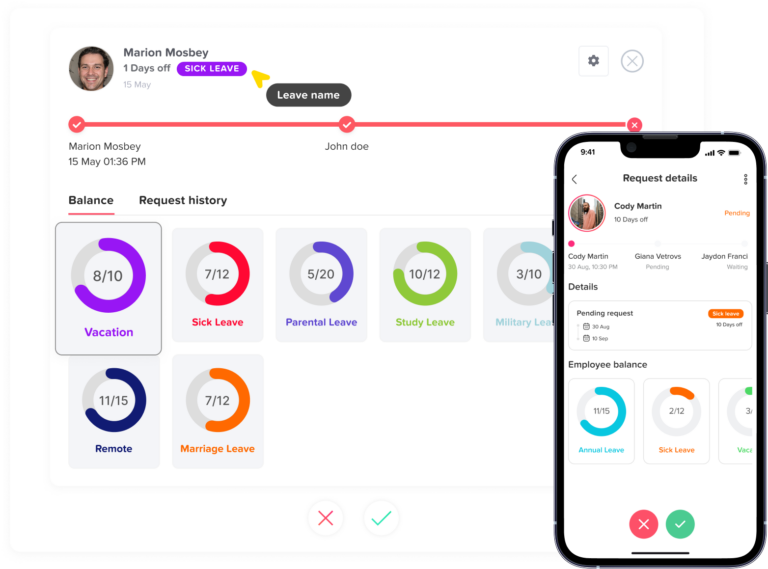
Use Location Filters for Multi-Location Companies
Location filters are important for companies with:
- Several offices
- Retail branches
- Restaurants
- Clinics
- Warehouses
- International teams
- Country-specific public holidays
- Different weekend schedules
A location manager may only need to see employees working at the same branch. HR may need to move between all locations.
For example, a company may create separate views for:
- Cairo office
- Alexandria office
- Dubai office
- London office
- Remote employees
Location filters help managers review local coverage without displaying every employee in the organization.
Team and Location Access Serve Different Purposes
A team and a location are not always the same.
For example, an employee may belong to the finance team but work in the Dubai office.
The finance manager may need to see finance employees across several countries. The Dubai location manager may need to see all local employees from finance, sales, support, and operations.
Using both team and location filters allows the company to support different types of responsibility.
Decide Which Leave Details Should Appear
Calendar permissions should control not only who appears but also how much information is shown.
Companies can choose from several levels of detail.
Show the Exact Leave Type
The calendar may display labels such as:
- Annual leave
- Sick leave
- Parental leave
- Personal leave
- Unpaid leave
This may be useful for HR and certain managers. However, it may reveal more information than employees need.
Show a General Leave Label
The calendar may replace the exact type with a general label such as:
- Leave
- Out of office
- Unavailable
This gives coworkers the information they need for planning without explaining why the person is absent.
Show Only the Employee and Dates
A more private view may display only:
- Employee name
- Start date
- End date
- Full-day or partial-day status
This is often enough for company-wide or team calendars.
Do Not Display Detailed Reasons
A shared calendar should not include detailed explanations such as:
- Medical diagnoses
- Symptoms
- Treatment details
- Family health problems
- Pregnancy information
- Personal legal matters
- Private family situations
Most coworkers only need to know that the employee is unavailable.
Detailed reasons, documents, and comments should remain visible only to authorized users.
Decide Which Request Statuses Should Appear
Not every user needs to see every request status.
Possible statuses include:
- Pending
- Approved
- Rejected
- Canceled
- Completed
Employees usually need to see their own full request history. On the shared calendar, they may only need to see approved absences.
Managers may need to see both pending and approved requests so they can identify possible conflicts.
HR may need access to all statuses for review, corrections, and reporting.
The company should clearly decide which statuses appear for each role.
Separate Calendar Access From Approval Permissions
Being able to see a leave request does not mean the user should be allowed to approve or change it.
For each role, the company should decide who can:
- Approve a request
- Reject a request
- Cancel approved leave
- Edit a request
- Submit leave for another employee
- Approve negative balances
- Override a restriction
- Make administrative corrections
For example, a team leader may need to see upcoming leave but may not have authority to approve it. A department manager may be the actual approver.
Separating visibility from approval authority helps prevent accidental or unauthorized changes.
Separate Calendar Access From Report Permissions
A calendar and a report serve different purposes.
The PTO calendar helps users answer questions such as:
- Who is away?
- Which dates are affected?
- Is the request approved?
- Will the team have enough coverage?
Reports may contain more detailed information, including:
- Employee balances
- Accrual history
- Carryover
- Leave usage
- Policy assignments
- Balance adjustments
- Payroll information
- Exported employee records
A user who can see the calendar should not automatically receive access to all reports.
Recommended Report Access by Role
HR may need:
- Balance reports
- Accrual reports
- Carryover reports
- Detailed leave reports
- Company-wide exports
- Policy assignment reports
Managers may need:
- Team balance reports
- Upcoming leave reports
- Pending request reports
- Department usage reports
Employees usually need:
- Their own balance
- Their own request history
- Their own accrual information
Payroll may need:
- Approved paid leave
- Leave used during each payroll period
- Balance adjustments
- Payroll-related exports
Auditors may need:
- Selected historical records
- View-only reports
- No balance or policy editing access
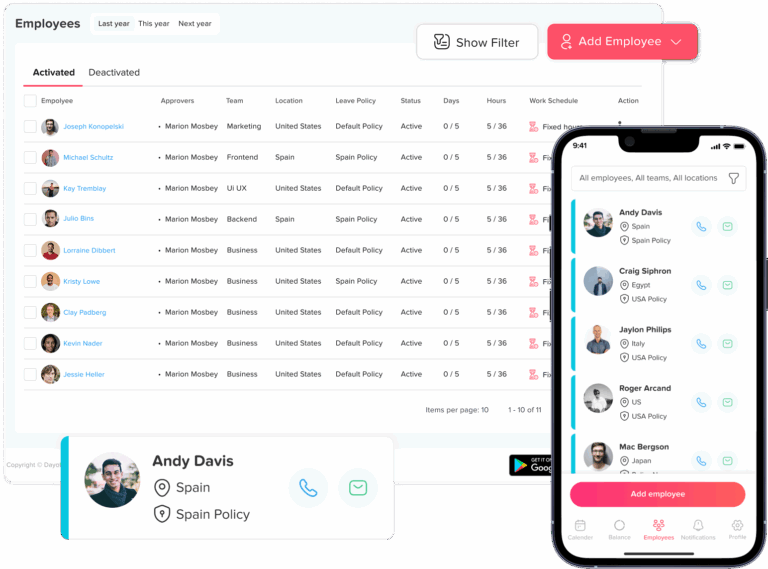
Step-by-Step Guide to Setting PTO Calendar Permissions
Step 1: List the Information in the System
Start by identifying the types of information stored in the leave system.
This may include:
- Employee names
- Leave dates
- Leave types
- Leave reasons
- PTO balances
- Accrual history
- Supporting documents
- Approval comments
- Work schedules
- Public holidays
- Reports
- Policy assignments
Then decide whether each type of information is general, operational, confidential, or highly restricted.
This makes it easier to decide who should have access.
Step 2: Identify the Main User Groups
List everyone who needs to use the leave system.
Common groups include:
- Employees
- Team leaders
- Managers
- Department heads
- Location managers
- HR
- Payroll
- Finance
- Auditors
- System administrators
Do not assume all managers need the same permissions. Their access should reflect their actual responsibilities.
Step 3: Define the Calendar Scope
For each role, decide whether the user should see:
- Only themselves
- Direct reports
- Their team
- Their location
- Several assigned teams
- Several assigned locations
- The entire company
Choose the smallest view that still allows the user to plan and complete their work.
Step 4: Choose Which Request Statuses Are Visible
Decide whether each role should see:
- Approved requests only
- Pending and approved requests
- Rejected requests
- Canceled requests
- Historical requests
Employees may only need approved team leave. Managers may need pending requests. HR may need every status.
Step 5: Choose the Level of Leave Detail
Decide whether the role should see:
- The exact leave type
- A general leave label
- The employee name and dates only
- The request reason
- Uploaded documents
- Approval comments
Private details should only be available to users who need them.
Step 6: Set Approval Permissions
Decide who can approve, reject, cancel, edit, or override requests.
The person viewing the calendar may not be the person who should make the final decision.
Step 7: Set Balance and Report Permissions
Decide who can:
- View their own balance
- View team balances
- View company balances
- Make balance adjustments
- Open reports
- Apply filters
- Export data
Balance and report access should be reviewed separately from calendar visibility.
Step 8: Test Each Role
Create test users or review the system from the view of each role.
Check questions such as:
- Can employees see another department?
- Can a manager see employees outside the assigned location?
- Can employees see sensitive leave types?
- Can payroll open unrelated reports?
- Can an auditor edit balances?
- Can former managers still see their old teams?
- Can a location manager switch to another location?
- Can employees see pending requests that are not confirmed?
Testing helps identify permission combinations that may not work as expected.
Step 9: Review Permissions Regularly
Permissions should be reviewed when employees:
- Join the company
- Become managers
- Change teams
- Transfer locations
- Move into HR or payroll
- Receive temporary approval duties
- Return to a non-management role
- Leave the company
A user may keep unnecessary access after a role change unless the company removes it.
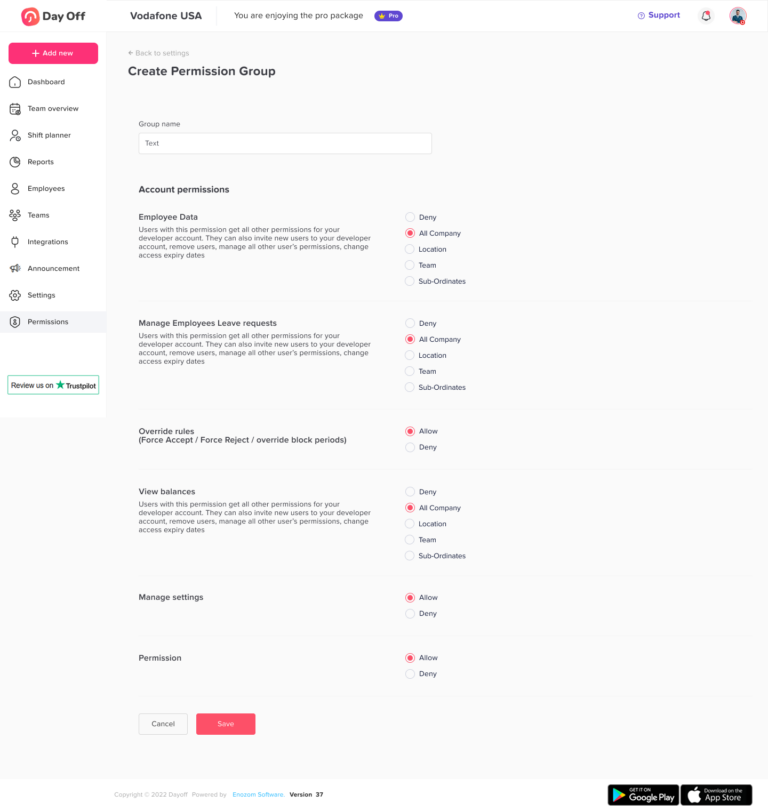
Example PTO Permission Setup
Consider a company with several departments and three office locations.
HR Administrator
The HR administrator can:
- View the entire company
- Filter by team and location
- See all request statuses
- View leave types
- Review employee balances
- Manage leave policies
- Adjust balances
- Access all reports
Department Manager
The department manager can:
- View the assigned department
- See pending and approved leave
- View team balances
- Approve and reject requests
- Open department reports
- View employees across locations only when they belong to the department
Location Manager
The location manager can:
- View employees at the assigned location
- See pending and approved leave
- Review local staffing
- Approve requests for assigned employees
- Open selected location reports
Employee
The employee can:
- View their own balance and request history
- See approved team absences
- See public holidays
- See company blockout dates
- Submit and manage their own requests
- View general leave labels instead of private leave types
Payroll Specialist
The payroll specialist can:
- View approved paid leave
- Review relevant balances and adjustments
- Export payroll-related reports
- Avoid access to detailed medical information or unrelated requests
Common PTO Calendar Permission Mistakes
Giving Every Manager Administrator Access
Managers may need to view team leave, check balances, and approve requests. However, they usually do not need access to company-wide settings, security controls, leave policies, or every employee record.
Giving full administrator access creates unnecessary privacy and security risks. A better option is to create a custom manager role with only the permissions needed for that person’s responsibilities.
For example, a manager may be allowed to:
- View assigned employees
- See pending and approved requests
- Approve or reject requests
- View team balances
- Open selected team reports
They should not be able to change company policies or access unrelated departments unless their role requires it.
Showing Sensitive Leave Types to Everyone
A shared PTO calendar should help employees understand who is available. It should not reveal private health or personal information.
Showing labels such as medical leave, pregnancy leave, or mental health leave to the full team may disclose more than employees need to know.
For most employee calendar views, a simple label such as Leave, Out of Office, or Unavailable is enough.
HR and authorized managers may still see the exact leave type when it is needed for approval, payroll, or compliance.
Giving Employees Company-Wide Access by Default
A company-wide calendar may be useful in a small business where everyone works closely together. In a larger company, it can become crowded and show absences that are not relevant to the employee.
For example, an employee in the Cairo marketing team may not need to see every absence in the London engineering department.
A team, department, or location-based calendar is usually easier to read and more useful for daily planning.
Hiding Too Much Information From Managers
Managers cannot plan coverage properly when they have too little information.
If managers only see leave after it is approved, they may miss several pending requests for the same date. This can make it harder to compare requests fairly or identify possible staffing shortages.
Managers may need to see:
- Pending requests
- Approved requests
- Partial-day absences
- Leave dates
- Team availability
- Employee balances where required
The goal is to give managers enough information to make informed decisions without exposing unrelated or sensitive details.
Giving Report Access With Calendar Access
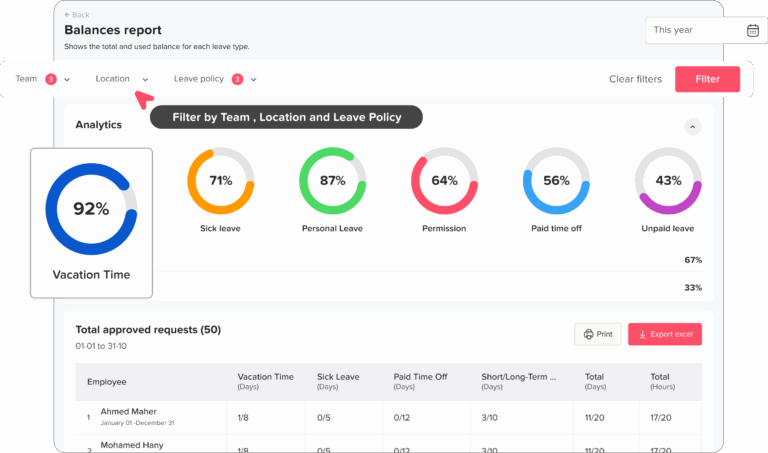
Calendar access and report access are not the same.
A calendar mainly shows who will be away and when. Reports may contain more detailed information, including balances, accrual history, carryover, policy assignments, and exported employee data.
A manager may need to view the team calendar without needing access to company-wide balance reports. An employee may need to see team absences without seeing anyone else’s PTO balance.
Report permissions should therefore be assigned separately from calendar visibility.
Forgetting to Remove Old Permissions
Employees may keep access after changing roles, departments, or locations.
For example, a former department manager may continue seeing the old team after moving into another position. A temporary approver may keep approval access after the regular manager returns.
HR should review access whenever an employee:
- Changes roles
- Transfers teams
- Moves to another location
- Becomes or stops being a manager
- Receives temporary approval duties
- Leaves the company
Old permissions should be removed as part of the transfer or offboarding process.
Showing Detailed Reasons Instead of Availability
The main purpose of a shared PTO calendar is to show availability.
Coworkers usually need to know that an employee will be away. They normally do not need to know the employee’s medical condition, family situation, or personal reason for taking leave.
Detailed reasons, documents, and manager comments should remain inside the restricted request record. The shared calendar can use a general label.
Creating Too Many Custom Roles
Custom roles provide useful control, but creating a separate role for every employee can make the system difficult to manage.
Instead, create roles around common responsibilities.
For example:
- Employee
- Team leader
- Department manager
- Location manager
- HR
- Payroll
- Administrator
- View-only auditor
Teams, locations, and employee assignments can then be used to control exactly who each role can see.
How Day Off Helps Manage PTO Calendar Permissions
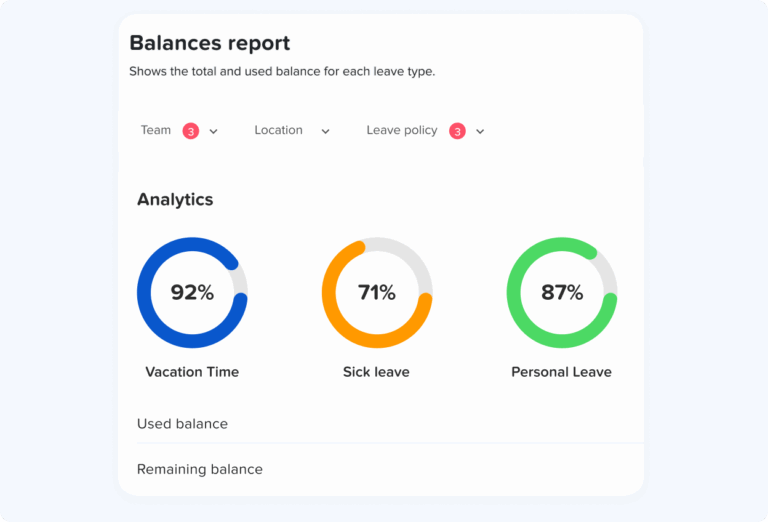
Day Off helps companies create different calendar views for employees, managers, HR, payroll, and other users.
Instead of giving everyone the same access, administrators can combine roles, teams, locations, calendar settings, and report permissions to create a more useful and private system.
With Day Off, administrators can:
- Create custom roles
- Choose the permissions included in each role
- Assign roles to the correct employees
- Limit calendar visibility by team
- Limit calendar visibility by location
- Provide company-wide access where needed
- Show only approved requests
- Show pending and approved requests
- Display exact leave types for authorized users
- Hide leave types from wider employee views
- Use general leave labels
- Allow managers to view assigned team balances
- Control who can approve or manage requests
- Control access to reports
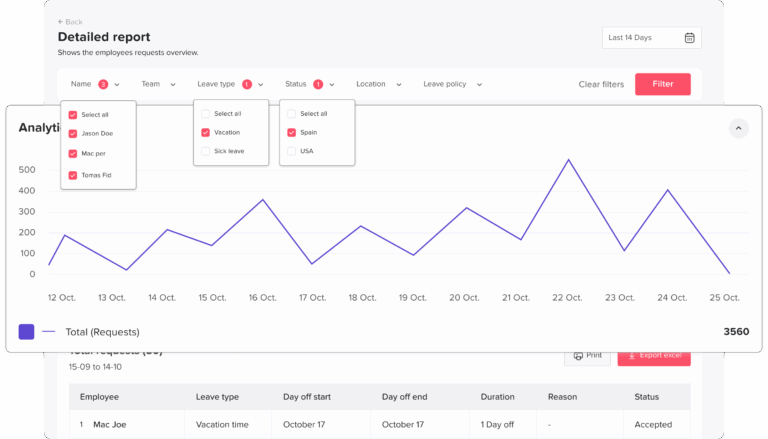
- Filter reports by employee, team, location, leave policy, or leave type
Example Permission Setup
A company could give HR access to the full company calendar, employee balances, leave policies, adjustments, and reports.
Department managers could see only their assigned teams, including pending and approved requests. They could also receive permission to approve requests and view relevant team balances.
Employees could see approved absences for their own teams without seeing private leave reasons or other employees’ balances.
Location managers could view employees in their assigned branches, even when those employees belong to different departments.
Payroll could access approved paid leave, balance adjustments, and payroll reports without receiving permission to change policies or approve requests.
This setup helps every user find the information needed for their work without giving them access to unrelated records.
Frequently Asked Questions About PTO Calendar Permissions
What are PTO calendar permissions?
PTO calendar permissions are settings that control what each user can see and do in a leave calendar.
They can determine:
- Which employees are visible
- Which teams or locations appear
- Which request statuses are shown
- Whether leave types are displayed
- Whether balances are available
- Whether the user can approve requests
- Whether the user can open or export reports
The permissions should match the user’s actual responsibilities.
Should employees see everyone’s PTO?
Not always.
Employees usually need to see absences that affect their own work, such as leave taken by people in the same team, department, or location.
Company-wide access may work in a small business, but it can make the calendar crowded in a larger organization. It may also show information that is not relevant to the employee.
Should employees see why a coworker is on leave?
Yes, when the company gives them permission.
Balance access can help managers review longer requests and understand whether an employee has enough PTO available.
However, managers should usually see balances only for employees they supervise. They should not automatically have access to balances across the entire company.
Should managers see pending PTO requests?
In many companies, yes.
Pending requests help managers identify possible conflicts before approving leave. For example, a manager may see that three employees have requested the same day.
Employees may only need to see approved team leave, while managers and HR may benefit from seeing both pending and approved requests.
Can PTO calendar access be limited by team?
Yes.
Team-based access allows users to focus on the coworkers they work with most closely.
For example, a marketing manager may see the marketing team calendar without seeing leave requests from finance or engineering.
Can PTO calendar access be limited by location?
Yes.
Location-based access is useful for businesses with several offices, branches, stores, restaurants, clinics, or international teams.
A location manager can review absences at one branch without seeing every employee in the organization.
What should appear on an employee PTO calendar?
An employee calendar may include:
- The employee’s own requests
- Approved team absences
- Public holidays
- Company blockout dates
- Full-day and partial-day availability
- General leave labels
Employees should also be able to review their own balance and request history.
They usually do not need to see other employees’ balances or detailed leave reasons.
What should appear on a manager PTO calendar?
A manager calendar may include:
- Direct reports
- Assigned teams
- Pending requests
- Approved requests
- Partial-day absences
- Public holidays
- Blockout periods
- Team balances where required
Managers may also receive permission to approve requests and access selected team reports.
What should HR see on a PTO calendar?
HR may need access to the entire company calendar.
The HR view may include filters for:
- Team
- Department
- Location
- Request status
- Leave type
- Employee
HR may also need access to balances, accrual history, carryover, policy assignments, manual adjustments, request history, and reports.
Should payroll have access to the PTO calendar?
Payroll may need access to approved paid leave, balance changes, and payroll-period reports.
However, payroll does not always need access to detailed reasons, medical documents, approval comments, or company policy settings.
A custom payroll role can provide the required reports without giving unnecessary access.
Can an auditor receive view-only access?
Yes.
A company can create a view-only role that allows an auditor or accountant to review selected reports and historical records.
The auditor should not be able to:
- Change balances
- Approve requests
- Edit employees
- Change leave policies
- Update permissions
What is the difference between calendar access and report access?
Calendar access mainly shows employee availability and leave dates.
Report access may include:
- Current balances
- Accrual history
- Leave usage
- Carryover
- Policy assignments
- Manual adjustments
- Historical records
- Exported data
A user who can see the PTO calendar should not automatically receive permission to open every report.
How often should PTO permissions be reviewed?
Permissions should be reviewed regularly and whenever an employee’s responsibilities change.
Important review points include:
- New employee onboarding
- Promotions
- Manager changes
- Team transfers
- Location transfers
- Temporary approval assignments
- Company reorganizations
- Employee departures
Many companies also perform a full access review once or twice each year.
How can a company protect medical leave information?
Medical details should not appear on the shared PTO calendar.
Use a general calendar label and limit detailed reasons, documents, and comments to authorized HR users or managers with a clear need for the information.
The calendar should communicate availability, not private medical information.
How many PTO permission roles should a company create?
There is no single correct number.
The company should create enough roles to reflect real differences in responsibility without making access difficult to manage.
A practical starting structure may include:
- Employee
- Team leader
- Manager
- Location manager
- HR
- Payroll
- Administrator
- View-only auditor
Team, department, location, and employee assignments can then narrow the calendar view for each user.
Final Thoughts
A PTO calendar should make leave planning easier without exposing unnecessary employee information.
HR usually needs a company-wide view, access to balances, policy tools, and detailed reports. Managers need a focused view of their assigned employees, including pending requests and team availability. Employees mainly need access to their own leave information and enough visibility to coordinate with coworkers.
An effective setup combines:
- Custom roles
- Team access
- Location access
- Request status visibility
- Leave type privacy
- Approval permissions
- Balance access
- Report permissions
These controls should work together. Giving everyone the same view is rarely the best solution.
With Day Off, companies can create calendar views based on real responsibilities. Administrators can control who sees each team or location, decide which leave details appear, give managers appropriate approval access, and limit reports to authorized users.
The result is a clearer calendar for employees, better staffing information for managers, and stronger privacy and control for HR.