





Timesheets
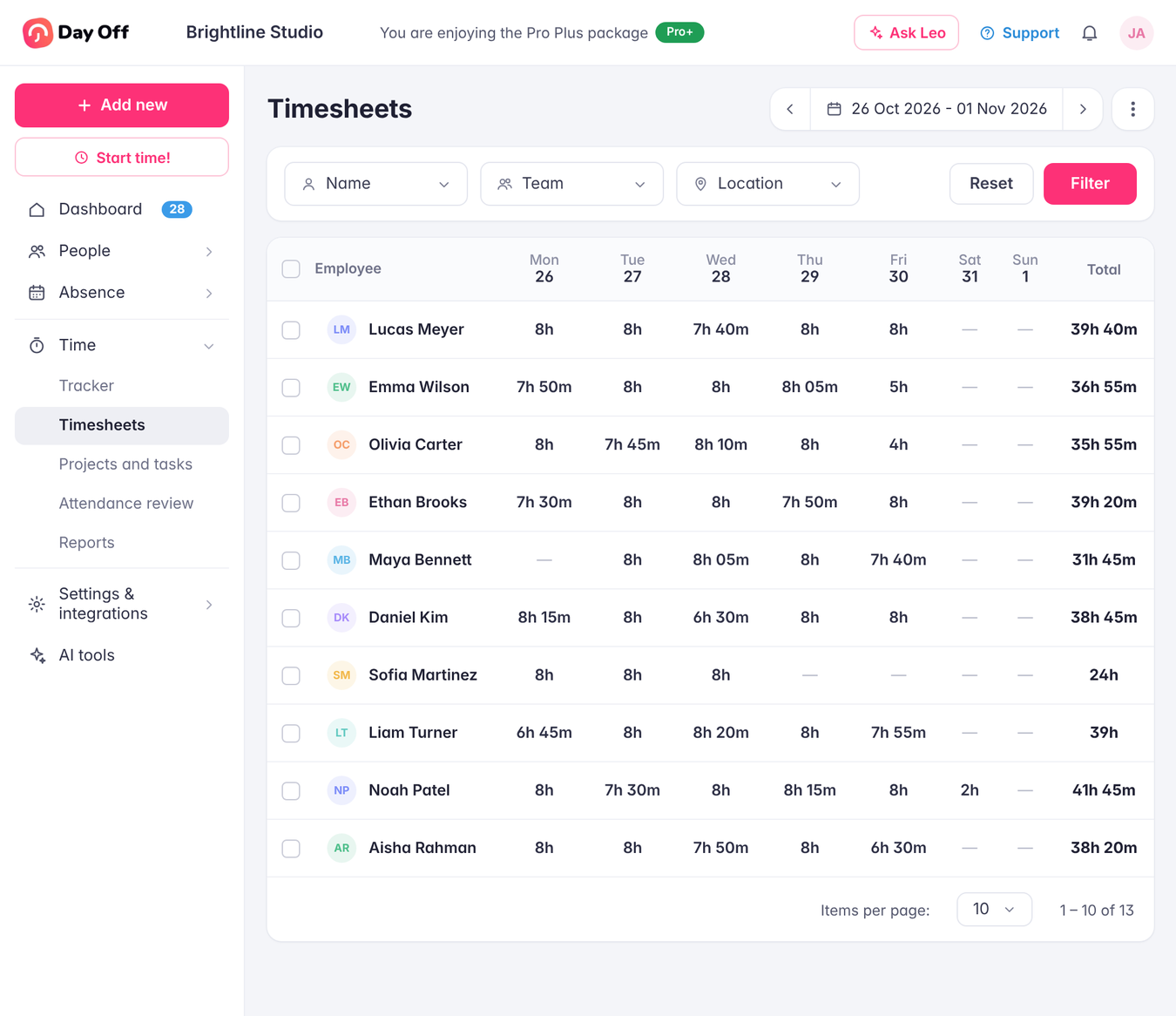
Timesheets give managers a weekly view of every employee’s logged hours in one clear grid. See daily totals at a glance, open any employee to see their time broken down by project and task, and compare logged hours against scheduled hours, with approved time off shown right alongside.
Weekly Team Overview
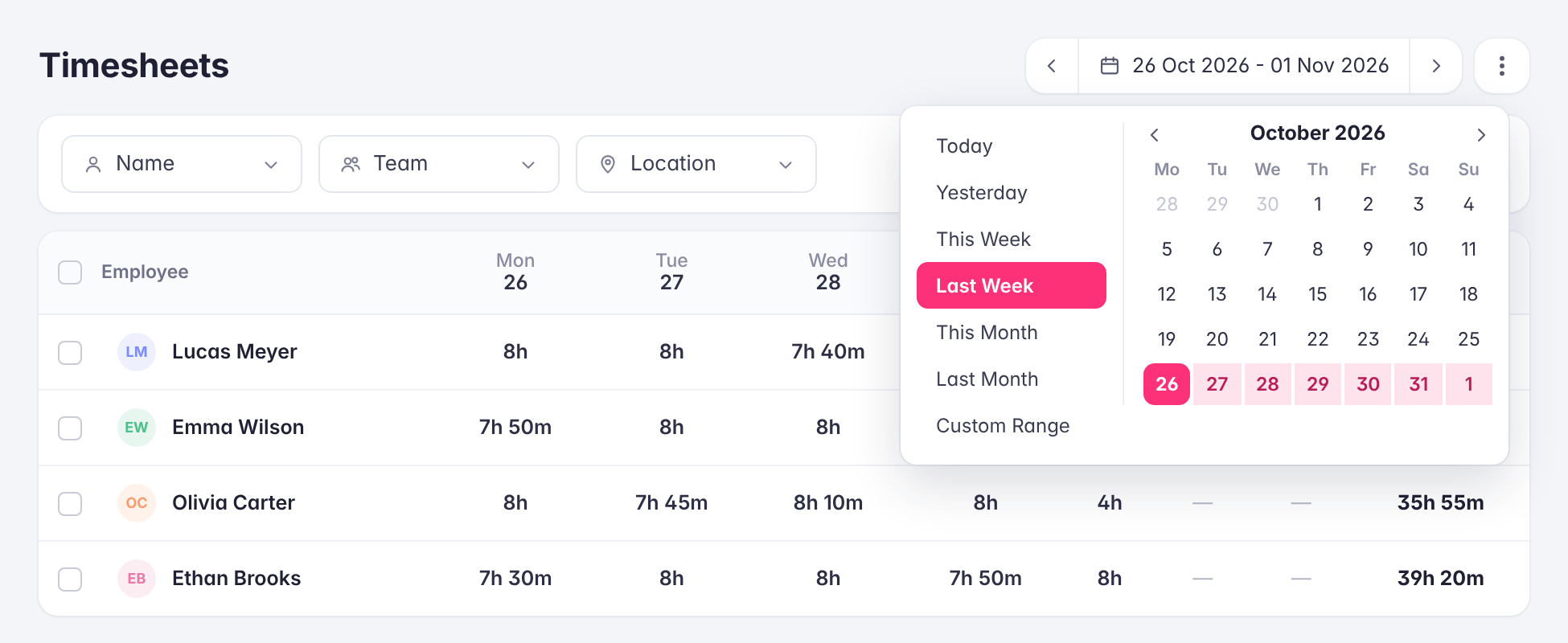
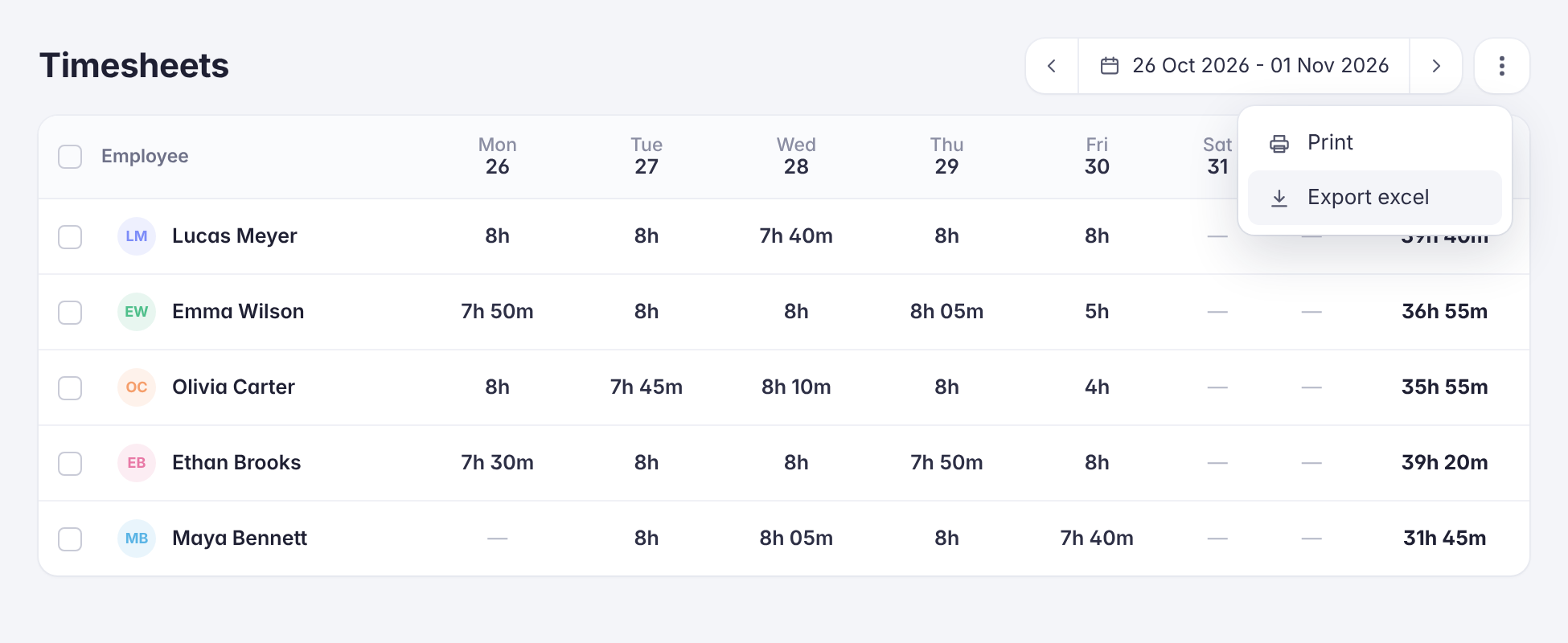
The Timesheets page lists every employee in a single weekly grid, with the hours they logged on each day and a running total at the end of the row. Move between weeks with the arrows or jump to Today, This Week, Last Week, This Month, Last Month, or a custom range, and narrow the list by name, team, or location to focus on the people you manage.
Project and Task Breakdown
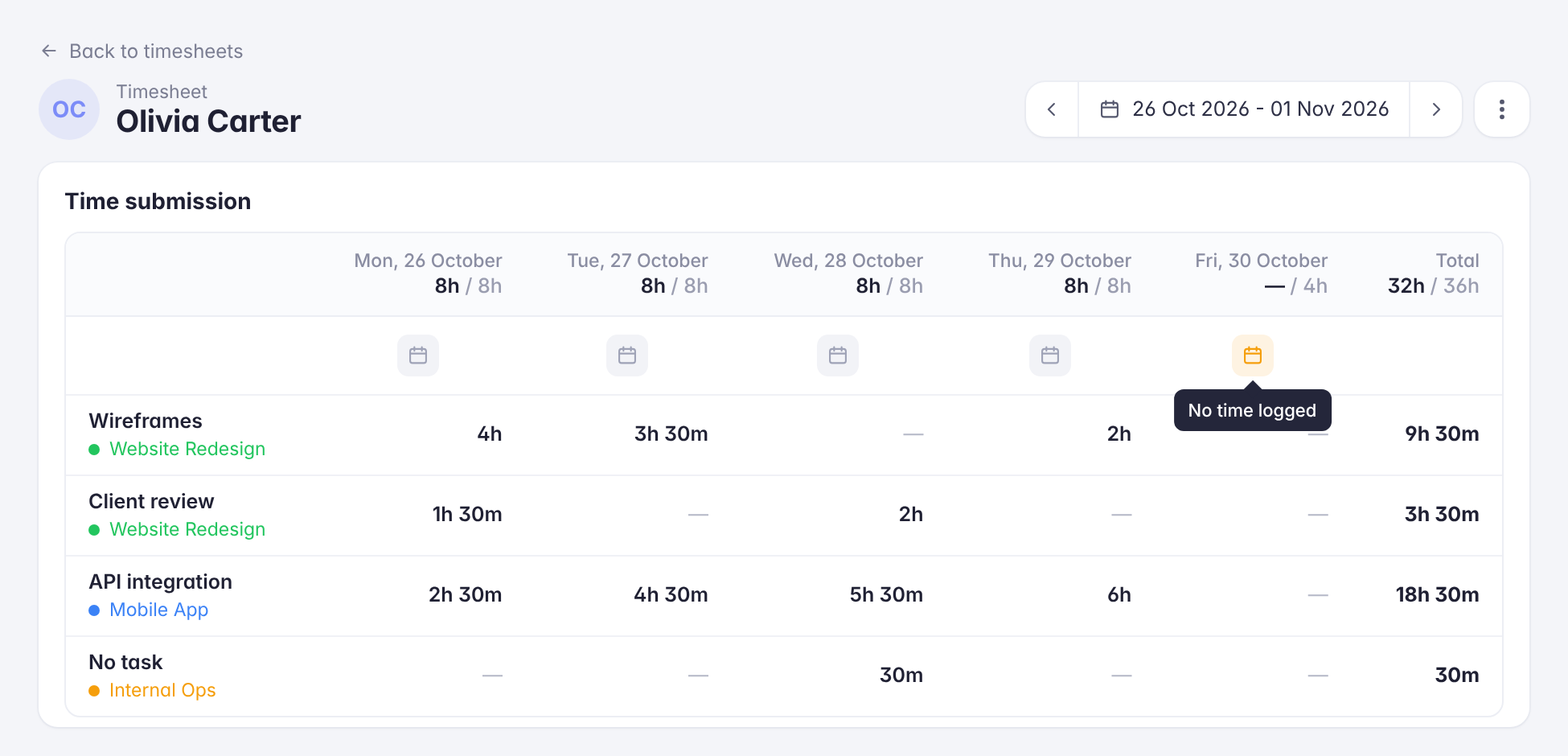
Open any employee to see their timesheet split into rows by project and task, with hours for each day of the week and a total for every row. Each day shows logged hours against scheduled hours, such as 6h / 8h, and a quick indicator marks which days have time logged and which don’t, so gaps stand out immediately.
Day Details with Time Off Included
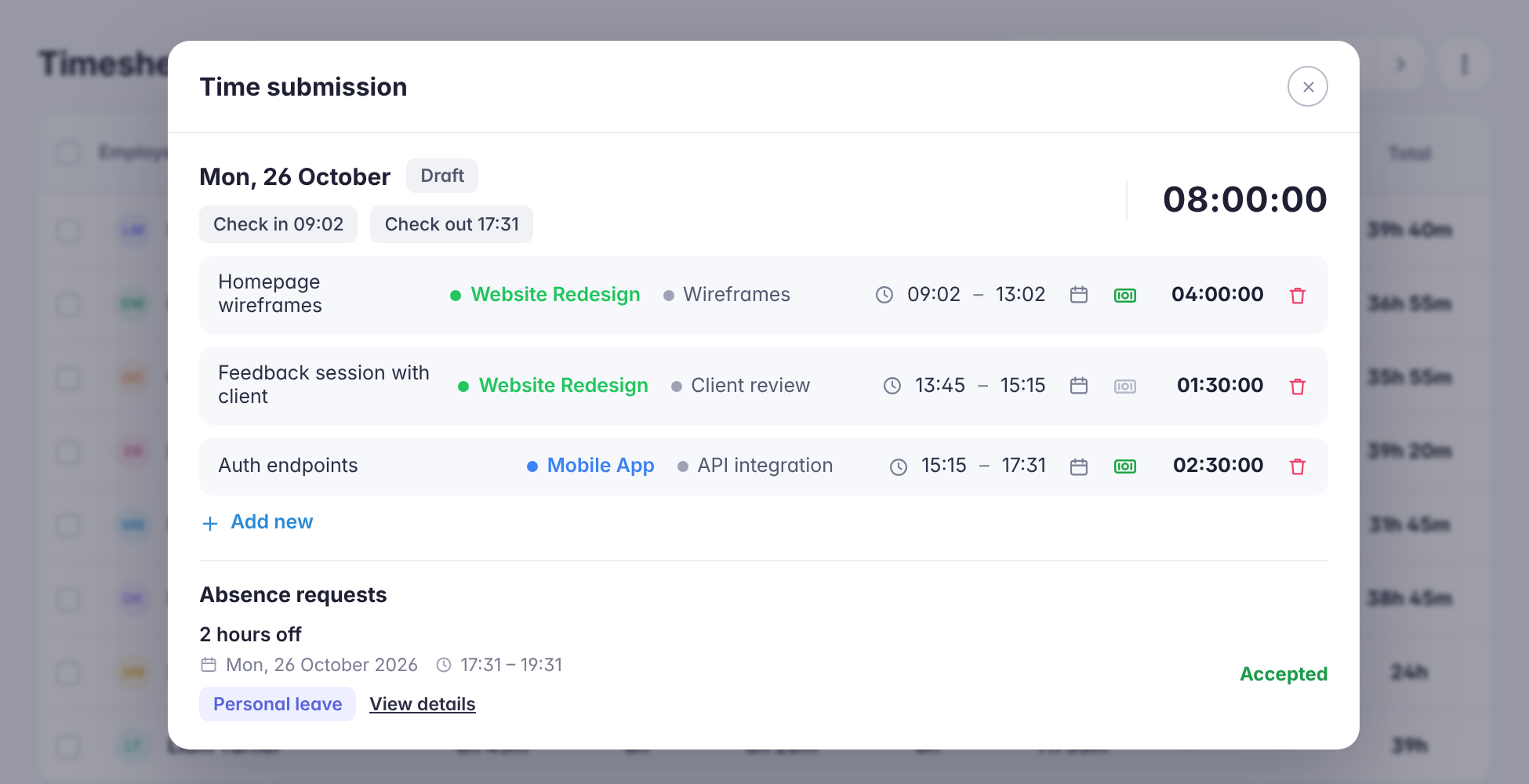
Click any day to open its full details: check-in and check-out times, plus each entry’s description, project, task, start and end time, and billable status. Depending on your time editing settings, entries can be added, moved to another date, or removed, and any absence requests for that day appear right underneath, so time off is reviewed in the same place as worked hours.
Print and Excel Export
Print the timesheet or export it to Excel in one click, from the team overview or from an individual employee’s timesheet. It’s an easy way to share hours with payroll, finance, or clients without retyping a single number.