





Day Off Knowledge Base
-
Work schedules
- Can I customize schedules for part-time or remote employees?
- Can I temporarily edit an employee's work schedule?
- How do I set working days and weekends?
- How to set a flexible hours schedule?
- How to set a shift-based schedule?
- How to set different working days for different employees?
- How to set the working hours?
- What are work schedules in Day Off?
- What Is the Shift Planner?
Print
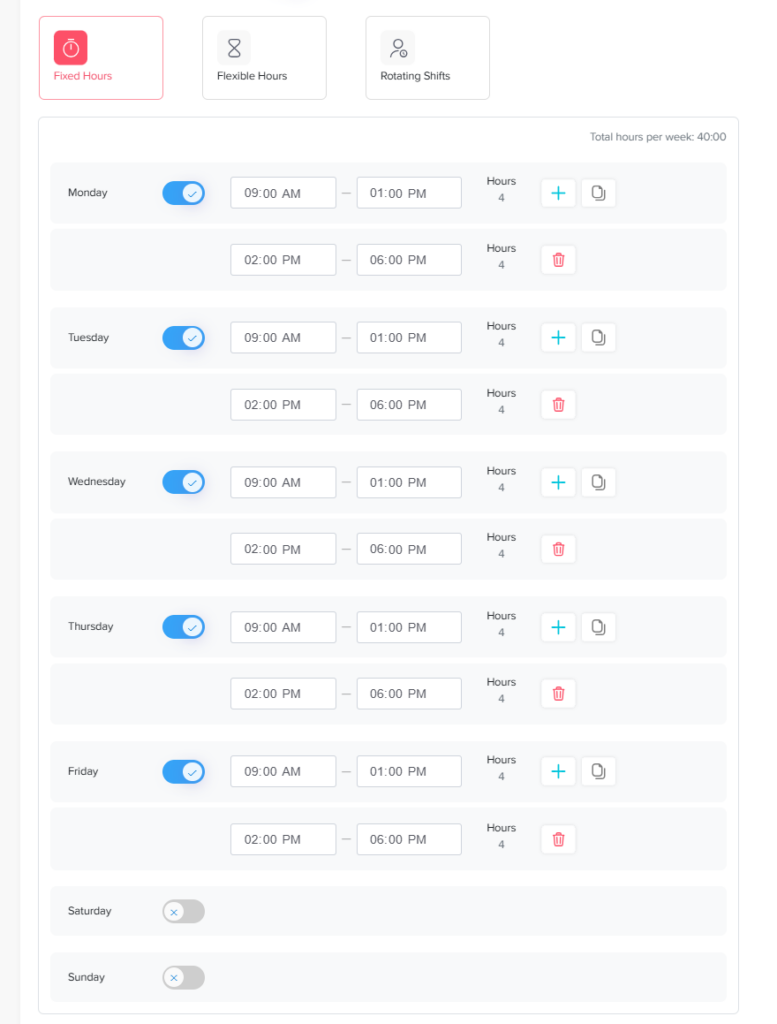
Admins can set specific working hours using the Fixed hours option within the advanced schedules.
Go to Settings & integrations → Settings and select Work schedules.
Add a new schedule or edit an existing one.
Enable the Advanced work schedule toggle.
Select Fixed hours.
Toggle ON the working days and leave weekends toggled OFF.
Enter the start and end times for the workday (e.g., 9:00 AM to 5:00 PM).
To add a break or lunch, click the + icon to split the day into two periods. For example, set 9:00 AM to 1:00 PM, and 2:00 PM to 5:00 PM. The unscheduled hour from 1:00 PM to 2:00 PM acts as the break.
Click the Copy icon next to the first day to easily apply these times to the rest of the week.
On this page