







Managing time off is not just about approving vacation requests. It is also about making sure everyone knows who is available, who is away, and when work needs to be planned around absences. PTO calendar sync helps companies connect approved leave with the calendars teams already use, such as Google Calendar, Outlook Calendar, Microsoft Teams calendars, and shared team calendars.
Related reading: For a broader look at keeping leave records accurate, see our PTO Audit Checklist.

When PTO is only stored in spreadsheets, emails, or private HR files, managers may approve leave without realizing that another employee is already away. Team members may schedule meetings with someone who is on vacation. Payroll teams may need to check multiple places before confirming attendance and paid time off. A connected PTO calendar solves these problems by making approved time off visible in the right place.
For growing teams, this is no longer a “nice to have” feature. It is an important part of leave management, workforce planning, and employee communication.
What Is PTO Calendar Sync?
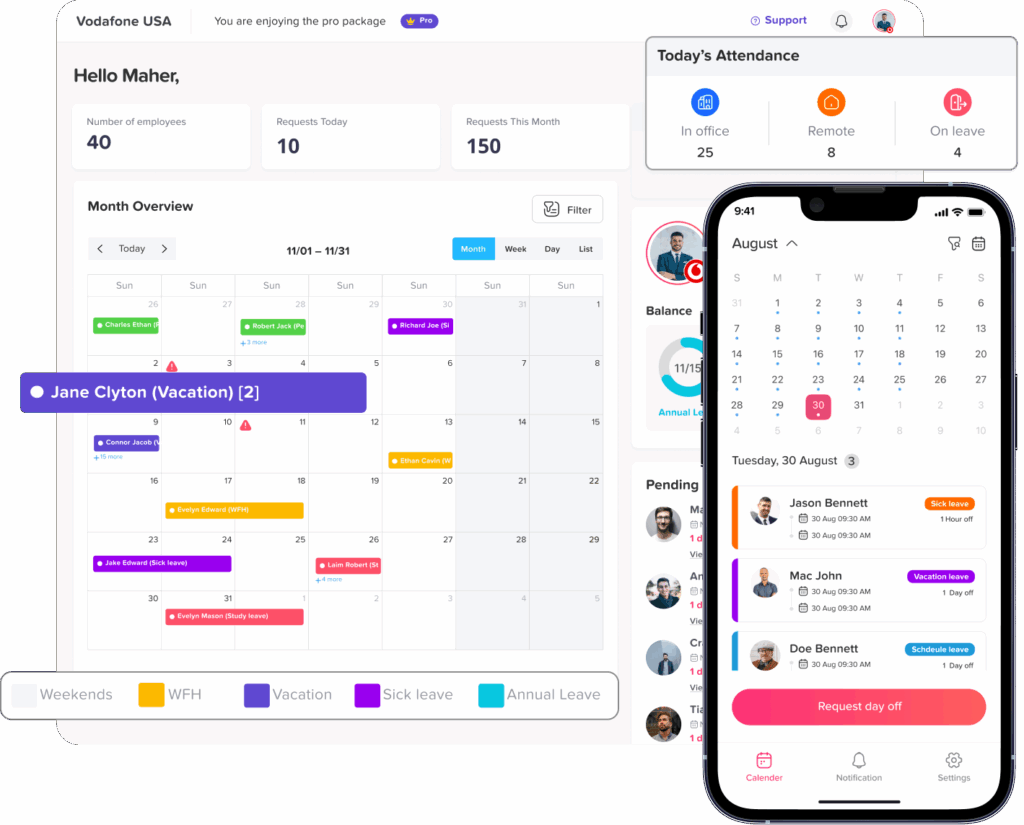
PTO calendar sync means connecting approved employee leave with a digital calendar. Instead of manually adding vacation days, sick leave, public holidays, or remote absences to Google Calendar or Outlook, the leave management system sends the information to the calendar automatically.
For example, when an employee submits a vacation request and the manager approves it, the time off can appear on a shared calendar. This helps managers and employees see upcoming absences without opening a separate spreadsheet or asking HR for updates.
Day Off supports calendar and workplace integrations, including Google Calendar, Outlook Calendar, Slack, Microsoft Teams, Google Workspace, and REST API options, helping teams keep leave information connected with their daily workflow.
Why PTO Calendar Sync Matters
A PTO calendar is more than a visual schedule. It helps teams make better decisions before approving leave, assigning tasks, scheduling meetings, or planning deadlines.
Without calendar sync, companies often deal with:
- Overlapping leave requests
- Missed handovers
- Confusion about employee availability
- Last-minute staffing gaps
- Unclear team capacity
- Manual updates across several tools
- More back-and-forth between HR, managers, and employees
With PTO calendar sync, approved time off becomes easier to see and manage. Managers can check availability before approving new requests. Employees can plan their work around teammates’ absences. HR can reduce manual calendar updates and focus on policies, balances, and reporting.
The Difference Between a PTO Calendar and a Regular Calendar
A regular calendar is designed for meetings, events, appointments, and reminders. A PTO calendar is built around employee availability.
Here is a simple comparison:
Regular Calendar vs PTO Calendar
Compare calendar use for meetings and employee time off
| Area | Regular Calendar | PTO Calendar |
|---|---|---|
| Main purpose | Meetings and events | Employee time off and availability |
| Managed by | Individuals or teams | HR, managers, or leave system |
| Leave balances | Usually no | Yes, if connected to PTO software |
| Approval flow | Not included | Built into leave tools |
| Best use | Scheduling meetings | Tracking PTO and absences |
| Risk if used alone | Leave can be missed | Clearer approved absence visibility |
A regular calendar can show time off, but it does not usually manage leave requests, approval rules, balances, accruals, carryover, or leave policies. That is why companies often need a PTO tracker like Day Off connected to their calendar tools.
How PTO Calendar Sync Works
A typical PTO calendar sync process looks like this:
- An employee submits a time off request.
- The manager reviews and approves or declines it.
- Once approved, the leave appears in the company’s PTO calendar.
- The approved absence syncs with Google Calendar, Outlook Calendar, or another team calendar.
- Employees and managers can view who is off without checking multiple systems.
The key point is that the calendar should reflect approved time off, not every pending request. This keeps the team calendar clean and prevents confusion.
Connecting PTO With Google Calendar
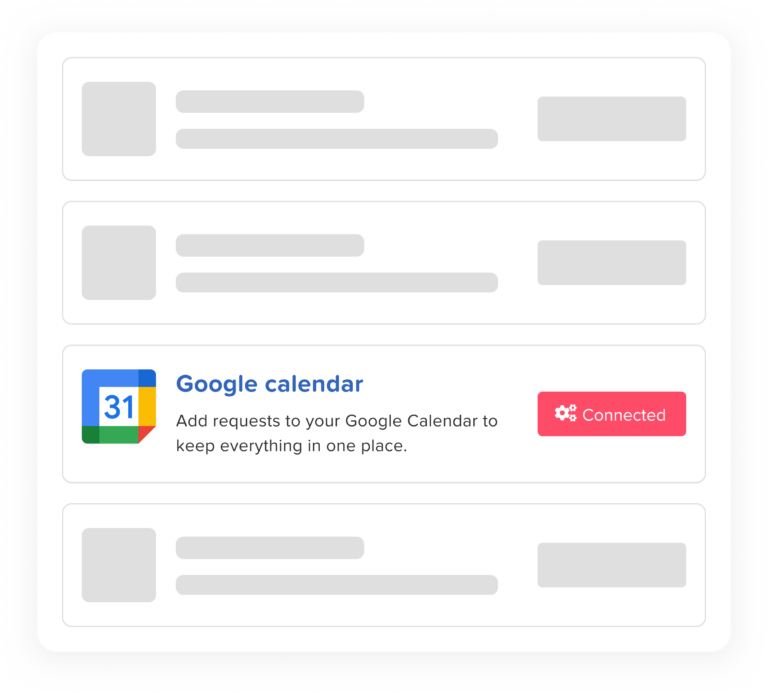
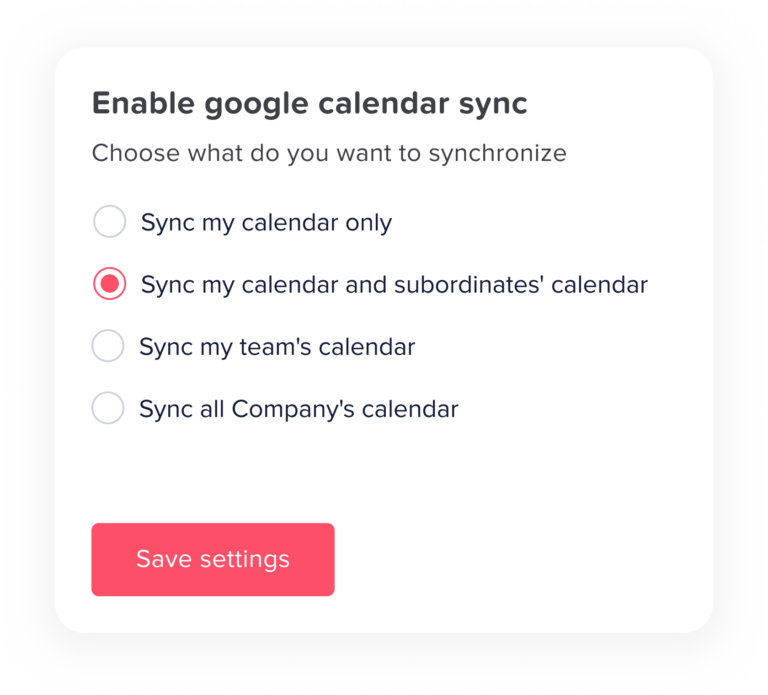
Google Calendar is one of the most common tools used by modern teams. Connecting PTO with Google Calendar helps employees and managers see absences next to meetings, deadlines, and team events.
Google supports adding calendars by URL from the “Other calendars” section on desktop. Users can choose “From URL,” enter the published calendar link, and add it to their calendar list.
For PTO tracking, this is useful because a leave calendar can be displayed beside work calendars. Managers can quickly check whether someone is away before scheduling a meeting or approving another leave request.
Benefits of syncing PTO with Google Calendar
- Employees can see team absences in a familiar calendar view.
- Managers can check availability before assigning work.
- Remote and hybrid teams can coordinate across locations.
- HR does not need to manually update a separate calendar.
- Approved leave becomes easier to communicate across departments.
Best practices for Google Calendar PTO sync
To get better results, companies should:
- Use a clear calendar name such as “Company PTO Calendar” or “Marketing Team Leave Calendar.”
- Avoid adding too much private leave detail unless the company policy allows it.
- Show approved leave only.
- Review calendar permissions carefully.
- Keep PTO requests and approvals inside the leave management system, not inside Google Calendar alone.
Google Calendar is great for visibility, but it should not replace a proper PTO approval process. The request, approval, balance, and reporting should still happen in a leave tracker like Day Off.
Connecting PTO With Outlook Calendar
Many companies use Outlook Calendar through Microsoft 365. For these teams, PTO calendar sync is especially helpful because employees already use Outlook for meetings, reminders, and daily scheduling.
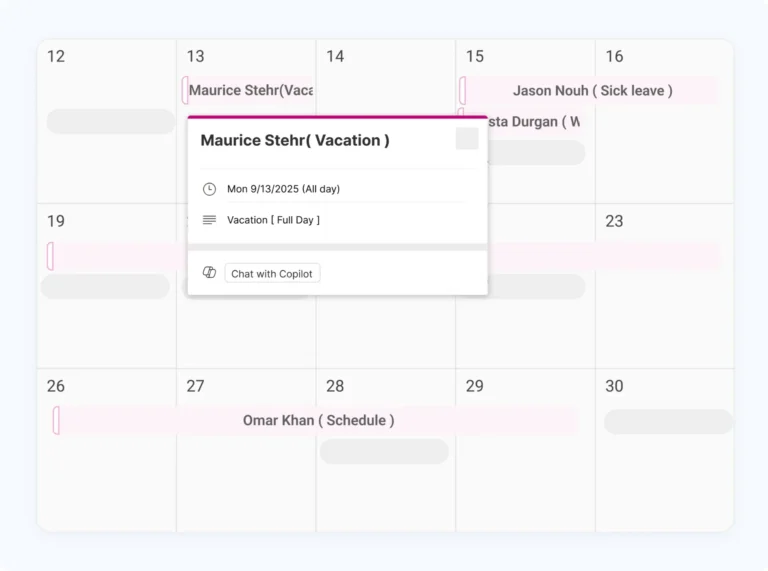
Microsoft supports subscribing to internet calendars in Outlook.com and Outlook on the web. A subscribed calendar can automatically refresh when the original calendar is updated, although Microsoft notes that refreshes can sometimes take more than 24 hours.
This means PTO calendar sync can help Outlook users view approved time off in the same place they already manage work events.
Benefits of syncing PTO with Outlook Calendar
- Managers can see time off next to meetings.
- Employees can avoid inviting absent teammates.
- HR can reduce manual leave calendar updates.
- Department heads can plan coverage more clearly.
- Microsoft-based teams can keep PTO visibility inside their existing workflow.
Best practices for Outlook PTO sync
For better organization, teams should:
- Create separate PTO calendars for large departments if the company has many employees.
- Use consistent event titles, such as “Sarah Ahmed – PTO” or “Team Member Away.”
- Decide whether leave type should appear publicly.
- Avoid showing sensitive absence details, especially for sick leave.
- Train managers to check the calendar before approving overlapping leave.
Outlook Calendar is powerful for team visibility, but the company still needs a central PTO system to manage approvals, policies, leave balances, and reporting.
Connecting PTO With Microsoft Teams Calendars
Microsoft Teams is where many employees communicate during the workday. While Teams calendars are closely connected with Outlook and Microsoft 365, teams often need more than a meeting calendar. They need a quick way to know who is out today, who will be off tomorrow, and who is unavailable next week.
Day Off supports Microsoft Teams integration, including absence visibility through daily summaries. Its Teams integration can send a daily “who is absent” message, helping employees and managers start the day with a clear view of availability.
This is useful because not everyone checks a shared calendar every morning. A Teams notification can bring the information directly into the workspace where employees are already active.
How Microsoft Teams PTO visibility helps
- Teams can see who is absent without asking HR.
- Managers can plan daily workloads faster.
- Employees can avoid delays by knowing who is unavailable.
- Remote teams can stay aligned without extra meetings.
- Daily absence summaries reduce repeated questions.
For example, instead of a manager asking, “Is anyone from support off today?” the daily Teams message can show the answer automatically.
Connecting PTO With Slack and Team Communication Tools
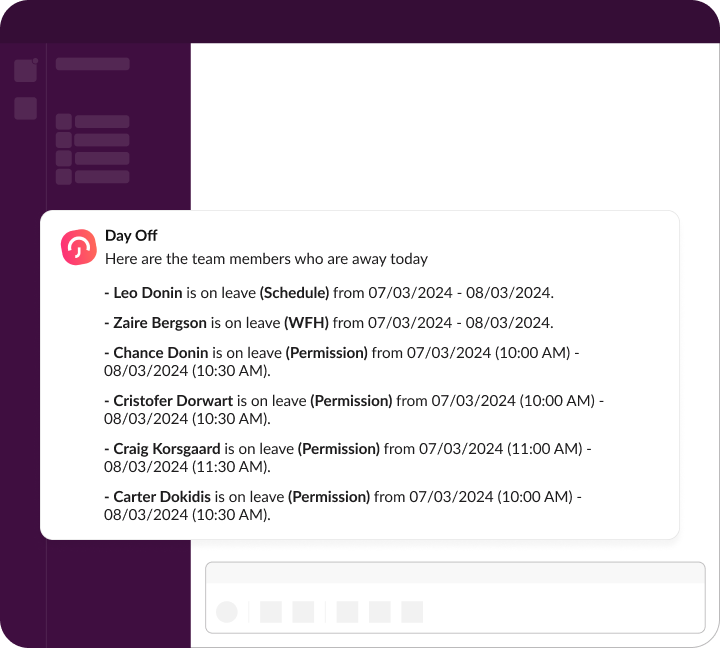
Calendar sync is important, but team communication matters too. Many companies use Slack or Microsoft Teams as their main workspace. That means PTO updates should not live only in calendar tools.
Day Off integrates with Slack and Microsoft Teams, allowing teams to connect leave management with workplace communication.
This helps because PTO visibility works best when it appears where employees already communicate. If a manager receives leave updates in Slack or Teams, they are more likely to respond quickly. If employees see daily absence summaries, they can plan their work before sending messages or assigning tasks.
What Should Appear on a PTO Calendar?
A PTO calendar should be useful, but it should not expose more information than necessary. Companies need to balance visibility with privacy.
A good PTO calendar may include:
- Employee name
- Date or time range of absence
- Leave status
- Team or department
- General leave type, if appropriate
- Public holidays
- Company closure days
- Remote work or work-from-home days, if the company tracks them
However, companies should be careful with sensitive details. For example, showing “sick leave” publicly may not be appropriate in every workplace. Some companies prefer simple labels like “Out of Office” or “Away” to protect employee privacy.
PTO Calendar Sync and Leave Approval Workflows
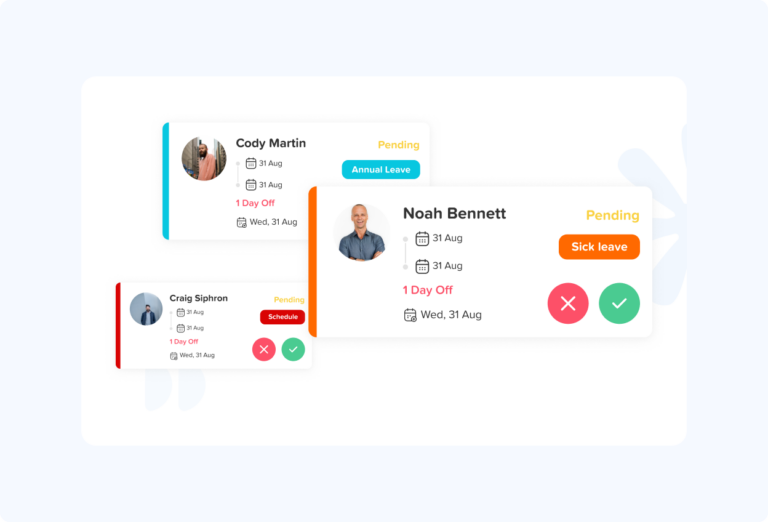
Calendar sync should happen after approval, not before. If pending requests appear on a team calendar, employees may assume someone is definitely out when the request is not approved yet.
A strong workflow should include:
- Employee submits leave request.
- Manager receives notification.
- Manager checks calendar availability.
- Manager approves or rejects request.
- Approved leave appears on the shared PTO calendar.
- Calendar sync updates Google, Outlook, or team calendars.
Day Off helps teams manage this flow by keeping leave requests, approvals, balances, calendars, and integrations in one system. This reduces the risk of scattered information and helps managers make better approval decisions.
How PTO Calendar Sync Helps Managers
Managers are often the first people affected by poor PTO visibility. They need to know whether the team has enough coverage before approving leave or assigning work.
PTO calendar sync helps managers:
- Review upcoming absences quickly
- Avoid too many people being away at the same time
- Plan project deadlines around employee availability
- Prepare coverage for important roles
- Reduce last-minute scheduling problems
- Improve communication with the team
For example, if two customer support agents request the same week off, the manager can check the PTO calendar before approving both requests. This helps avoid service gaps and keeps the team balanced.
How PTO Calendar Sync Helps Employees
Employees also benefit from connected time off calendars. They do not need to ask who is away, search through old messages, or wait for HR updates.
A clear PTO calendar helps employees:
- Plan meetings with available teammates
- Prepare handovers before leave
- Avoid assigning tasks to absent employees
- Understand team capacity
- Plan their own PTO more responsibly
- Feel more confident that approved leave is recorded correctly
When employees can see team availability, they can make better decisions without depending on manual updates.
How PTO Calendar Sync Helps HR
HR teams often manage the most complex parts of leave tracking: policies, accruals, balances, carryover, approval rules, and reports. A calendar alone cannot handle these details, but calendar sync can make HR’s work more visible and easier to communicate.
PTO calendar sync helps HR:
- Reduce repeated questions about who is off
- Keep approved leave visible to managers
- Improve attendance and absence records
- Support payroll preparation
- Maintain clearer PTO documentation
- Reduce manual calendar entry
- Improve transparency across departments
With Day Off, HR teams can manage leave policies and employee time off while also connecting approved absences with the tools teams use daily.
Common PTO Calendar Sync Mistakes to Avoid
A PTO calendar can become messy if it is not set up correctly. Here are common mistakes companies should avoid.
Adding every request before approval
Pending requests should not appear as confirmed absences. This can confuse managers and employees.
Showing too much private information
Not every employee needs to know why someone is away. In many cases, “Out of Office” is enough.
Using one crowded calendar for a large company
If a company has many departments, one calendar may become too busy. Separate calendars by team, location, or department may be easier to manage.
Relying only on manual updates
Manual calendar updates are easy to forget. A PTO tracker with calendar sync reduces this risk.
Ignoring calendar permissions
Companies should review who can view the calendar, who can edit it, and what details are shared.
Not training managers
Managers should know how to check the PTO calendar before approving leave, scheduling meetings, or assigning deadlines.
PTO Calendar Sync for Remote and Hybrid Teams
Remote and hybrid teams need clear availability more than ever. When employees work from different locations or time zones, it is harder to know who is working, who is offline, and who is on leave.
A connected PTO calendar gives everyone one clear view of absences. This is especially useful for:
- Distributed teams
- Global companies
- Customer support teams
- Software development teams
- Agencies
- Sales teams
- Field teams
- Companies with multiple offices
For remote teams, PTO calendar sync reduces uncertainty. Employees do not need to ask, “Is this person off today?” They can check the calendar or receive daily absence updates through Slack or Microsoft Teams.
PTO Calendar Sync for Multi-Office Teams
Companies with more than one location often deal with different holidays, schedules, and leave rules. A PTO calendar can help managers understand availability by office, location, or department.
For example, a company may have one office in the United States and another in Europe. Public holidays, weekends, and work schedules may differ. Without a connected leave calendar, managers may schedule deadlines without realizing one office is closed.
A good PTO system should help teams organize leave by:
- Location
- Department
- Work schedule
- Leave type
- Manager
- Policy
- Employee group
Day Off can support companies that need better leave visibility across teams, locations, and schedules.
What to Look for in a PTO Calendar Sync Tool
Not all PTO calendar tools are equal. Before choosing a solution, companies should look for features that support both visibility and proper leave management.
PTO Calendar Features
Key features that help HR manage leave visibility and approvals
| Feature | Why It Matters |
|---|---|
| Google Calendar integration | Helps teams using Google Workspace see leave in their daily calendar |
| Outlook Calendar integration | Supports Microsoft 365 and Outlook-based teams |
| Shared team calendar | Makes absences visible across departments |
| Approval workflow | Ensures only approved leave appears as confirmed |
| Leave balances | Helps employees request time off responsibly |
| Custom leave types | Supports vacation, sick leave, unpaid leave, personal leave, and more |
| Team and location filters | Helps managers view relevant absences |
| Slack and Teams notifications | Sends PTO updates where employees already communicate |
| Mobile access | Allows employees to request leave from anywhere |
| Reports and exports | Helps HR review usage, balances, and payroll-related records |
Day Off brings many of these features together, making it easier for companies to manage time off without depending on spreadsheets, manual calendars, or scattered messages.
How Day Off Helps With PTO Calendar Sync
Day Off is a leave and PTO tracking app designed to help teams manage time off in a clear and organized way. Instead of tracking leave in spreadsheets or separate calendar events, companies can use Day Off to handle requests, approvals, balances, policies, and visibility from one place.
With Day Off, teams can:
- Track PTO, vacation, sick leave, unpaid leave, and custom leave types
- Manage employee leave requests
- Approve or reject time off
- View team availability
- Connect leave with Google Calendar and Outlook Calendar
- Use Slack and Microsoft Teams integrations for notifications
- Keep managers and employees informed
- Improve planning for remote, hybrid, and multi-office teams
Day Off is especially useful for companies that want simple PTO management with better calendar visibility. It helps employees request leave easily, helps managers approve requests with more context, and helps HR keep leave records organized.
Step-by-Step: How to Build a Better PTO Calendar Process
To get the most value from PTO calendar sync, companies should follow a clear process.
Step 1: Choose one central PTO system
Avoid managing PTO in several places. Use one system, such as Day Off, as the source of truth for leave requests, approvals, balances, and reports.
Step 2: Set up leave policies
Define your leave types, accrual rules, carryover rules, approval workflows, and holiday calendars. This prevents confusion later.
Step 3: Connect your calendar tools
Sync approved leave with Google Calendar, Outlook Calendar, or team calendars so employees can see availability.
Step 4: Decide what information should be visible
Choose whether the calendar should show leave type, employee name, department, or only “Out of Office.”
Step 5: Train managers
Managers should check the PTO calendar before approving time off or scheduling important deadlines.
Step 6: Use team notifications
Connect Slack or Microsoft Teams so absence updates reach employees where they already work.
Step 7: Review the process regularly
As your company grows, review whether you need separate calendars by team, department, or location.
PTO Calendar Sync and Payroll Accuracy
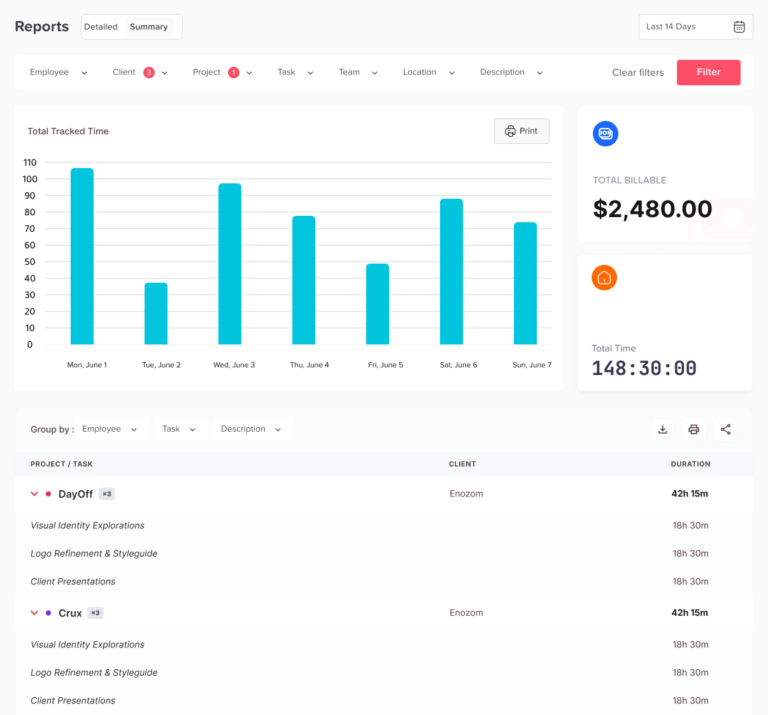
PTO calendar sync is mainly about visibility, but it can also support payroll accuracy. When approved leave is clearly recorded, HR and payroll teams have a better view of paid and unpaid absences.
However, payroll should not rely only on calendar events. A calendar can show that someone was away, but a PTO system should record:
- Leave type
- Approval status
- Leave balance
- Duration
- Dates
- Employee details
- Policy rules
- Historical records
This is why a PTO tracker is more reliable than using a calendar alone.
PTO Calendar Sync and Employee Experience
Employees want PTO to be simple. They do not want to send messages to HR, wait for unclear approvals, or wonder whether their time off was recorded.
A connected PTO calendar improves employee experience because:
- Requests are easier to submit
- Approved leave is easier to confirm
- Team availability is clearer
- Planning becomes less stressful
- Employees can see their own balances
- Managers have fewer reasons to delay approvals
When time off is organized, employees feel more confident using their benefits. This can support better work-life balance and reduce confusion around leave policies.
FAQ: PTO Calendar Sync
How do I sync PTO with Google Calendar?
You can sync PTO with Google Calendar by connecting your leave management system to Google Calendar or by adding a shared PTO calendar link to Google Calendar. Once connected, approved time off can appear on the calendar so managers and employees can see who is away.
How do I add employee time off to Outlook Calendar?
You can add employee time off to Outlook Calendar by subscribing to a shared PTO calendar or connecting Outlook with a PTO tracking app. This allows approved leave, vacation days, and absences to appear in Outlook without manually creating each event.
What is the best way to track PTO on a team calendar?
The best way to track PTO on a team calendar is to use a PTO tracker that connects leave requests, approvals, balances, and calendar visibility. This is better than manually adding time off because it reduces mistakes and keeps approved absences updated automatically.
Can employees see who is on PTO?
Yes, employees can see who is on PTO if the company uses a shared PTO calendar or a leave management tool with team visibility. However, companies should control what details are shown to protect employee privacy.
Can PTO automatically show on Google Calendar?
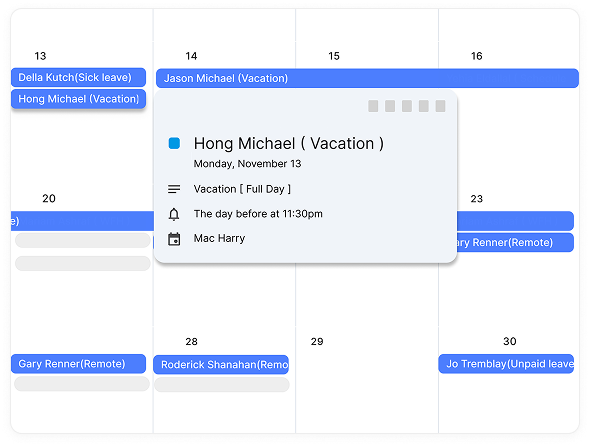
Yes, PTO can automatically show on Google Calendar when a PTO tracking tool supports calendar sync. After a manager approves the leave request, the time off can appear on the connected calendar.
Can PTO automatically show on Outlook Calendar?
Yes, PTO can automatically show on Outlook Calendar when your PTO management system supports Outlook calendar sync. This helps Microsoft 365 and Outlook users view employee absences alongside meetings and work events.
Should sick leave appear on a shared calendar?
Sick leave can appear on a shared calendar, but many companies prefer to show it as “Out of Office” or “Away” instead of displaying the exact reason. This helps protect employee privacy while still showing availability.
How do I stop overlapping PTO requests?
You can stop overlapping PTO requests by using a PTO calendar that shows approved and upcoming absences before managers approve new requests. A tool like Day Off helps managers review team availability and avoid approving too many people off at the same time.
Is Google Calendar enough for PTO tracking?
Google Calendar can show time off, but it is not enough for full PTO tracking. It does not manage leave balances, accruals, approval workflows, carryover rules, or reports. A PTO tracker like Day Off is better for managing the full leave process.
Is Outlook Calendar enough for PTO tracking?
Outlook Calendar can help teams see absences, but it does not replace a PTO management system. Companies still need a central tool to handle requests, approvals, balances, policies, and reports.
How do I create a shared PTO calendar for my team?
You can create a shared PTO calendar by setting up a dedicated calendar for employee absences and connecting it to your PTO tracking process. For better accuracy, use a leave management app like Day Off so approved time off is added consistently.
What should be included in a PTO calendar?
A PTO calendar should include the employee’s name, dates of absence, and general availability status. Depending on company policy, it may also include leave type, department, location, or public holidays.
How does Day Off sync PTO with calendars?
Day Off helps teams manage PTO requests, approvals, leave balances, and team calendars. It also supports integrations with tools like Google Calendar, Outlook Calendar, Slack, and Microsoft Teams, helping approved time off stay visible across the tools teams already use.
Conclusion
PTO calendar sync helps companies connect time off with the tools employees already use every day. By syncing approved leave with Google Calendar, Outlook Calendar, Microsoft Teams, Slack, and shared team calendars, businesses can improve visibility, reduce confusion, and plan work more effectively.
A calendar alone is not enough to manage PTO properly. Companies still need a central system for leave requests, approvals, balances, policies, and reports. That is where Day Off can help.
With Day Off, teams can manage employee time off in one place and connect approved leave with their daily workflow. This makes PTO easier for employees, clearer for managers, and more organized for HR.