





-
Locations and Holidays
You can change employees’ locations in Day Off at any time. Update an employee’s location individually or in bulk, depending on your needs.
Change Location for an Employee
To update one employee:
- Go to People → Employees
- Select the employee
- Open their profile
- Find the Location field
- Choose the new location
- Click Save
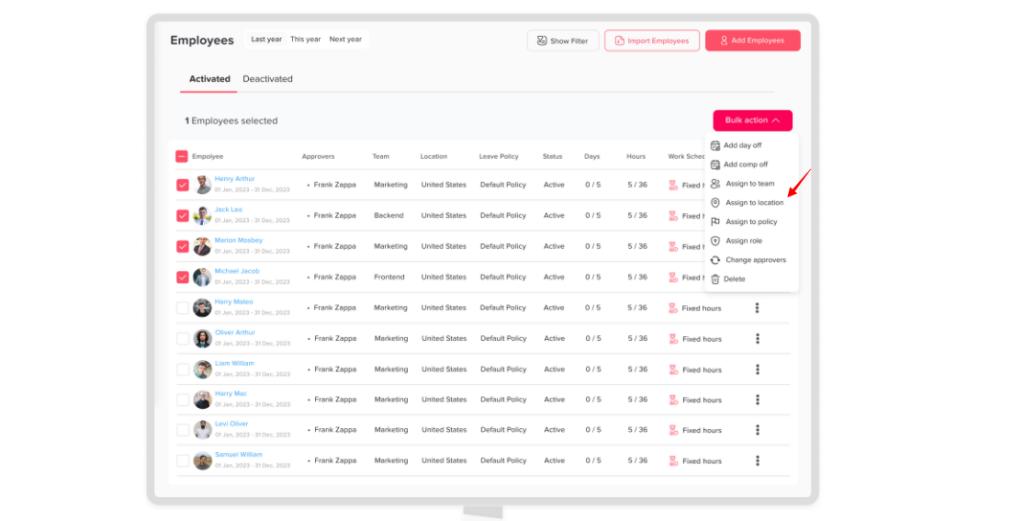
Change Location for Multiple Employees (Bulk)
To update multiple employees at once:
- Go to People → Employees
- Select multiple employees
- Click on Bulk Actions
- Choose Assign to Location
- Select the desired location
- Click Save
What Happens Next
- Employees are assigned to the new location
- Their official holidays update accordingly
- Any location based settings or policies are applied
Why Change Employees’ Locations?
Teams change over time. For instance, an employee may move to a new office, or your company may open a new branch. When that happens, assigning the right location keeps everything accurate.
This matters because locations help you:
- Show the correct official holidays for each employee
- Apply different leave policies per location
- Filter reports and data based on location
Tips Before You Change Employees’ Locations
- First, make sure the new location exists. If not, add a new location before you move anyone.
- Next, check that the new location has its official holidays set up.
- Use bulk actions when a whole team moves, so you save time.
- Finally, let employees know about the change, since their holidays may differ.
Frequently Asked Questions
Can I move several employees at once?
Yes. Select multiple employees, click Bulk Actions, and choose Assign to Location.
Will their holidays change too?
Yes. Once you save, their official holidays update to match the new location. In addition, any location-based settings or policies are applied.
How can I see who works in each office?
After the move, you can filter the company calendar by location to see each office and who is away.