





-
Billing
- Can I cancel my subscription anytime?
- Can I Try the Pro + Time Tracker Plan for Free?
- How can I update my billing information?
- How can I upgrade or downgrade my subscription?
- How Do I Upgrade to the Pro + Time Tracker Plan?
- How do I view or download my invoices?
- How does billing work in Day Off?
- How Much Does the Pro + Time Tracker Plan Cost?
- What Is the Pro + Time Tracker Plan and What Does It Include?
- What's the Difference Between the Pro Plan and the Pro + Time Tracker Plan?
Admins can upgrade or downgrade a subscription at any time.
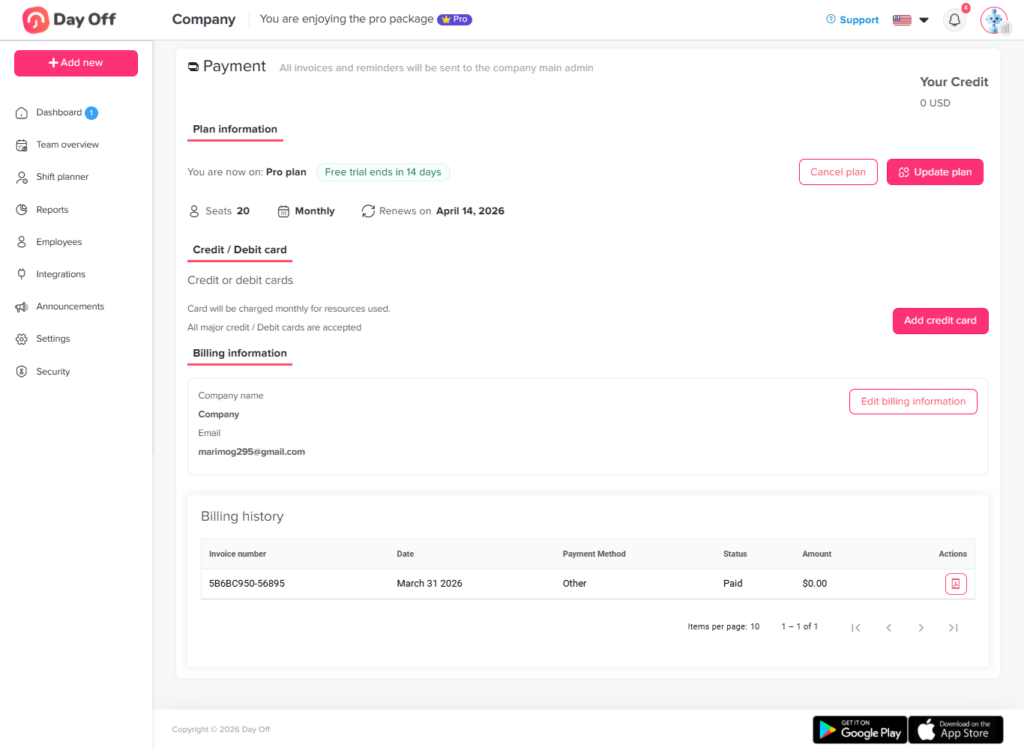
Admins can update subscriptions directly from the Billing page (click your profile picture in the top-right corner, then select Billing) by following these steps:
- Click Update plan.
- Select the plan you want: Pro or Pro + Time Tracker (see the difference).
- You will be directed to the checkout page, which displays your current number of seats and your subscription type (yearly or monthly).
- Choose to update your billing cycle from yearly to monthly, or vice versa.
- Change the number of seats by typing the new amount.
- Click Update subscription.
What Happens Next
Switching from Yearly to Monthly: You will receive a prorated credit for the unused time on your yearly plan. This credit will automatically be applied to your future monthly invoices.
Switching from Monthly to Yearly: You will be charged a prorated amount to cover the new annual subscription.
Increasing Seats: You will be charged a prorated amount for the additional seats for the remainder of the current billing cycle.
Decreasing Seats: You will receive a prorated credit for the removed seats for the remainder of the current billing cycle.
When to Upgrade or Downgrade
Your needs can change as your company grows. For example, you may hire new people and need more seats. On the other hand, a smaller team may need fewer seats. Likewise, you might prefer the flexibility of monthly billing, or you may want to commit for a full year instead.
In each case, you can update your plan from the same Billing page. In addition, prorated charges and credits are calculated for you, so you only pay for what you use.
Tips Before You Change Your Plan
- Count your active users first, so you choose the right number of seats.
- Review the prorated amounts above before you click Update subscription.
- Make sure your billing information is correct, since it appears on your future invoices.