





Yes, you can customize reports in Day Off based on your team, leave policy, and other filters giving you flexible and targeted insights.
Available Filters to Customize Reports
Day Off allows you to filter reports based on:
- Employee name
- Team / Department
- Leave type
- Leave policy
- Location
These filters help you narrow down data and analyze specific groups or scenarios easily
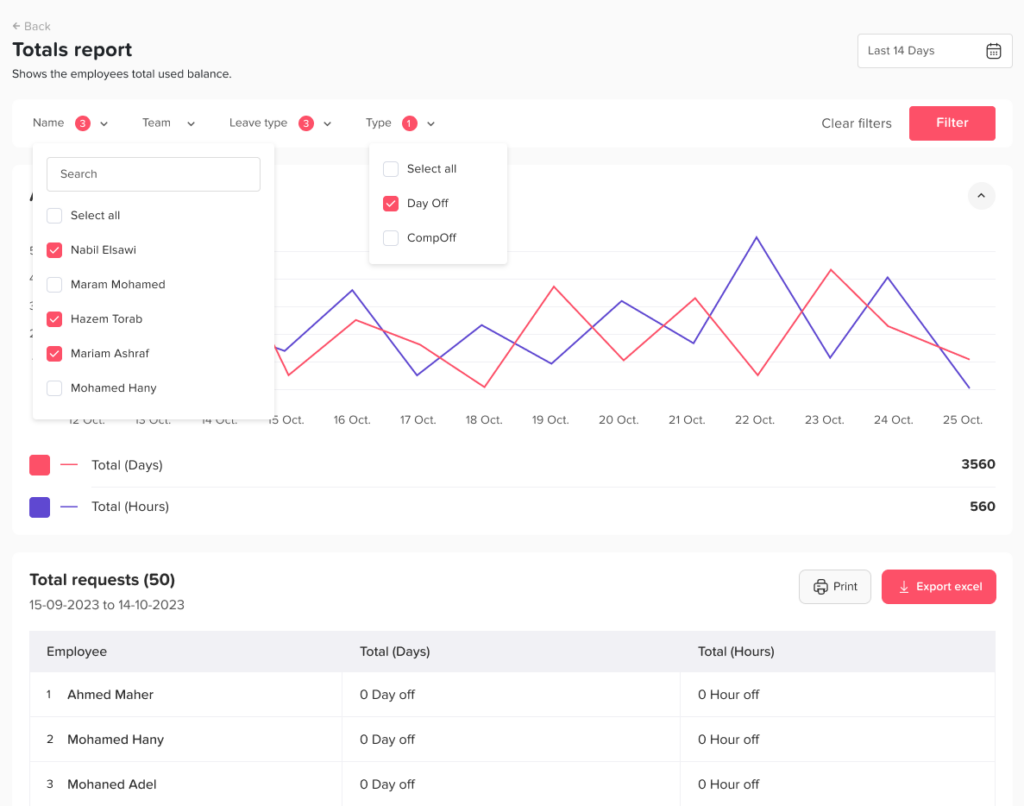
How to Customize Reports
You can apply these filters from the web platform in a few steps:
- In the left-hand menu, go to Absence → Reports.
- Select the report type you need, such as balances, detailed, or total.
- Apply one or more filters, for example a team and a leave policy.
- Review the results, then export the report if you need a copy.
Not sure which report to pick? See the types of reports in Day Off.
Examples of Useful Filters
Combining filters helps you answer specific questions quickly. For example:
- Team or department: a manager checks how much leave their own team has used.
- Leave policy: HR compares balances for employees on different policies.
- Leave type: you review sick leave separately from annual leave.
- Location: you see time off for one office during its local holidays.
- Employee name: you look at one person’s history before a review.
Tips for Better Reports
Start broad, then narrow down. In other words, open the full report first and add filters one at a time. That way, you can see how each filter changes the results. You can also filter reports by date to focus on a specific month or quarter.
Finally, keep in mind that report access depends on role permissions. If you cannot see a report, ask your admin to review your role.
Once your report looks right, you can export it from the web platform and share it with your team or with finance.