Archives: Knowledge Base

  • Can I apply blockout dates to specific teams or departments?

    Yes, Day Off gives administrators the flexibility to assign blockout dates to specific teams or departments instead of applying them company-wide. This is especially useful when certain groups have different operational needs or peak periods.

    For Admins

    Capture 19 Knowledge Base
    • Open the Day Off dashboard
    • Navigate to Settings from the main menu
    • Select Blockout Dates to access all configured restrictions
    • Click Add Blockout Date to create a new one, or select an existing entry to modify it
    • In the configuration screen, choose the team(s) or department(s) that the blockout should apply to
    • Complete the setup and click Save to apply the changes

    Once saved, the blockout date will only impact the selected groups. Other teams and departments will not be affected, allowing for more precise control over time-off policies.

    For Employees

    Employees will only be impacted by blockout dates that are specifically assigned to their team or department, ensuring that restrictions are relevant to their role.

    • Open the Day Off app
    • Go to the Request Day Off section
    • Choose the dates you would like to request

    If a selected date falls under a blockout period for your team, it will be clearly indicated and may restrict your ability to submit the request

    If the blockout does not apply to your team or department, the date will remain available for selection

    This ensures that employees are only restricted when necessary, without affecting others across the organization.

    send leave request Knowledge Base

    Calendar View (For All Users)

    Group 1000014696 4 Knowledge Base

    The calendar provides a clear visual representation of how blockout dates are applied across different teams and departments.

    • Open the calendar within  Day Off dashboard
    • Blockout dates will appear highlighted based on your access and team assignment
    • Select any highlighted date to explore more details
    • A detailed view will display, including which teams or departments the blockout applies to, along with any additional notes or conditions

    By enabling blockout dates at a team or department level, Day Off ensures that scheduling rules remain both flexible and relevant to each group’s needs. This approach helps organizations maintain operational efficiency while giving employees clear visibility into any restrictions that apply to them.

    For any questions or adjustments, you can always reach out to your administrator or HR team to ensure blockout settings align with your team’s requirements.

  • How can I check blockout dates in the Day Off app?

    For Admins

    Admins can easily view and manage blockout dates directly from the settings section of the system. Follow the steps below:

    • Open the Day Off app
    • Navigate to Settings
    • Select Blockout Dates
    • You will see a complete list of all configured blockout dates

    From this section, you can also:

    • Add new blockout dates
    • Edit existing ones
    • Remove dates that are no longer needed

    This allows you to keep blockout periods up to date and aligned with your organization’s policies.

    blockout dates Knowledge Base

    For Employees

    Employees can easily check blockout dates while requesting time off:

    • Open the Day Off app
    • Go to Request Time Off
    • Select the desired dates
    Capture 18 Knowledge Base

    Blockout dates are visually indicated within the calendar:

    • Fully blocked dates appear with a gray dot and cannot be selected
    • Partially available dates (with limited availability) appear with an orange dot

    If you attempt to select dates within a blockout period, the app will either display a warning or prevent submission, depending on the level of restriction.

    Calendar View (For All Users)

    Blockout dates 1 1536x868.png 4 Knowledge Base

    Blockout dates are clearly displayed within the calendar, making them easy to identify at a glance:

    • Open the calendar in the Day Off app
    • Blockout dates will be visibly highlighted for quick recognition
    • Click on any blockout date to view more details

    When selected, a detailed view will appear, providing additional information about the blockout period, such as its duration and any relevant notes or restrictions.

    By keeping blockout dates clearly visible and easily accessible, the Day Off helps both admins and employees plan time off more effectively and avoid scheduling conflicts.

    If you need further assistance or notice any discrepancies in blockout dates, please reach out to your system administrator or HR team for clarification.

  • How do I set blackout dates in Day Off?

    A blockout (blackout date) in Day Off allows you to restrict or control leave requests during important periods such as major events, deadlines, or peak business times.

    Blockout dates 1 1536x868.png 4 Knowledge Base

    1. Go to Settings

    Log in to the Day Off dashboard using an account with admin permissions.
    From the main menu, navigate to Settings, then open the Blockout Dates section.

    2. Manage Blockouts

    In this section, you can view all existing blockouts.
    You also have the option to:

    • Create a new blockout
    • Edit any existing blockout
    • Delete blockouts that are no longer needed

    3. Create a New Blockout

    Click on Add Blockout (or a similar button) to start creating a new blockout.

    4. Enter Blockout Details

    Provide the necessary information:

    • Name: Add a clear and descriptive name (e.g., “Annual Meeting” or “Peak Season”)
    • Date Range: Select the start and end dates for the restriction period

    5. Choose the Restriction Type

    Select how leave requests should be handled during this period:

    • No Request: Completely blocks all leave requests
    • Limit Requests: Allows only a limited number of requests during the selected dates

    6. Define Who the Blockout Applies To

    Specify the scope of the blockout:

    • Entire company
    • Specific locations
    • Selected teams

    7. Save the Blockout

    After filling in all details, click Save.
    The blockout will appear in the list, where you can edit or delete it at any time.

    How blockouts appear to employees

    Group 1171275944 1536x1443.png 1 Knowledge Base

    Visual indicator on the dashboard

    A warning triangle icon is displayed on the dashboard to highlight dates affected by a blockout.

    This visual cue immediately signals that there are restrictions applied to that specific day or period.

    Visibility during leave requests

    When employees select dates using the date picker while submitting a leave request, any blockout period will be clearly indicated.


    This ensures employees are aware of restrictions before submitting their request.

    Capture 18 Knowledge Base

    Information shown to employees

    When a blockout is present, the system provides the following details:

    • Blockout details: Displays the name or purpose of the blockout (e.g., event, peak period).

    • Number of requests submitted: Shows how many leave requests have already been approved or counted toward the limit.

    • Availability status: Indicates whether the blockout is:

      • Still accepting requests, or
      • Fully booked / completely restricted

    What employees can do

    • If requests are still available: Employees can proceed and submit their leave request normally, as long as the limit has not been reached.

    • If the blockout is full or set to “No Request”: Employees will be prevented from submitting a request for those dates, ensuring compliance with the restriction.
    Blockout dates 1536x1229.png 1 Knowledge Base

    Admin override capability

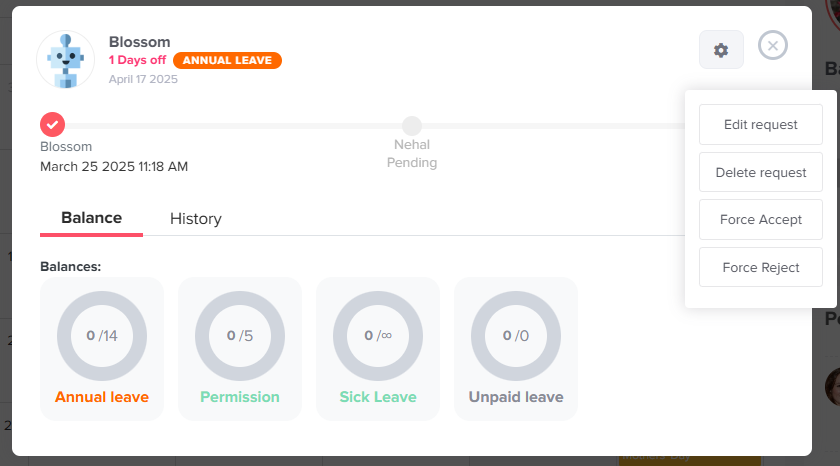
    Administrators have the ability to override blockout restrictions when necessary.

    • Override blocked periods: Even if a blockout is set to No Request, admins can still submit or approve leave requests during that time.

    • Exceed request limits: If a blockout has a maximum number of allowed requests, admins can approve additional requests beyond the set limit.

    • Use cases for overrides

      This is useful in exceptional situations, such as:
      • Urgent employee needs
      • Last-minute changes
      • Special approvals from management

    Best practices

    • Plan blockouts in advance and communicate them clearly to employees
    • Use descriptive names so employees understand the purpose of each blockout
    • Regularly review and update blockouts to keep them relevant
    • Use admin overrides sparingly to maintain fairness and consistency
  • What is leave type category?

    When creating a leave type, you need to select a category based on how you want requests to behave. Each category controls how employees can submit requests and how the system handles them.

    Group 1000014688 Knowledge Base

    1. Leave

    This category allows employees to submit only one request per day for the selected leave type. It is designed for full-day absences where the employee is not expected to work at all during that day.

    This is typically used for:

    • Annual leave
    • Sick leave
    • Any standard day-based time off

    Because only one request is allowed per day, it ensures that the leave is treated as a complete absence rather than being split into multiple partial requests.

    2. Permission

    This category allows employees to submit multiple requests within the same day. It is ideal for situations where time off is needed for only part of the day rather than the entire day.

    This is best suited for:

    • Short absences (e.g., 1–3 hours)
    • Personal errands or appointments
    • Late arrivals or early departures

    This category works especially well with hourly leave tracking, as it provides the flexibility to request and manage partial-day time off.

    3. Work From Home

    This category is used for employees who are working remotely instead of taking time off. Requests under this category typically follow a daily structure, similar to standard leave, but indicate that the employee is still working from a different location.

    It is commonly used to:

    • Track remote work days
    • Maintain visibility on employee availability
    • Differentiate between time off and remote work

    4. Rooms Reservation

    This category is used to book rooms or shared resources within the organization rather than to request time off.

    It can be used for:

    • Meeting room bookings
    • Shared workspace reservations
    • Other internal resources

    Unlike other categories, this is not related to leave balances but helps manage availability and scheduling of company resources.

    How Attendance Is Calculated

    The Attendance section provides a real-time overview of where employees are during the day. The counts shown here are directly linked to the leave type category selected when requests are created.

    Capture 17 Knowledge Base

    1. On Leave

    Employees who have an approved request under a leave type categorized as Leave will be counted as On leave. This reflects full-day absences where the employee is not working.

    2. Remote

    Employees who have an approved request under the Work From Home category will be counted as Remote. This indicates that the employee is working but not physically present in the office.

    3. In Office

    All remaining employees who are not on leave or on remote requests are automatically counted as in-office. This assumes they are working on-site as usual.

    Important Note

    The attendance summary is dynamically updated based on the category of the leave type, not just the request itself. This ensures accurate visibility into who is absent, who is working remotely, and who is present in the office at any given time.

  • Can I track leave in hours?

    To allow employees to request and track time off in hours, you need to create a leave type with the balance unit set to hours. This configuration ensures that requests under this leave type are calculated hourly instead of in full or half days.

    Step 1: Create a Leave Type in Hours

    Capture 14 Knowledge Base
    • Go to Settings: From your dashboard, navigate to the Settings section where all system configurations are managed.

    • Open Leave Types: Within Settings, select Leave Types to view and manage all existing leave categories.

    • Click “Add a New Leave Type”: Click the option to create a new leave type. This will open a form for defining its details.

    • Enter a name: Provide a clear and descriptive name (e.g., “Paid Time Off” or “Short Leave”) so employees can easily identify it when submitting requests.

    • Select a category: Choose the appropriate category for the leave type, depending on how you want it to be classified and reported.

    • Set the balance unit to “Hours”: Change the balance unit from days to hours. This is the key step that enables hourly tracking and allows employees to request partial-day leave.

    • Choose a cycle: Define the leave cycle (e.g., monthly or yearly), which determines how balances are allocated and reset over time.

    • Select a color: Assign a color to the leave type to help visually distinguish it in calendars and reports.

    • Click Save: Save your changes to create the leave type. It will then be available for assignment and use.

    Step 2: Activate the leave type in a policy

    Capture 15 Knowledge Base
    • Go to Settings
    • Open Leave Policies
    • Select an existing policy or click Create Policy
    • Navigate to the Leave Types section within the policy
    • Add or enable the newly created leave type
    • Configure the leave type rules (balances, accruals, limits, etc.)
    • Click Save

    Why this matters:
    A leave type will not be usable unless it is linked to a policy. Policies control who can request the leave and under what rules.

    Step 3: Add a work schedule in hours

    Capture 16 Knowledge Base

    To ensure accurate leave calculations when tracking in hours, you need to configure a work schedule that defines how many hours employees are expected to work.

    Steps to set up a work schedule (hours-based)

    • Go to Settings: Access the Settings section from your dashboard.

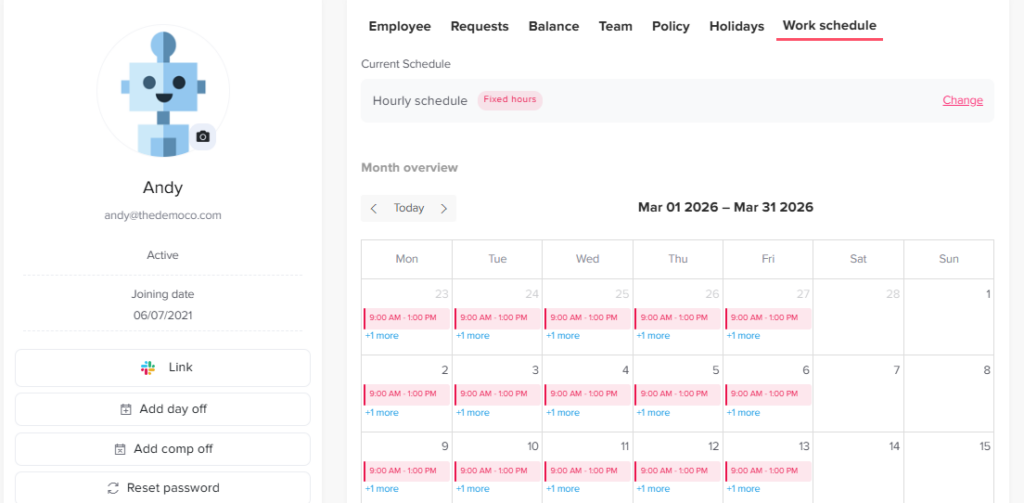
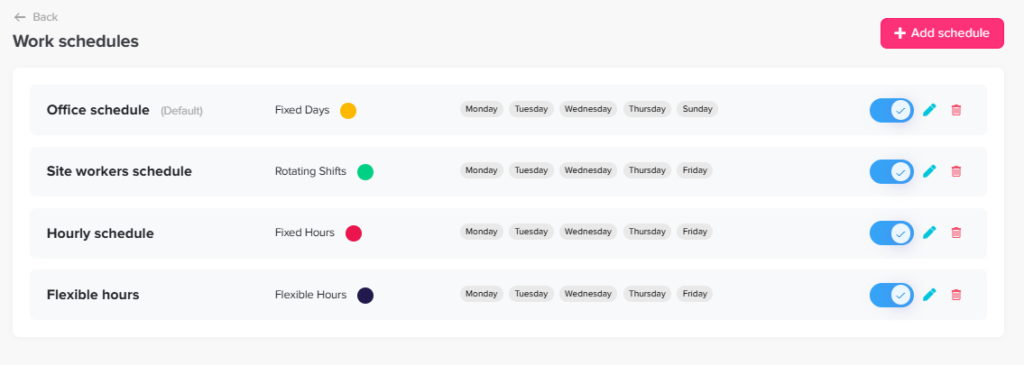
    • Open Work Schedule: Click on Work Schedule to manage existing schedules or create a new one.

    • Create or edit a schedule
      • Edit the default schedule, or
      • Click Add Work Schedule to create a new one

    • Select working days: Choose the days employees are expected to work (e.g., Monday to Friday). Weekends will be automatically excluded based on your selection.

    • Choose a schedule type: You can select from three types of schedules:
      • Fixed Hours: Define a start and end time for each working day while allowing flexibility within that range.
      • Flexible Hours: Define the number of working hours per day without setting specific start and end times. This is the most suitable option for hourly leave tracking.
      • Rotating Shifts: Assign shifts based on a rotation pattern (e.g., morning or night shifts), typically used for shift-based teams.

    • Define working hours (for Fixed or Flexible schedules): Enter the number of hours employees are expected to work each day (e.g., 8 hours per day).

      This ensures leave is deducted accurately when requested in hours.
    • Save the work schedule: Click Save to apply the configuration.

    Summary

    To successfully track leave in hours, make sure you complete all three steps:

    • Create a leave type with the balance unit set to hours
    • Assign the leave type to a policy so employees can use it
    • Configure a work schedule in hours to ensure accurate calculations

    When all three are properly set, employees will be able to request leave in hours, and the system will deduct balances precisely based on their working schedule.

  • Can I use Day Off on mobile and web?

    Yes, Day Off is available on iOS, Android, and web, giving teams the flexibility to manage time off anytime, anywhere. While both versions are connected in real time and share the same core data, each platform focuses on a slightly different experience.
    Mobile App (iOS & Android)

    The mobile app is built for speed and convenience, making it perfect for employees and managers on the go.
    With the Day Off mobile app, you can:

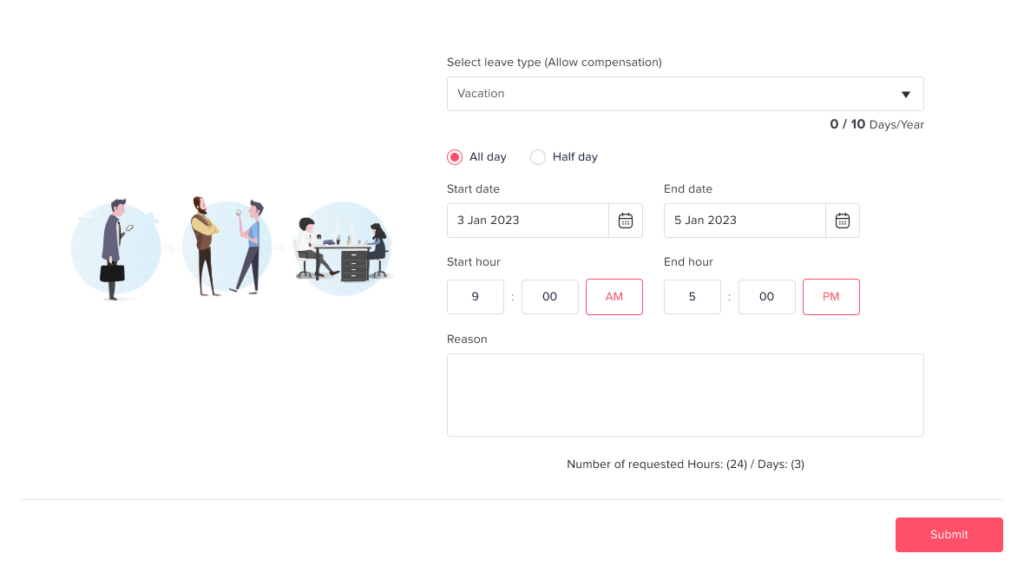
    • Request time off in seconds
    • Approve or reject requests instantly
    • Get real time notifications
    • Check your leave balance anytime
    • View team calendars and upcoming absences

    The mobile experience is ideal for quick actions, keeping everyone connected without needing to open a laptop.

    send leave request Knowledge Base
    balance Knowledge Base
    Home with requests1 Knowledge Base

    Web Version

    The web version is designed for deeper control, making it especially useful for HR teams and administrators.

    With the Day Off web app, you can:

    • Set up and manage leave policies
    • Customize approval workflows
    • Manage teams, roles, and permissions
    • Access detailed reports and analytics
    • Configure company settings and integrations
    • Add Work schedules.
    • Add Blackouts 

    The web platform provides a more comprehensive dashboard for managing your organization’s leave system.

    Dashboard Knowledge Base

    One System, Fully Synced

    No matter which platform you use, everything stays in sync. A request submitted on mobile appears instantly on the web dashboard, and approvals made on web are reflected on mobile in real time.

  • How to add a new leave type?

    Every company handles time off a little differently, and Day Off gives you the flexibility to reflect that. By adding a new leave type, you can align the system with your company’s policies and how your team actually takes time off.

    Creating a new leave type is simple, just follow the steps below:

    Steps to add a leave type

    From the left-side menu, go to Settings, then navigate to Leave Types. Click Add Leave Type to get started.

    Settings 2 Knowledge Base

    Enter the leave type name

    In the Leave type name field, enter a clear and descriptive name for the leave type (e.g., Annual Leave, Sick Leave).

    Select the leave type category

    Choose the leave type category based on how requests should behave:

    • Leave: Employees can submit only one request per day for this leave type.
      This is typically used for full-day absences like annual or sick leave.
    • Permission: Employees can submit multiple requests within the same day.
      This is ideal for short or partial-day requests, such as leaving for a few hours.
    • Work From Home: Used for remote work requests.
      This typically follows a daily request structure similar to leave.
    • Rooms Reservation: Used to book rooms or resources within the organization.

    Choose the balance unit

    Select how the leave will be measured and requested:

    • Days: Leave is requested in full days or multiple days.
      You can also allow half-day requests if this option is enabled in your leave policy.

    • Hours: Leave can be requested in hours or full/multiple days.
      Employees can select the start and end time of their leave, allowing for more precise, partial-day requests.

    Select a color

    Assign a color to the leave type. This color will appear in calendars, dashboards, and reports.

    Using distinct colors makes it easier to:

    • Quickly identify different types of leave
    • Spot patterns or overlaps
    • Improve overall visibility for managers and HR

    Save the leave type

    Once everything is set up, click Save to create the leave type.
    If you change your mind, click Cancel to discard your changes.

    Activate and configure the leave type in a policy

    Creating a leave type is just the first step. To make it available for employees, you need to add it to a leave policy.

    Go to your Leave Policy and include the new leave type in the policy assigned to your team or specific employees. Until this step is completed, the leave type will not appear in employee requests.

    Configure leave type settings

    Capture 13 Knowledge Base

    After adding the leave type to a policy, you can fully customize how it works. The settings are grouped below to help you configure everything more easily:

    Balance and accrual settings

    • Balance allocation
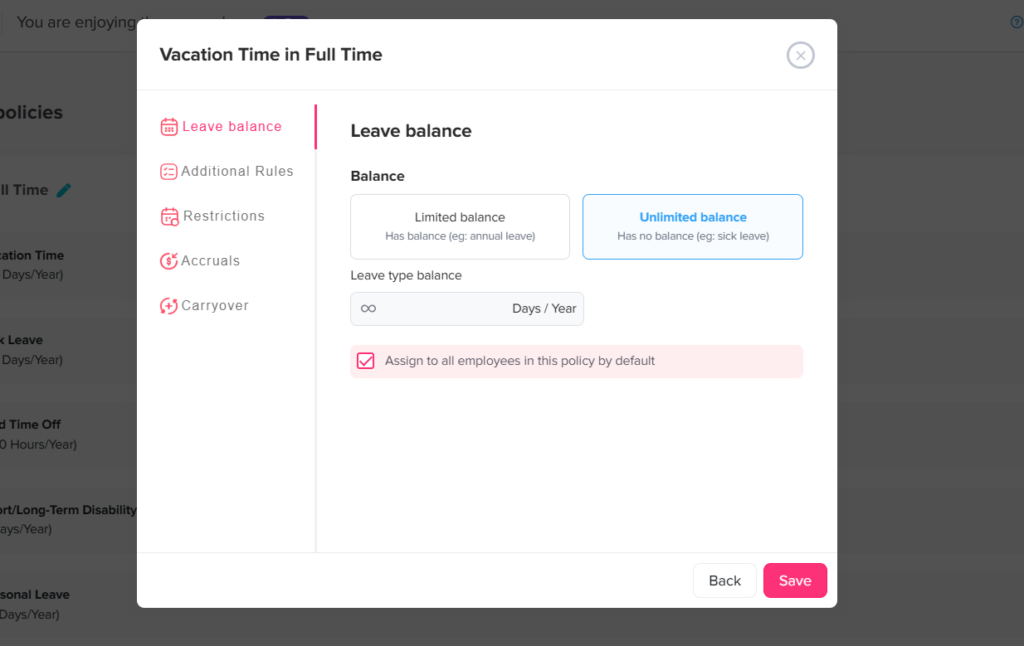
      Set a fixed number of days or hours, allow unlimited leave, or configure accrual over time.

    • Accrual rules
      Control how leave is earned (for example, monthly or yearly accrual).

    • Carryover rules
      Decide whether unused leave can roll over to the next period.

    • Negative balance
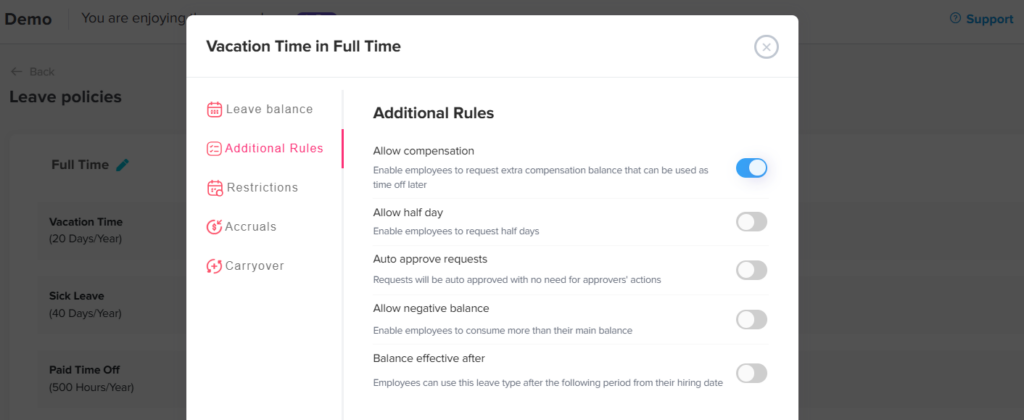
      Allow or prevent employees from requesting leave beyond their available balance.

    Request behavior and limits

    • Balance unit & partial requests
      Enable or restrict half-day and hourly requests based on your policy.

    • Request limits
      Set minimum or maximum request durations, or limit how far in advance leave can be requested.

    • Notice period
      Define how far in advance employees must submit their leave requests.

    • Late submission period
      Set a time limit for submitting leave requests after the leave date has passed.

    Approval and validation

    • Approval workflow
      Choose whether requests are automatically approved or require approval.
      If approval is required, you can define approvers and set up multiple approval levels for each employee individually.

    • Required document
      Require employees to upload supporting documents (such as a medical certificate) when submitting a request.

    Employee eligibility and rules

    • Probation period restrictions

      You can control whether employees on probation are allowed to request this leave type.

      You can also define when the leave balance becomes available, for example, making it accessible only after a specific period (such as 3 months from the employee’s joining date).

    Calendar and calculation settings

    Weekends

    Choose whether weekends are counted or excluded from the leave duration.

    • If included: weekends will be deducted from the employee’s leave balance
    • If excluded: weekends will be skipped and not counted as leave days

    Public holidays

    Choose whether official holidays are counted or excluded from the leave duration.

    • If included: public holidays will be deducted from the leave balance
    • If excluded: public holidays will not be counted as part of the leave

    Review and adjust when needed

    Leave policies may change over time. You can always return to the leave type settings to adjust balances, rules, or restrictions as your company’s needs evolve.

    Taking a few minutes to carefully configure each option ensures that leave requests are handled consistently and align with your organization’s policies.

  • How do I set up my company on Day Off?

    Once you’ve created your company account on Day Off, the next step is to properly configure your workspace so it reflects your company’s structure, policies, and approval process. This guide walks you through the essential setup steps to ensure everything runs smoothly from day one.

    1. Set Up Leave Types and Policies

    Leave types and policies work together to define how time off is structured and assigned across your company. It’s important to configure both correctly to ensure accurate leave tracking.

    Create Leave Types

    Group 1000014687 Knowledge Base

    Leave types represent the different kinds of time off employees can request (e.g., Annual Leave, Sick Leave).

    • Go to Settings.

    • Click on Leave Types.

    • Click Add New Leave Type.

    Fill in the Required Details

    • Name: Enter the leave type name (e.g., Annual Leave, Sick Leave).

    • Category: Select the appropriate category for the leave.

    • Balance Unit: Choose whether the leave is tracked in days or hours.

    • Cycle: Define how the leave resets (e.g., yearly).

    • Color: Assign a color to help visually distinguish this leave type in the calendar.

    • Click Save.

    Repeat: Repeat these steps to create all the leave types your company needs.

    Make sure to add all required leave types before moving to policies, as policies depend on them.

    Configure Leave Policies

    Leave policies define how leave types are assigned to employees and what rules apply to each one.

    • Go to Settings.

    • Click on Leave Policy.

    • Choose one of the following:

      • Edit an existing policy, or

      • Click Add Policy to create a new one.

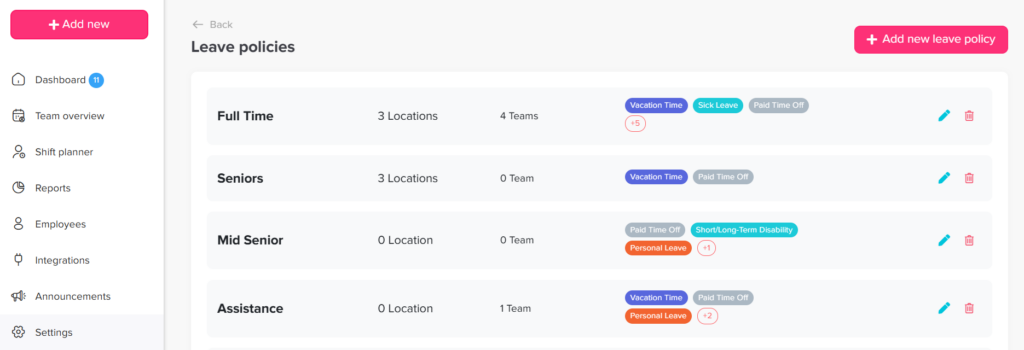
    „Einstellungsseite der Day Off App zur Verwaltung einer Urlaubsrichtlinie mit aktivierten und verfügbaren Abwesenheitsarten.“

    Configure the Policy

    Inside the policy:

    • Enable Leave Types: Select the leave types you want to include in this policy.

    • Configure Each Leave Type:

      • Allowance: Set the number of days or hours allocated.

      • Additional Settings: Apply any limits or rules based on your setup.

    • Click Save.

    You can create multiple policies for different groups of employees (e.g., full-time vs part-time).

    2. Location Based Holidays Setup

    Group 1000014866 Knowledge Base

    Public holidays ensure employees are not charged leave on official days off.

    • Navigate to Settings → Locations and Holidays.
    • Add a new location or edit an existing one.
    • Go to the Holidays section within the selected location.

    Add Holidays

    Choose one of the following options:

    • Click Import Holidays and select your country and the year, or
    • Click Add Holiday to manually enter custom dates.

    Review and Customize

    After importing or adding holidays:

    • Remove Irrelevant Holidays
      Delete any holidays that do not apply to your organization.
    • Add Company-Specific Holidays
      Include internal days off (e.g., company holidays or special events).
    • Click Save to apply your changes.

    3. Add and Organize Employees

    Next, bring your team into the system and structure them properly.

    Steps:

    • Go to Employees.
    • Click Add Employees or Import Employees.
    Filter empolyee Knowledge Base

    Basic Information

    Choose how to invite the employee:

    • By email, or
    • By mobile

    Fill in the required details:

    • Email Address
    • Employee Name
    • Role

    Joining Details

    • Joining Date
      Select the employee’s start date.
    • Reset Balance Every Anniversary
      Enable this option if leave balances should reset on the employee’s work anniversary.

    Advanced Settings

    Configure additional employee details:

    • Location
      Assign the employee’s work location.
    • Work Schedule
      Select the appropriate schedule.
    • Team
      Assign the employee to a team or create a new one.
    • Leave Policy
      Choose the applicable leave policy.
    • Time Zone
      Set the employee’s working time zone.

    Approval Settings

    • Day / Comp Off Approval
      • Select 1-step approval, or
      • Select 2-step approval
    • First Approver(s)
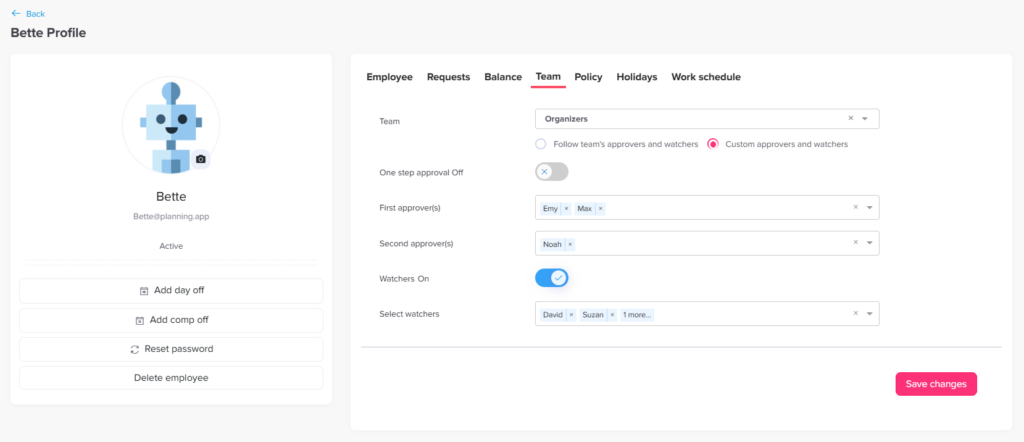
      Assign the person(s) responsible for approving requests.
      You can select multiple approvers for each approval level.
    • Watchers
      Enable this option if additional stakeholders should be notified.

    Final Step

    Click Save to add the employee.

    4. Create Departments and Teams

    Organizing employees into departments improves visibility and simplifies approvals.

    • Go to Settings, then to Teams.
    • Click on Add Team.
    Teams Knowledge Base

    Team Information

    Enter the Team Name.

    Approval Settings

    • Day / Comp Off Approval
      • Select 1-step approval, or
      • Select 2-step approval
    • First Approver(s)
      Assign the person(s) responsible for approving requests.
      You can select multiple approvers for each approval level.
    • Watchers
      Add stakeholders who should be notified of requests.

    Leave Policy

    • Override Location’s Policy
      Enable this option if you want this team to have a different leave policy than the default location policy.
    • Leave Policy
      Select the leave policy to apply to this team (e.g., Full Time).

    5. Set Up Work Schedule

    Week Knowledge Base
    • Go to Settings.
    • Click on Work Schedule.
    • You can either:
      • Edit the default work schedule, or
      • Click Add Work Schedule to create a new one.
    • Configure the schedule:
      • Working Days: Select the days your company operates (e.g., Monday to Friday).
      • Weekends: These will automatically be excluded based on your selection.
    • Save the work schedule.

    Schedule Type

    You can choose the type of schedule:

    • Fixed Hours
      Define the number of working hours for each day.
      Employees are expected to complete these hours, without specifying exact start and end times.
    • Flexible Hours (currently selected)
      Define the start time and end time for each working day.
      This allows flexibility while still setting boundaries for when employees can work.
    • Rotating Shifts
      Shifts are assigned based on a rotation pattern (e.g., morning, evening, night shifts).

    Tips:

    • If your company has different working patterns (e.g., shifts or regional teams), create multiple work schedules.
    • Make sure the correct schedule is assigned before employees start requesting leave to avoid incorrect calculations.

    Final Checklist

    Before rolling out Day Off to your team, review the following to ensure everything is set up correctly:

    1. Leave Types

    Ensure all required leave types (e.g., annual leave, sick leave, unpaid leave) have been created.

    Each leave type should be properly configured with:

    • Balance units (days or hours)
    • Reset cycles (e.g., yearly)
      This ensures accurate tracking of employee leave requests.

    2. Leave Policies

    Verify that policies:

    • Include the correct leave types
    • Match your company’s rules and entitlements
    • Reflect differences between employee groups (e.g., full-time vs part-time)

    This helps maintain fairness and consistency across your organization.

    3. Locations & Holidays

    Confirm that:

    • All company locations are set up
    • Holiday calendars are accurate for each location

    This prevents employees from being charged leave on official holidays and ensures regional accuracy.

    4. Employees

    Make sure all employees are added with complete and correct details, including:

    • Role
    • Team
    • Location
    • Leave policy

    Proper setup here simplifies management, reporting, and approvals.

    5. Teams / Departments

    Check that employees are grouped into the correct teams or departments.

    This improves:

    • Approval workflows
    • Policy assignment
    • Overall visibility within the system

    6. Work Schedules

    Ensure each employee or team has the appropriate work schedule assigned.

    This is essential for:

    • Accurate leave deductions
    • Correct working day calculations
    • Supporting different work patterns (e.g., shifts, flexible hours)

    You’re All Set

    Your Day Off workspace is now fully configured and ready to support your team.

    By completing this setup, you’ve established a clear and reliable system that will help you:

    • Track leave accurately without manual intervention
    • Automate approval workflows and reduce administrative overhead
    • Ensure fairness and consistency across all employees
    • Improve visibility into team availability and planning

    As your organization evolves, you can easily update these settings, whether it’s adding new leave types, adjusting policies, or restructuring teams, to keep everything aligned with your needs.

  • What are Leave Types in Day Off?

    Leave types in Day Off represent the different categories of time off that employees can request and track within the system. Each leave type is designed to reflect a specific purpose for absence and can be configured with its own rules, balances, and approval workflows.

    Capture 12 Knowledge Base

    Why are leave types important?

    Leave types are essential for organizing and managing time off in a clear, structured way. They ensure that every request is handled according to the right policy and that both employees and administrators have full visibility into how time off is used.

    With well-defined leave types, you can:

    • Understand time off patterns across teams and the entire organization
    • Apply the correct policies automatically for each type of leave
    • Accurately track balances and entitlements without manual effort
    • Route requests through the right approval workflows
    • Maintain reliable records for HR, payroll, and compliance purposes

    In short, leave types bring clarity, consistency, and control to your leave management process.

    Examples of leave types in Day Off

    Day Off is designed to be fully flexible, there is no fixed list of leave types. You can create and name leave types based on your organization’s policies, terminology, and operational needs.

    To get started, here are some commonly used examples:

    Capture 11 Knowledge Base

    Annual Leave

    Paid time off that employees can use for vacations, personal plans, or general rest. It is typically accrued over time and may follow yearly entitlement rules.

    Sick Leave

    Time off taken when an employee is unwell or needs medical care. Depending on company policy, this may include doctor visits, recovery time, or required documentation.


    Unpaid Leave

    Leave taken without salary when no paid leave balance is available or when the situation falls outside standard paid leave policies.

    Maternity and Paternity Leave

    Time off granted to employees for childbirth and early childcare. The duration and conditions are usually defined by company policy and local labor laws.

    Emergency Leave

    Short notice leave for unexpected or urgent situations, such as family emergencies or critical personal matters.

    Compensatory Leave (Comp Off)

    Time off awarded to employees in exchange for working extra hours, weekends, or official holidays, helping balance additional workload.

    Public Holidays

    Predefined company or national holidays that are automatically applied to employees’ calendars and typically do not require a request.

    Important

    These are examples, not limitations. Day Off allows you to fully customize leave types, including their names, rules, and balances, to match your organization’s policies.

    You can also control how each leave type is approved: whether it requires manager approval or is approved automatically, depending on how you want requests to be handled.