Archives: Knowledge Base

  • How do I track employee leave balances through reports?

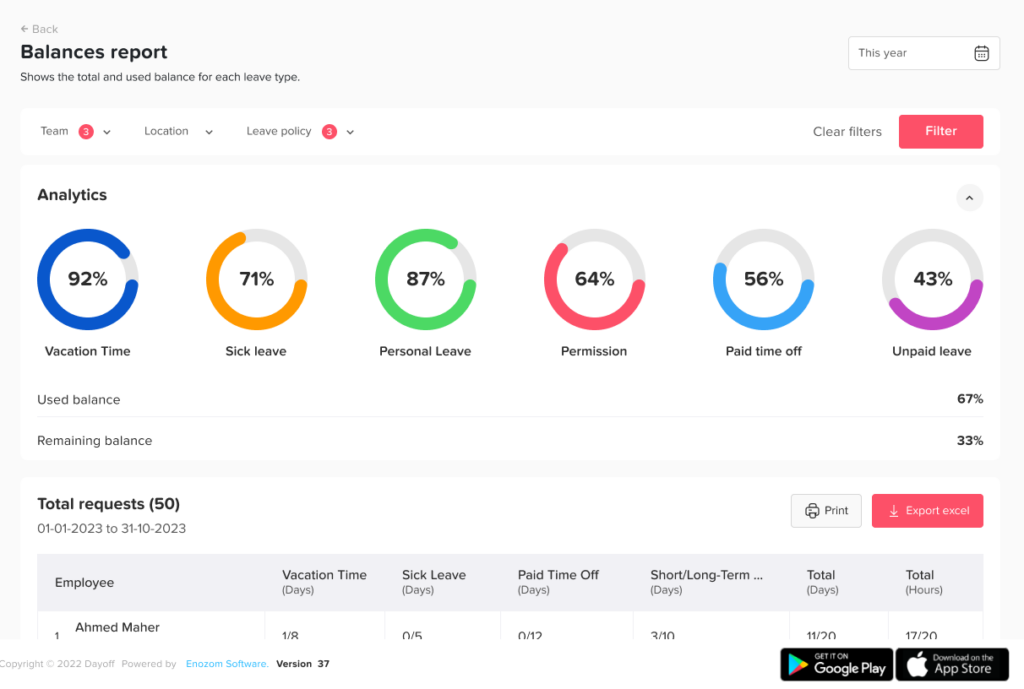
    The Balances Report gives you a clear overview of how much leave each employee has used and how much remains.

    Using the Balances Report

    To track leave balances:

    • Go to the Reports section
    • Open the Balances Report
    • Apply filters if needed (such as leave policy or team)

    What You Can See

    Inside the report, you’ll be able to:

    • View each employee’s total allocated balance
    • See how many days are used vs remaining
    • Break down balances by leave type (e.g., vacation, sick leave)
    • Check the total used vs total available per employee

    This gives you a complete and accurate picture of leave balances across your organization.

    Leave balance overview in Day Off app showing remaining PTO days, sick leave and vacation entitlements – Day OffDay Off

    Using the Total Report

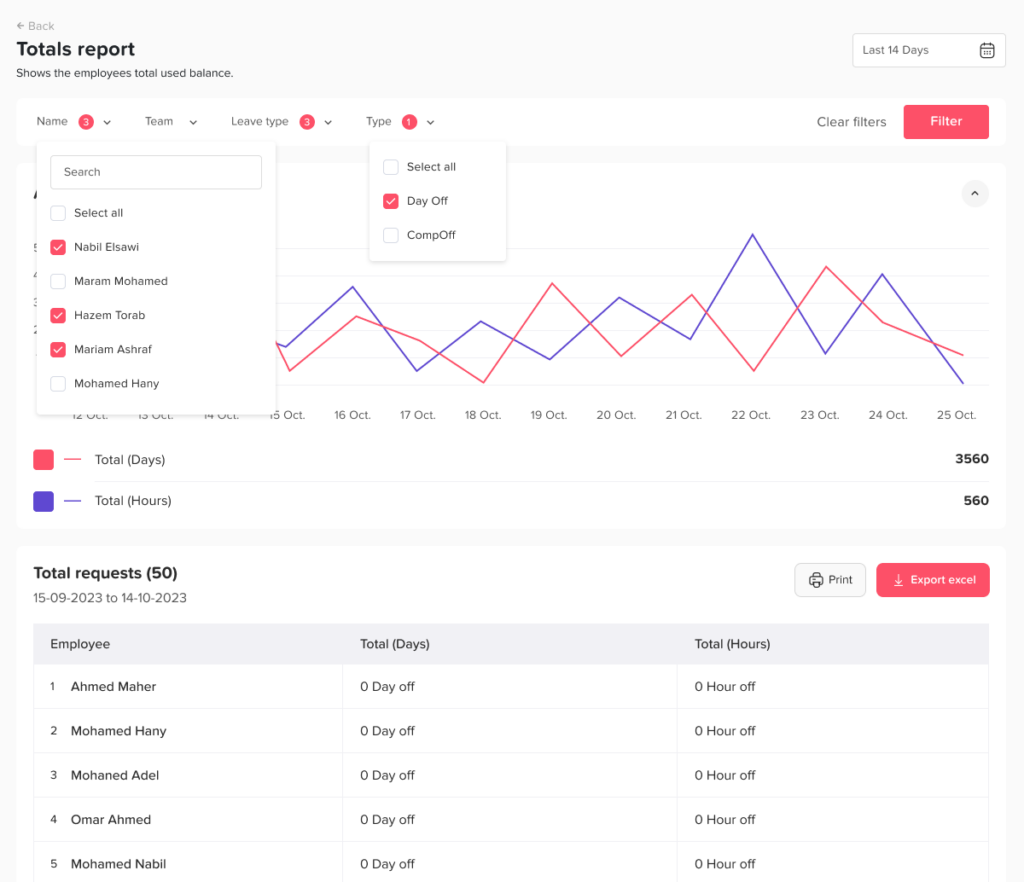
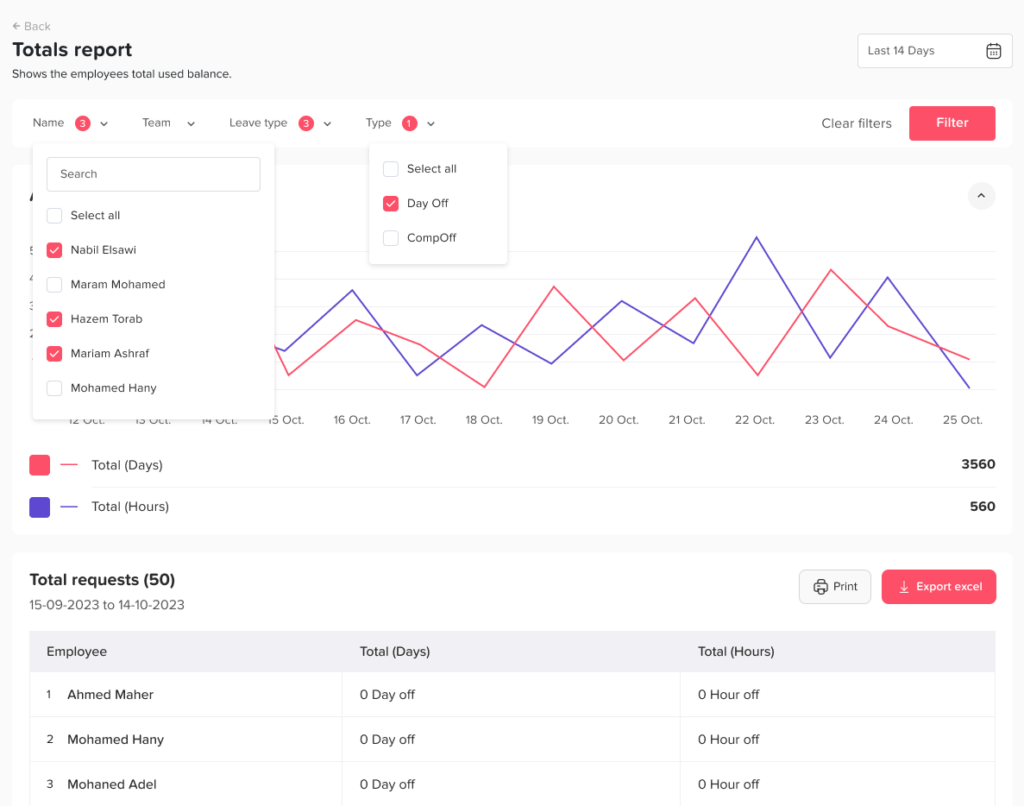
    The Total Report helps you track how much leave employees have used over a specific period.

    To access it:

    • Go to the Reports section
    • Open the Total Report
    • Select a date range

    What You Can See

    • Total number of days or hours used per employee
    • Usage summary during a selected period
    Absence and attendance report in Day Off app with leave statistics, trends and team analytics – Day OffDay Off
  • How to Integrate Day Off with Microsoft Teams?

    Connect Day Off with your Microsoft Teams workspace to streamline leave management and improve team visibility. Employees can easily submit time off requests directly within Microsoft Teams, eliminating the need to switch between platforms and making the process faster and more efficient.

    Setup Steps

    • Navigate to the Integrations section from the main menu
    • Locate Microsoft Teams and click on Add Integration

    Once you click Add Integration, Day Off will prompt you to grant permission to connect with your Microsoft Teams workspace.

    • Review the requested permissions carefully
    • Click Allow to authorize the connection

    After authorization, you can proceed to configure the integration settings based on your organization’s preferences.

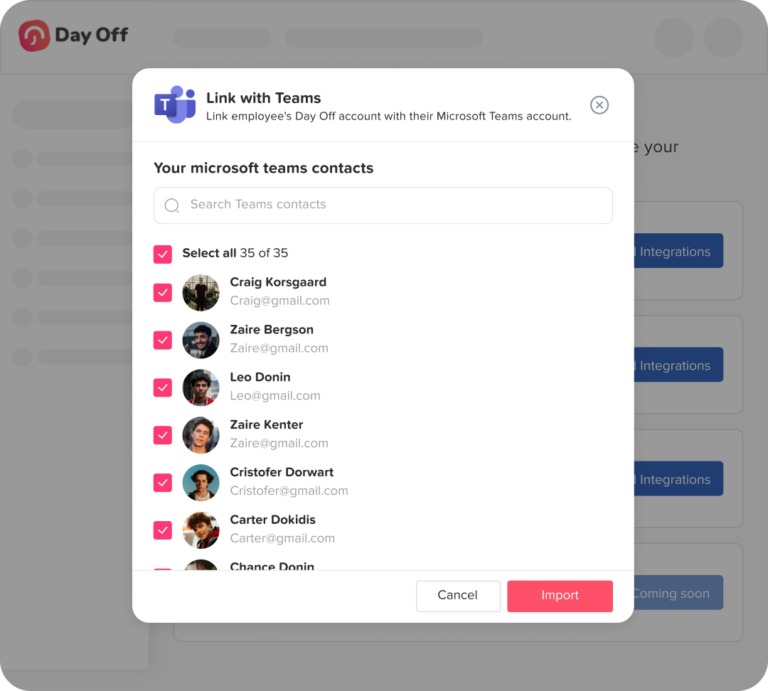
    1. Import Employees from Microsoft Teams

    Day Off app feature showing employee leave tracking, PTO management and absence scheduling – Day OffDay Off

    Start by importing your employees from Microsoft Teams to ensure your Day Off directory is aligned with your organization.

    • Click on Import employees
    • Day Off will sync users from your connected Microsoft Teams workspace
    • This helps eliminate manual data entry and keeps employee records consistent
    • Ideal for onboarding new employees or syncing large teams quickly

    Best Practice:
    Perform this step during initial setup or whenever your Teams directory is updated.

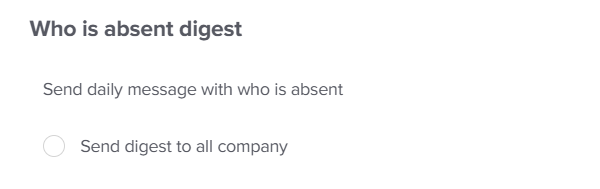
    2. Enable “Who is Absent” Daily Digest

    Day Off app feature showing employee leave tracking, PTO management and absence scheduling – Day OffDay Off

    This feature sends a daily summary of employees who are on leave directly to Microsoft Teams.

    • Enable Send daily message with who is absent
    • Currently, the digest is sent at the company level (as shown in your configuration)

    Why this matters:
    It gives teams a quick overview of availability, helping managers and employees plan their workday more effectively.

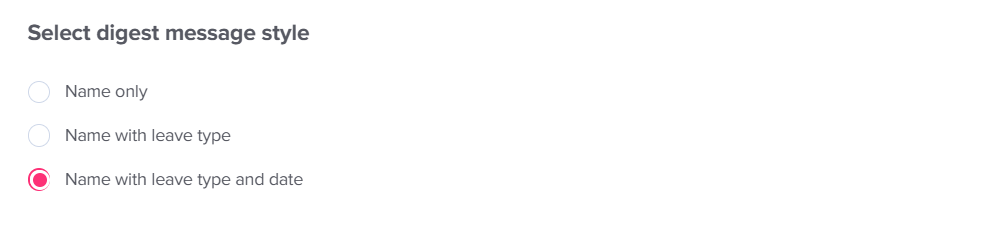
    3. Select Digest Message Style

    Day Off app feature showing employee leave tracking, PTO management and absence scheduling – Day OffDay Off

    Customize how absence information is displayed in Microsoft Teams notifications.

    • Name only: Displays only employee names for a simple overview
    • Name with leave type: Adds context such as vacation or sick leave
    • Name with leave type and date: Provides full details for better visibility

    Recommendation:
    Use name with leave type and date for clearer communication, especially in larger teams.

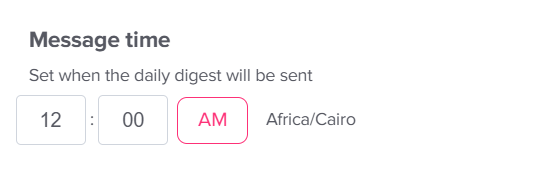
    4. Set Message Delivery Time

    Day Off app feature showing employee leave tracking, PTO management and absence scheduling – Day OffDay Off

    Control when daily notifications are sent to Microsoft Teams.

    • Choose the preferred time
    • Ensures notifications are delivered each day consistently
    • Helps teams start their day with clear visibility on who is absent

    Tip:
    Schedule messages early in the morning so everyone is informed before the workday begins.

    5. Save Your Changes

    • Click Save changes to apply your configuration
    • The Microsoft Teams integration will become active immediately

    Important:
    Any unsaved changes will be lost if you leave the page before saving.

    Integrating Day Off with Microsoft Teams simplifies how your team tracks absences and plans work. With automated daily digests and customizable message formats, your team stays informed without extra effort.

    As your organization evolves, you can easily update these settings to match your communication needs.

  • How to Integrate Day Off with Slack?

    Integrating Day Off with Slack enables your team to stay informed with real-time, automated notifications about absences, holidays, and leave updates, right within your Slack channels. Employees can conveniently submit time off requests directly through Slack, while approvers can review and approve or reject requests without leaving the platform.

    Setup Steps

    • Navigate to the Integrations section from the main menu.
    • Locate Slack and click on Add Integration.
    • Day Off will prompt you to grant permission to connect with your Slack workspace. Please review the requested permissions carefully, then click Allow to complete the connection.
    • Configure the integration settings based on your organization’s preferences.

    1. Import Employees from Slack (Optional but Recommended)

    Day Off app feature showing employee leave tracking, PTO management and absence scheduling – Day OffDay Off

    Start by importing your employees from Slack to ensure your Day Off directory is aligned with your workspace.

    • Click on Import employees
    • Day Off will sync users from your connected Slack workspace
    • This reduces manual data entry and ensures consistency between systems
    • It’s especially useful for growing teams or when onboarding multiple employees at once

    Best Practice:
    Run this step during initial setup or whenever you add many new employees to Slack.

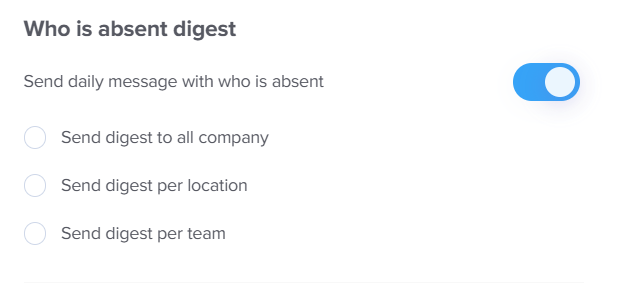
    2. Enable “Who is Absent” Daily Digest

    Day Off app feature showing employee leave tracking, PTO management and absence scheduling – Day OffDay Off

    This feature sends a daily summary of employees who are on leave.

    • Turn on the toggle for Send daily message with who is absent
    • Choose how the digest should be grouped:
      • All company: one message for everyone
      • By location: separate summaries per office/location
      • By team: tailored messages for each team

    Why this matters:
    It helps managers and teammates quickly understand availability and plan work accordingly without checking Day Off manually.

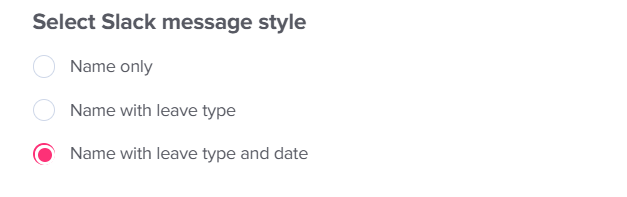
    3. Select Slack Message Style

    Day Off app feature showing employee leave tracking, PTO management and absence scheduling – Day OffDay Off

    Customize how the absence information appears in Slack messages.

    • Name only: shows just employee names (simple and clean)
    • Name with leave type: adds context (e.g., vacation, sick leave)
    • Name with leave type and date: provides full detail for better planning

    Recommendation:
    Use name + leave type + date for maximum clarity, especially for larger teams or cross-functional collaboration.

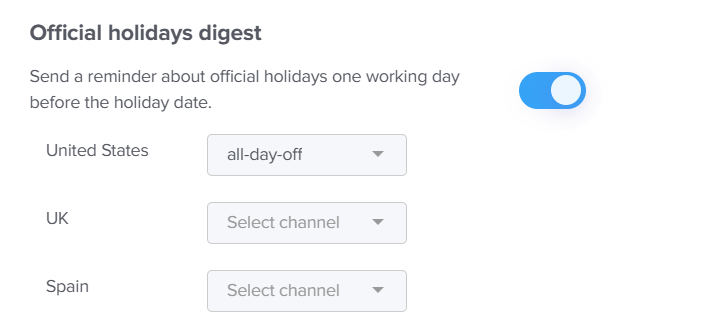
    4. Enable Official Holidays Digest

    Day Off app feature showing employee leave tracking, PTO management and absence scheduling – Day OffDay Off

    Keep your team informed about upcoming public holidays automatically.

    • Enable the Official holidays digest toggle
    • Assign a Slack channel for each location you have in your account (e.g., US, UK, Spain, etc.)
    • Day Off will send reminders one working day before the holiday

    Why this is useful:
    It prevents last-minute surprises and helps teams prepare for reduced availability.

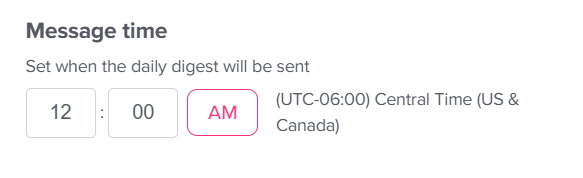
    5. Set Message Delivery Time

    Day Off app feature showing employee leave tracking, PTO management and absence scheduling – Day OffDay Off

    Control exactly when notifications are sent.

    • Choose the time for daily digests (e.g., 12:00 AM, Central Time)
    • This ensures messages are delivered at a consistent and predictable time
    • Align the timing with your team’s working hours or start of day

    Tip:
    Set the time early in the morning so teams can plan their day ahead.

    6. Save Your Changes

    • Click Save changes to apply all configurations
    • Your Slack integration becomes active immediately after saving

    Important:
    If you navigate away without saving, your settings will not be applied.

    Once set up, the integration runs seamlessly in the background, keeping everyone informed, aligned, and better prepared for daily operations.

    If your team structure or communication needs change, you can revisit these settings at any time to adjust channels, notification preferences, or delivery timing.

  • Can I customize reports based on my team or leave policy?

    Yes, you can customize reports in Day Off based on your team, leave policy, and other filters giving you flexible and targeted insights.

    Available Filters

    Day Off allows you to filter reports based on:

    • Employee name
    • Team / Department
    • Leave type
    • Leave policy
    • Location

    These filters help you narrow down data and analyze specific groups or scenarios easily

    Absence and attendance report in Day Off app with leave statistics, trends and team analytics – Day OffDay Off
  • How do I sync my calendar to Google Calendar?

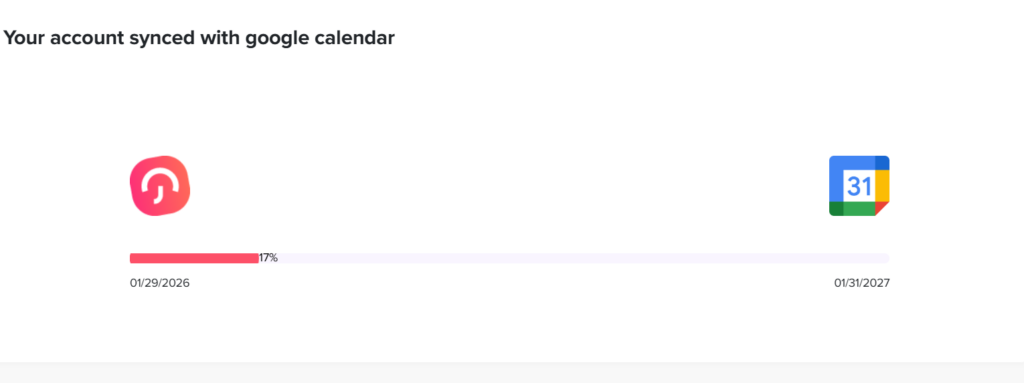
    Syncing your Day Off account with Google Calendar allows your time-off requests to appear automatically alongside your meetings and events. This helps you plan your schedule more effectively, avoid overlaps, and always have a clear view of your availability in one place.

    For Admins / Employees (Initial Setup)

    Day Off app feature showing employee leave tracking, PTO management and absence scheduling – Day OffDay Off

    Before you can start syncing, you need to connect your Google account to Day Off.

    • Open the Day Off dashboard
    • From the main menu, go to Integrations
    • Locate the Google Calendar Integration
    • Click on Add Integration
    • You will be redirected to Google to sign in to your account
    • Review the requested permissions and click Allow

    This step securely links your Google Calendar with Day Off. It allows the system to automatically create and update events based on your time-off requests, without requiring any manual input from you.

    Configure Google Calendar Sync

    After connecting your account, you can customize how your calendar behaves and what kind of information gets synced.

    Choose what to sync

    Day Off app feature showing employee leave tracking, PTO management and absence scheduling – Day OffDay Off

    This setting lets you decide how much information you want to appear in your Google Calendar:

    • Sync only my requests
      Only your personal time-off requests will be added to your calendar.
      This is the best option if you prefer a clean and focused calendar that reflects only your own schedule, without any additional information from others.

    • Include my team’s requests
      Your calendar will show both your requests and your team’s requests.
      This is useful if you work closely with your team and want to stay aware of who is off, helping you plan work and avoid scheduling conflicts within the team.

    • Include company-wide requests
      All employee time off requests across the organization will be added to your calendar.
      This gives you a complete overview of availability across the company, which is especially helpful for admins or roles that require broad visibility.

    Each option gives you flexibility to control how detailed your calendar should be.

    Select Google calendar

    • If you have multiple calendars in your Google account, you can choose exactly where the Day Off data should appear
    • For example, you might want to keep a separate calendar just for time-off tracking
    • This helps keep your main calendar organized and prevents it from becoming cluttered

    Choosing the right calendar ensures that your schedule stays clear and easy to manage.

    Day Off app feature showing employee leave tracking, PTO management and absence scheduling – Day OffDay Off

    Set event visibility

    This setting controls how your time off events affect your availability in Google Calendar:

    • Show as available
      Your time off will appear in your calendar, but your availability will remain open. This means others can still schedule meetings with you during that time, which may be useful in flexible work environments

    • Show as busy
      Your time off will block your availability in Google Calendar
      This prevents meetings from being scheduled during your leave and helps protect your time off

    This option is especially important if you want to avoid interruptions while you are away.

    Final Step

    After reviewing and selecting your preferences, click Save Settings

    Once saved:

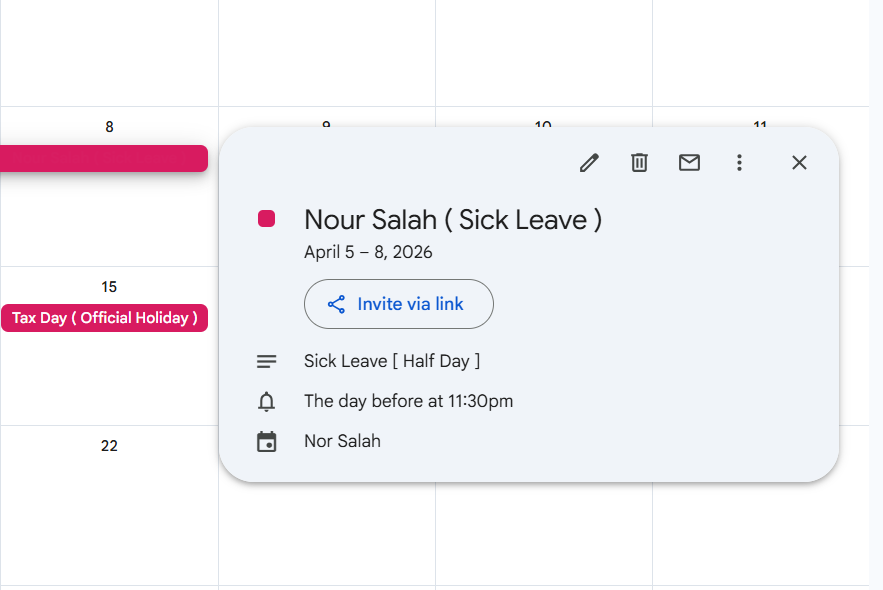
    • Your time off requests will automatically appear in your Google Calendar
    • Any updates, edits, or cancellations in Day Off will sync automatically
    • Your calendar will always stay up to date without needing manual updates

    Disconnecting Google Calendar

    • If you decide to stop syncing, go back to Integrations
    • Find Google Calendar Integration
    • Click Disconnect

    This will stop the connection and prevent any future updates from being sent to your Google Calendar.

    Final Note

    Syncing your Day Off calendar with Google Calendar helps you stay organized, reduces the risk of scheduling conflicts, and gives you a complete view of your availability, all in one place.

  • What types of reports are available in the Day Off?

    Reports in Day Off give you clear visibility into employee time off, helping HR teams and managers make informed decisions.

    Available Report Types

    Balances Report

    The balances report helps you monitor employees’ leave balances in detail.
    You can:

    • Filter by leave policy

    • View how many days are used vs total available for each leave type

    • See the total used vs total allocated balance per employee

    Leave balance overview in Day Off app showing remaining PTO days, sick leave and vacation entitlements – Day OffDay Off

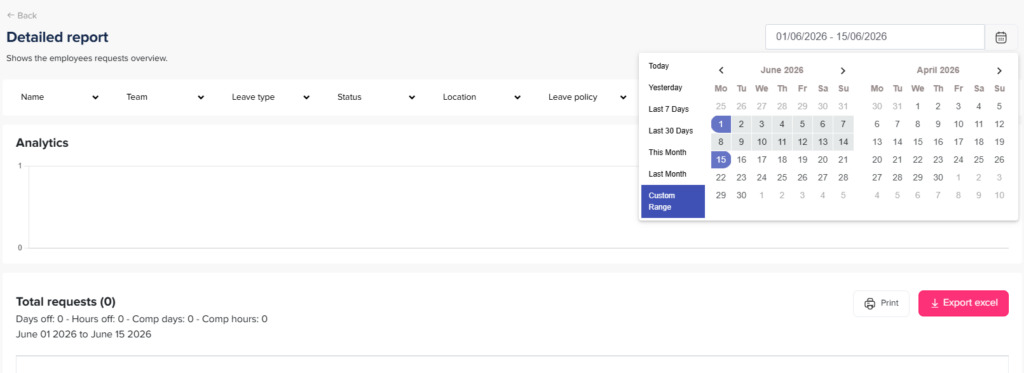
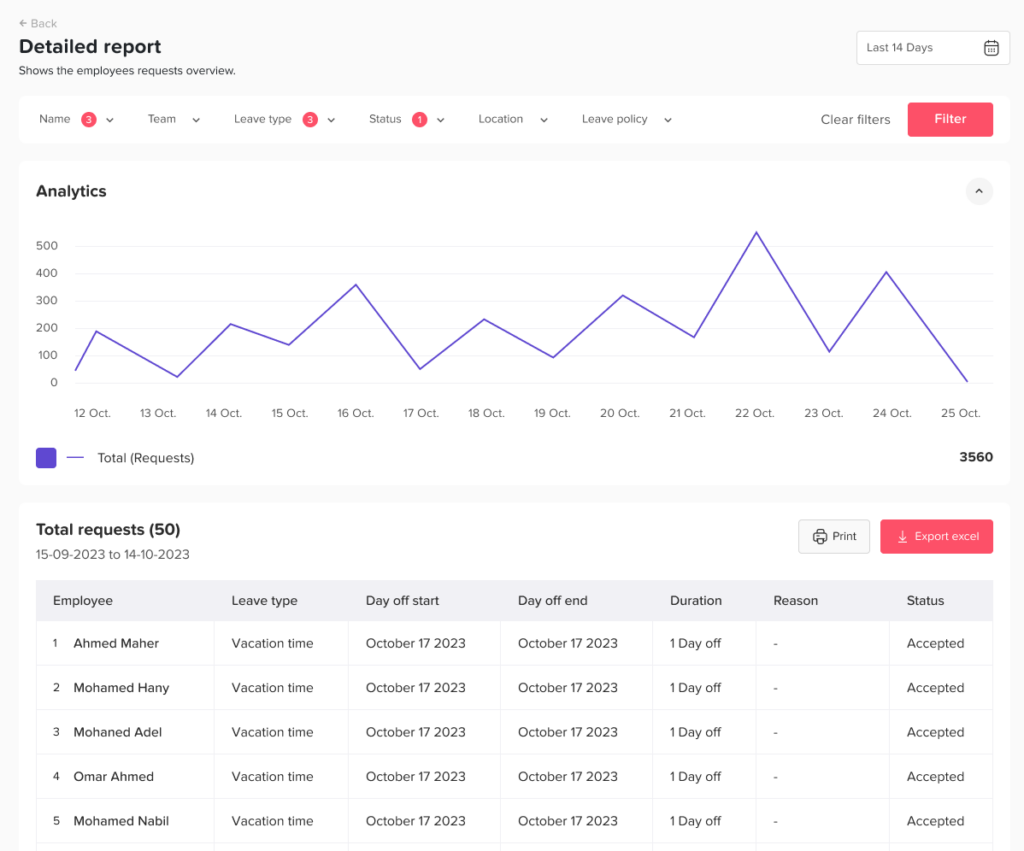
    Detailed Report

    This report provides a complete log of leave requests.
    You can:

    • Filter by a specific date range

    • View all requests submitted within that period

    • See request statuses including accepted, pending, rejected, or deleted

    Absence and attendance report in Day Off app with leave statistics, trends and team analytics – Day OffDay Off

    Total Report

    The total report gives you a summarized view of time off usage.
    You can:

    • Filter by a date range

    • See the total number of days or hours each employee has used within this period

    Absence and attendance report in Day Off app with leave statistics, trends and team analytics – Day OffDay Off

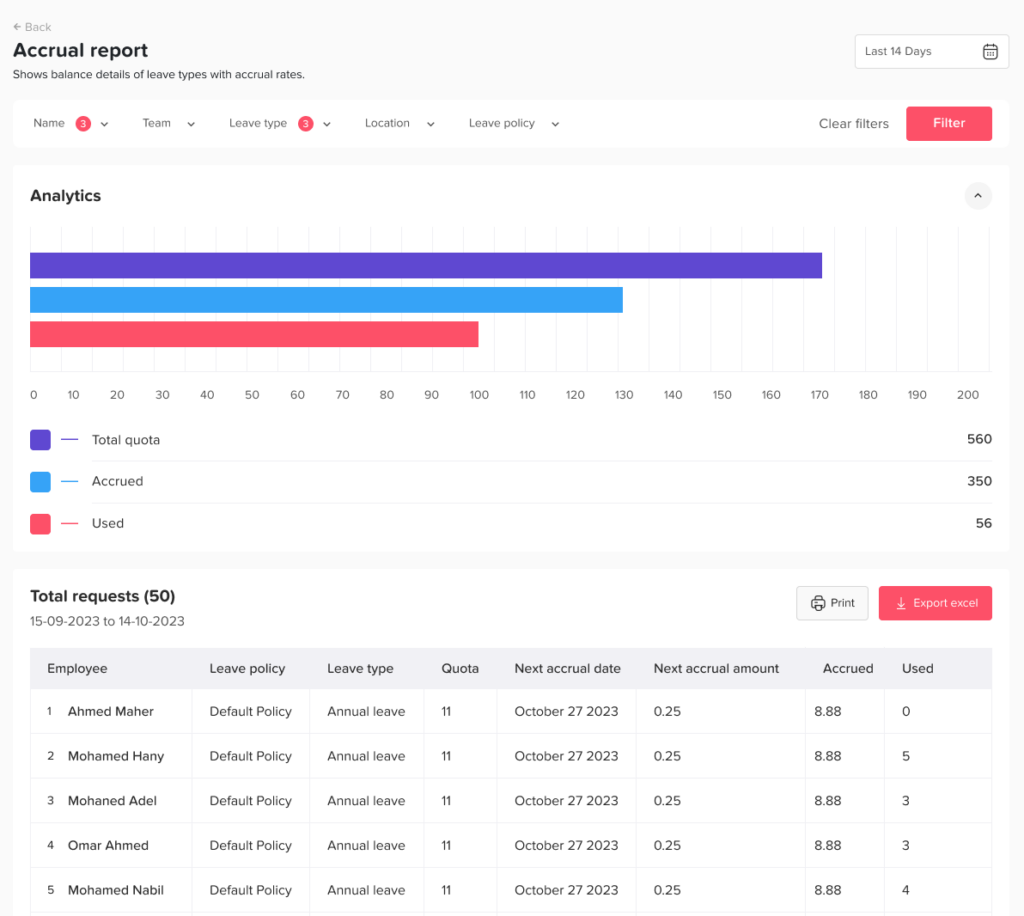
    Accruals Report

    The accruals report focuses on earned leave over time.
    You can:

    • Track employees with accrued balances

    • See how many days or hours they have earned

    • View the next accrual date

    Absence and attendance report in Day Off app with leave statistics, trends and team analytics – Day OffDay Off

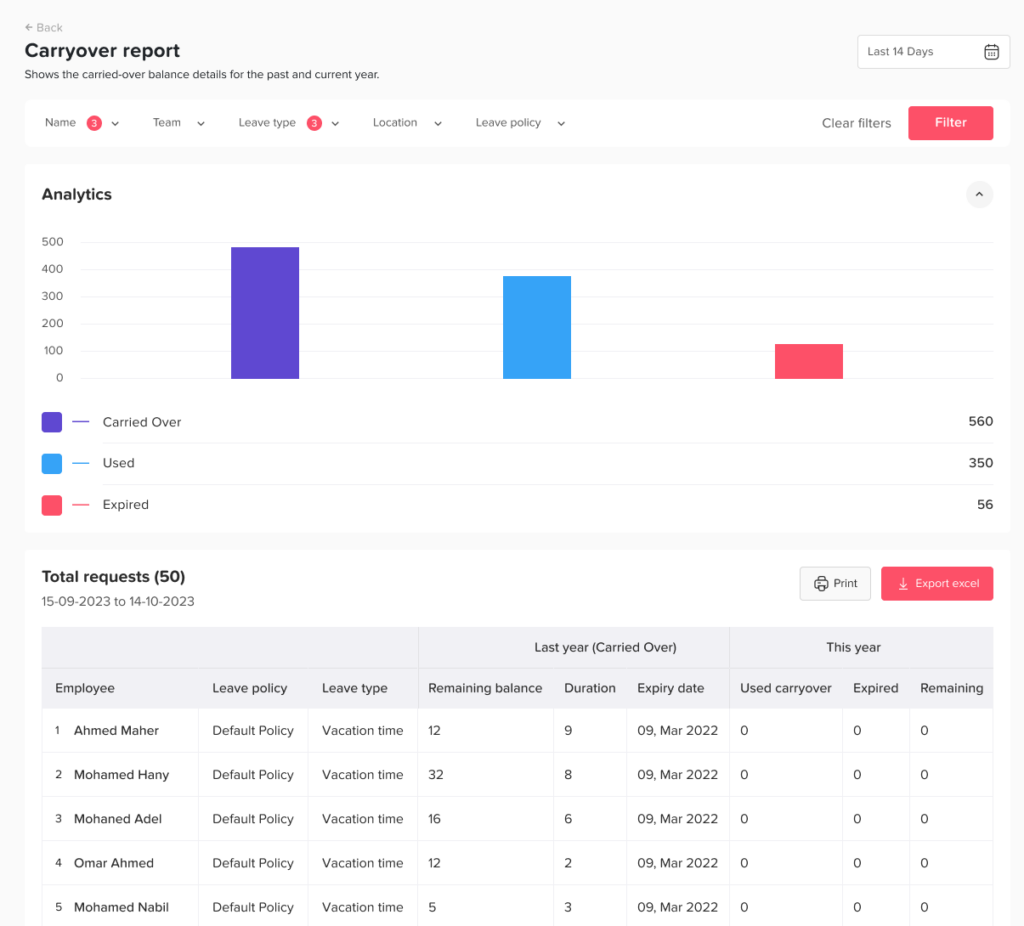
    Carryover Report

    This report helps you track carried over leave balances.
    You can:

    • Identify employees with carryover balances

    • View the expiry date of carryover days

    • See how many days are used and remaining

    Absence and attendance report in Day Off app with leave statistics, trends and team analytics – Day OffDay Off
  • How do I sync my calendar to Outlook calendar?

    Syncing your Day Off calendar with Outlook allows you to see your time-off requests together with your meetings and events in one place. This makes it easier to manage your schedule, avoid double bookings, and stay aware of your availability at all times.

    For Admins / Employees (Initial Setup)

    Day Off integrations with Slack, Google Calendar and other tools for seamless leave management – Day OffDay Off

    Before setting up the sync, you need to connect your Day Off account with Outlook.

    • Open the Day Off dashboard
    • From the main menu, go to Integrations
    • Find the Outlook Integration section
    • Click on Add Integration
    • A Microsoft window will appear asking you to grant permission
    • Review the permissions and click Accept

    This step allows Day Off to securely connect with your Outlook calendar so it can send your leave data and keep it updated automatically.

    Configure Outlook Calendar Sync

    After connecting your account, you can choose what exactly you want to sync and how it should appear in Outlook.

    Choose what to sync

    Day Off app feature showing employee leave tracking, PTO management and absence scheduling – Day OffDay Off

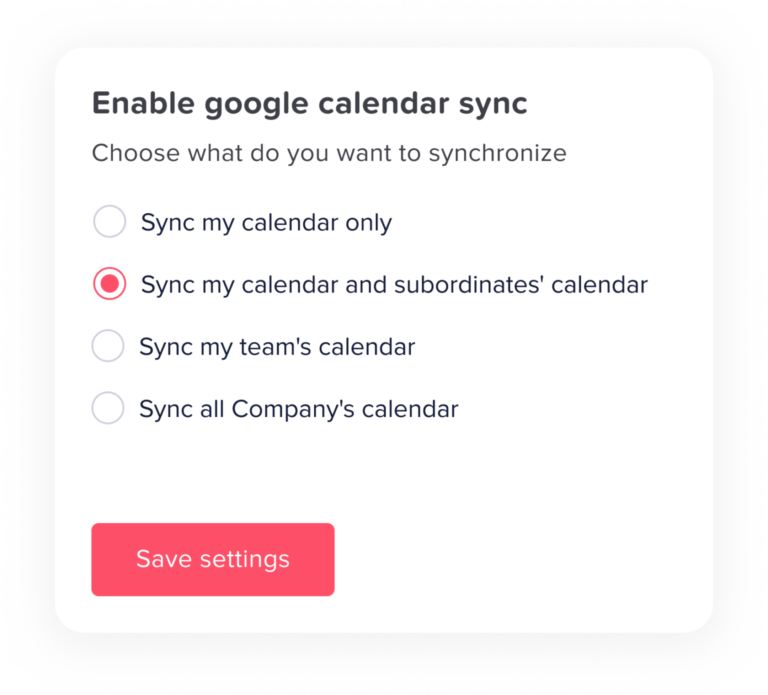
    You will see several options depending on how much information you want in your Outlook calendar:

    • Sync my calendar only
      This option will sync only your personal time off requests.
      It is best if you only want to track your own leave without seeing others. It keeps your calendar simple and focused on your schedule.

    • Sync my calendar and subordinates’ calendar
      This will include your requests and the requests of employees who report to you.
      It is useful for managers who need to monitor their team’s availability and ensure there is always enough coverage.

    • Sync my team’s calendar
      This option will sync all requests within your team or department.
      It helps team members stay aligned and avoid too many people being off at the same time.

    • Sync all company’s calendar
      This will sync all employee requests across the entire company.
      It provides full visibility and is usually used by admins or roles that require a complete overview of everyone’s availability.

    Select Outlook calendar

    Day Off app feature showing employee leave tracking, PTO management and absence scheduling – Day OffDay Off
    • If you have more than one calendar in Outlook, you can choose where the data should appear
    • This helps you keep your personal calendar separate from your work or shared calendars
    • Selecting the correct calendar ensures your time-off events are organized properly

    Mark calendar as

    Day Off app feature showing employee leave tracking, PTO management and absence scheduling – Day OffDay Off

    This setting controls how your time off appears to others in Outlook:

    • Free
      Your time off will be visible in your calendar, but it will not block your time.
      This means others can still schedule meetings with you during that period.

    • Busy (Only your requests will mark as busy)
      Your time off days will be marked as busy, which prevents others from booking meetings during that time.

      This helps protect your time off and avoids interruptions.
      Note: Only your own requests will block your calendar, not other employees’ requests.

    Final Step

    After choosing all your preferences, click Save Settings

    Once saved:

    • Your Day Off calendar will automatically sync with Outlook
    • The time off requests will appear in your selected Outlook calendar
    • Any updates or changes in Day Off will be reflected in Outlook automatically

    Additional Option

    • If you no longer want to sync your calendar, you can click Disconnect Calendar at any time
    • This will stop all future updates between Day Off and Outlook

    Final Note

    Syncing your calendar helps you stay organized by keeping all your important events and time off in one place. It improves planning, reduces scheduling conflicts, and makes it easier to manage your time effectively.

  • How can I export reports in Day Off?

    Day Off provides reporting tools that allow you to extract and analyze leave data, helping HR teams and managers with tracking and decision making.

    Using the Web Version

    Report exporting is available on the web platform, where you have full access to reporting features.

    To export a report:

    • Go to the Reports section
    • Select the type of report you need (e.g., balances, detailed, or total report)
    • Apply filters (e.g., team, date range, or leave type)
    • Click Export
    • Download the report (typically in Excel)

    This allows you to customize reports based on your needs before exporting.

    Day Off app feature showing employee leave tracking, PTO management and absence scheduling – Day OffDay Off
  • How do I filter the company calendar by location or team?

    Filtering the calendar helps you focus only on the people that matter to you, instead of seeing everyone in the company. This makes it much easier to plan ahead, avoid conflicts, and understand who is available within your team or location.

    For Employees

    Employees can use filters in the calendar to narrow down what they see. However, what you can filter depends on the visibility settings set by your admin.

    Day Off app feature showing employee leave tracking, PTO management and absence scheduling – Day OffDay Off
    • Open Day Off 
    • Go to the Calendar section
    • At the top of the calendar, locate the filter or dropdown menu

    Choose your preferred view:

    • Team: Displays only employees within your team or department
    • Location: Displays employees from a specific office or branch

    Once you select a filter, the calendar will automatically update to show only the relevant employees and their time-off requests.

    Important to understand:

    • If your calendar is set to show all company requests, you will have more flexibility. You can switch between teams and locations and explore different groups easily

    • If your calendar visibility is limited (for example, only your team or your location), then you will only see those employees, and filtering options may also be limited

    In simple terms, you can only filter what you are allowed to see. If your access is restricted, the calendar will not show data outside your assigned scope.

    For Admins

    Admins have full access to all employee data, which means they can filter the calendar without any limitations.


    Admins can quickly adjust the calendar view to focus on specific groups or locations:

    Steps to filter the calendar:

    • Open the Day Off dashboard
    • Go to the Calendar section
    • Use the filters at the top of the page

    Available filter options:

    • By team or department: Focus on a specific group
    • By location: View employees in a particular office or branch
    • Combine filters (if available): Narrow down results further based on your setup
    Day Off app feature showing employee leave tracking, PTO management and absence scheduling – Day OffDay Off

    As soon as you apply a filter, the calendar will refresh and display only the selected group, making it easier to review requests and manage availability.

    This is especially helpful for admins who manage multiple teams or locations and need to quickly switch between different views.

    How to remove filters and show all company requests

    If you want to reset the calendar view and see all employee requests again, you can easily remove the applied filters.

    Day Off app feature showing employee leave tracking, PTO management and absence scheduling – Day OffDay Off
    • Open the Calendar in the Day Off app
    • Click on the filter button at the top of the calendar
    • In the filter window, review the selected filters (such as Location or Team)
    • Click the “×” (X) icon next to each selected item (e.g., UK, Spain, or Mobile Developer) to remove it
    • Once all filters are cleared, click Save

    After applying these changes, the calendar will automatically refresh and display all employee requests across the company.

    This allows you to return to the full calendar view at any time.

    Why filtering is useful

    Using calendar filters gives you a flexible way to view only the information you need, whether it’s your team, a specific location, or the entire company.

    By easily switching between filtered and full views, you can plan more effectively, avoid conflicts, and stay aligned with your team’s availability at all times.