





Archives: Knowledge Base
-
How do I check public holidays and weekends?
You can easily view public holidays and weekends in Day Off through the calendar and the official holidays section. This helps you plan your time off more effectively and avoid scheduling conflicts.
To check public holidays and weekends on the web:
- View the calendar on your dashboard
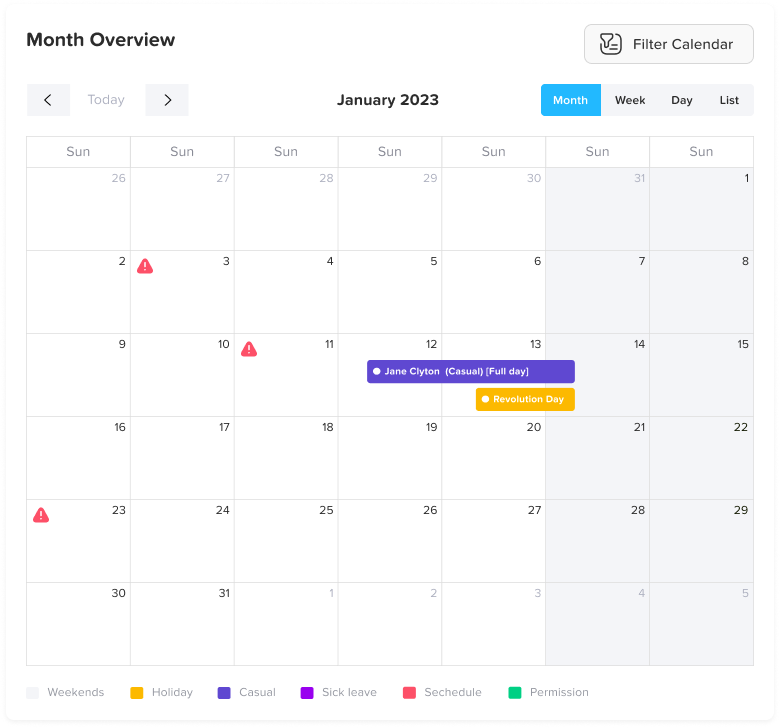
On your dashboard, you’ll find the calendar view (month, week, or day). This calendar gives you a visual overview of all working and non-working days. - Identify weekends in the calendar
Weekends are automatically highlighted in a grayed-out color, making them easy to distinguish from regular working days. This helps you quickly recognize non-working days at a glance. - Check public holidays in the calendar
Public (official) holidays are displayed directly on the calendar and are highlighted in yellow, so you can easily spot them when planning your leave.
- See the full holiday list (admins)
Admins can view the complete list for each location: in the left-hand menu, go to People → Locations, click the edit (pencil) icon next to the location, and open the Official holidays tab. - Review holiday details
On the Official holidays tab, you can see each holiday clearly listed with its name and date, helping you stay informed about upcoming non-working days.
To check public holidays and weekends on mobile:
- View public holidays in the calendar
Official holidays are displayed directly on the calendar and highlighted with a grey dot, making them easy to identify while browsing or planning your time off. - Tap on a holiday for more details
Tap on any highlighted holiday to view additional details, such as the holiday name and date. - Access the full official holidays list
From the menu at the bottom of the screen, tap on Settings, then select Official holidays. This will open a complete list of all public holidays for the year, including their names and dates.
If you have any questions about public holidays or notice any missing information, please reach out to your HR administrator for assistance.
Regularly checking the calendar and official holidays list helps you stay informed and plan your time off more efficiently.
- View the calendar on your dashboard
-
Can I temporarily edit an employee’s work schedule?
Yes, admins can temporarily edit an individual employee’s work schedule to adjust their hours, change a working day to a non-working day, or vice versa.
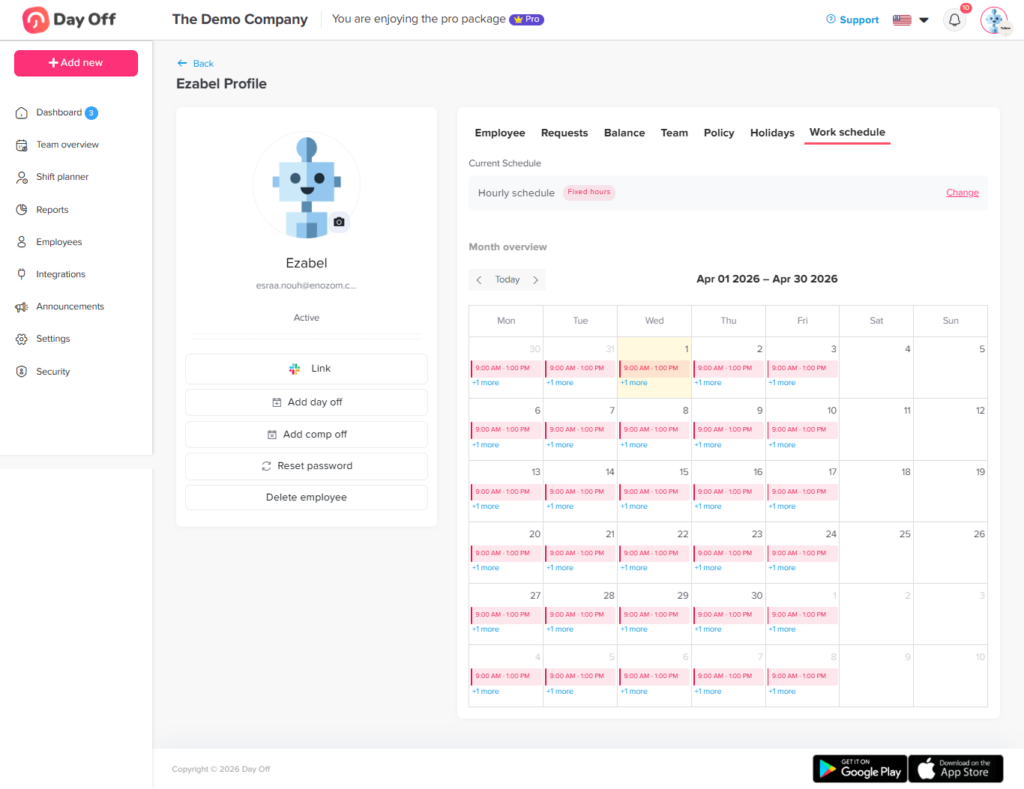
To temporarily edit a schedule:
From People → Employees, open the required employee’s profile.
Navigate to the Work schedule tab.
If the employee is assigned to an hourly schedule, you will see a calendar view displaying the working hours for each day.
Click on the specific day you want to edit. A pop-up will appear with the default work hours, allowing you to do any of the following:
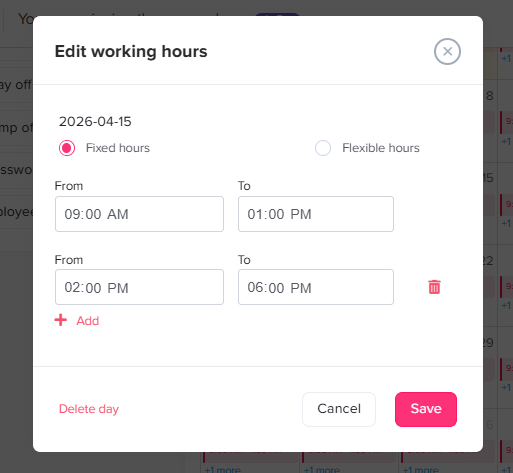
Change the default work hours: Adjust the specific times or total hours for that day.
Change the schedule type: Switch that specific day from fixed hours to flexible hours, or vice versa.
Make it a non-working day: Delete the work hours to turn it into a day off.
Make a non-working day a working day: Add work hours to a day that is normally scheduled as a weekend or non-working day.
-
Can I customize schedules for part-time or remote employees?
Yes, admins can create and assign different work schedules tailored to specific employee groups, such as full-time, part-time, or remote staff.
To customize and assign these schedules:
Go to Settings & integrations → Settings and select Work schedules.
Create the necessary work schedules, defining the required working days and hours for each specific group.
Assign these new schedules to the relevant employees, either individually from their profiles or by using the bulk actions from People → Employees.
-
How do I view my leave history?
Viewing your leave history allows you to keep track of all your past and current requests, helping you stay organized and review your time off over different periods.
To view your leave history on the web:
- Go to “My balance”
In the left-hand menu, go to Absence → My balance (or click My requests on your dashboard). This will take you to a page that displays all your submitted leave requests for the current year, along with the status of each request (such as Pending, Accepted, or Rejected). - Understand your requests list
On the Leave requests page, you’ll see a complete list of your requests, including important details like leave type, number of days, and request dates. This gives you a clear overview of your time off activity throughout the year.
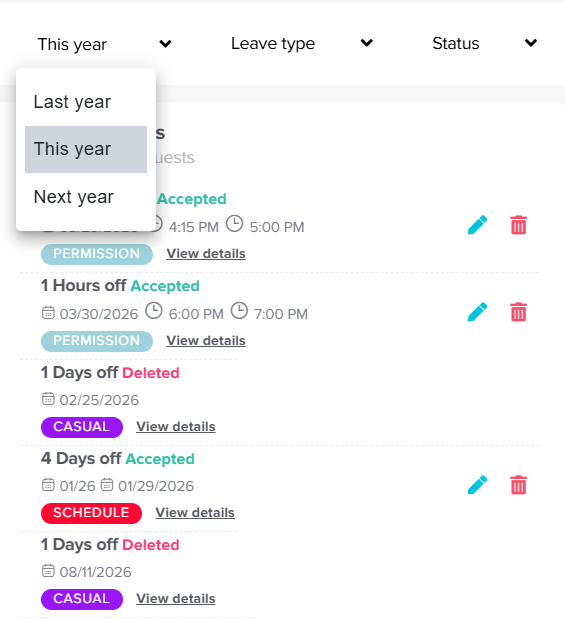
- Use the filter to view other years
At the top of the page, you’ll find a filter option that allows you to change the time period. You can use it to view your requests from previous years or even check requests planned for the next year, making it easy to navigate across different timeframes. - Click on “View details” for more information
Select View details next to any request to open a detailed view. Here, you can see additional information such as approval steps, timestamps, and any actions taken on the request.
To view your leave history on mobile:
- Go to “Balance”
From the menu at the bottom of the screen. Tap on Balance. This section not only shows your leave balances but also gives you access to your leave history. - Use the yearly filter
At the top of the screen, you’ll find a yearly filter. Use it to switch between different years and view your requests for a specific time period.
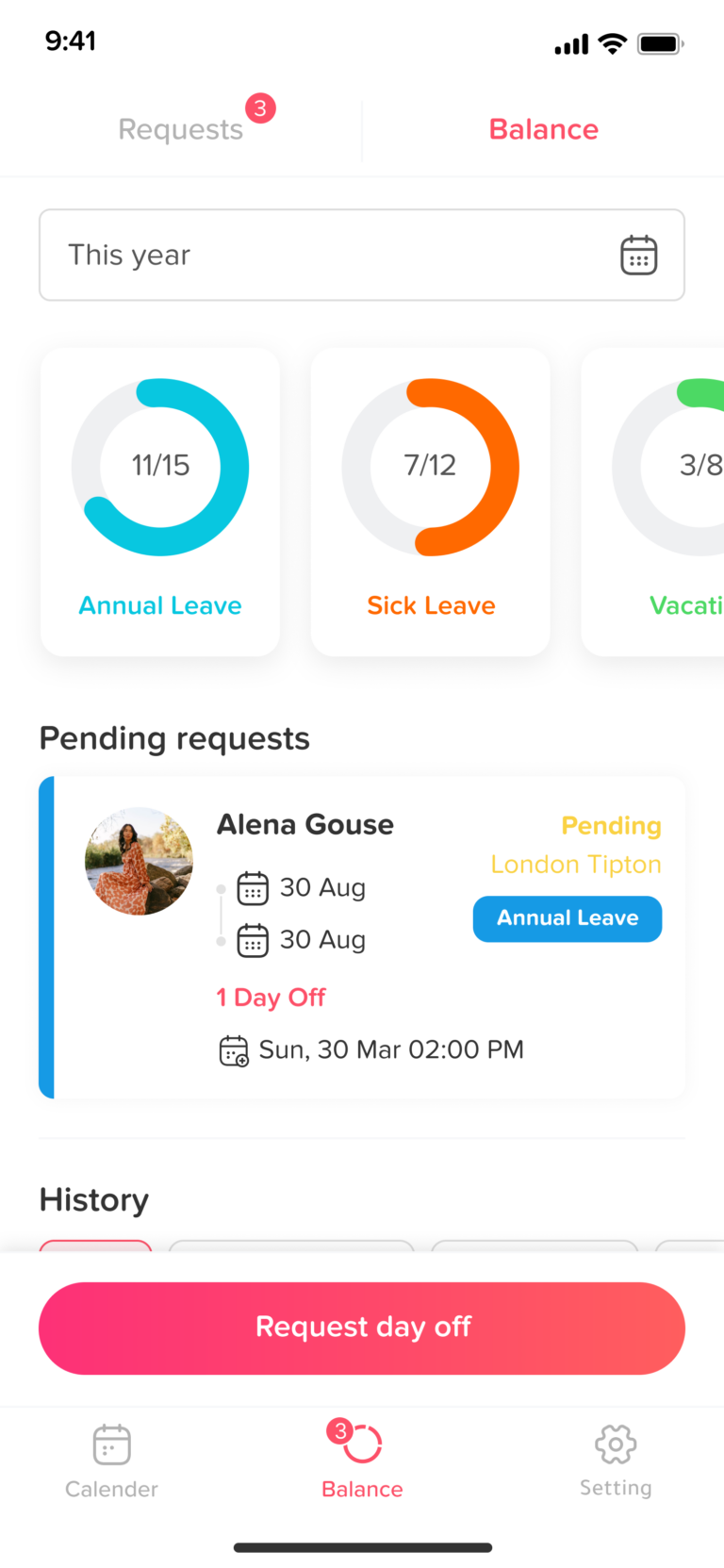
- Scroll to view your requests
Scroll down through the page to access your full list of submitted requests. As you navigate, you’ll see each request clearly displayed with its current status (such as Pending, Accepted, or Rejected), along with key details like the leave type, selected dates, and duration. This layout makes it easy to review your past and current requests at a glance and understand their progress. - Tap on a request for more details
Tap on any individual request to open a detailed view. In this section, you’ll find more in-depth information, such as the full request timeline, approval status, and any updates or actions taken. This helps you better understand the outcome of each request and track any changes or approvals made.
If you need clarification about any request or notice missing information, please contact your manager or HR administrator. Regularly reviewing your leave history helps you stay organized and maintain accurate records of your time off.
- Go to “My balance”
-
How can I update my billing information?
Admins can update payment methods and company billing details at any time. The information provided here will automatically be included on all of your future invoices.
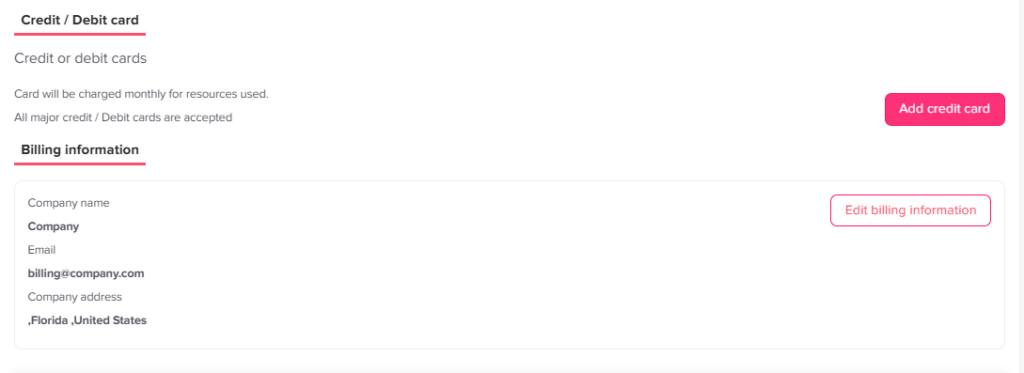
Update/Add a New Payment Method
Click your profile picture in the top-right corner and select Billing.
Scroll down to the Credit/Debit cards section.
Click Add credit card to enter your new payment details.
Update Your Billing Information
Admins can update their company’s billing details at any time. The information provided here will automatically be included on all of your future invoices.
Click your profile picture in the top-right corner and select Billing.
Scroll down past the payment methods to the billing information section.
Edit your specific billing details, which include your:
Company name
Billing email
Country
Billing address
Tax ID
-
Can I cancel my subscription anytime?
Yes, admins can cancel a subscription at any time with no notice period required.
To cancel your subscription:
Click your profile picture in the top-right corner and select Billing.
Click Cancel plan.
Once canceled, you will continue to have full access to all Pro features until the end of your current billing cycle.
If you need assistance with your billing, you can reach out to us at [email protected].
-
How can I check my leave balance?
Keeping track of your leave balance helps you understand how many days you have available for each leave type, allowing you to plan your time off more effectively and avoid any surprises when submitting requests.
To check your leave balance on the web:
- Go to “My balance”
In the left-hand menu, go to Absence → My balance (or click My requests on your dashboard). This section is your central hub for managing leave, where you can view all your requests as well as access important information about your available balances. - View your leave balances
On the right-hand side of the screen, you’ll find a summary of your leave balances organized by leave type (such as vacation, sick leave, etc.). This section provides a quick and clear overview of how many days you currently have available for each category.
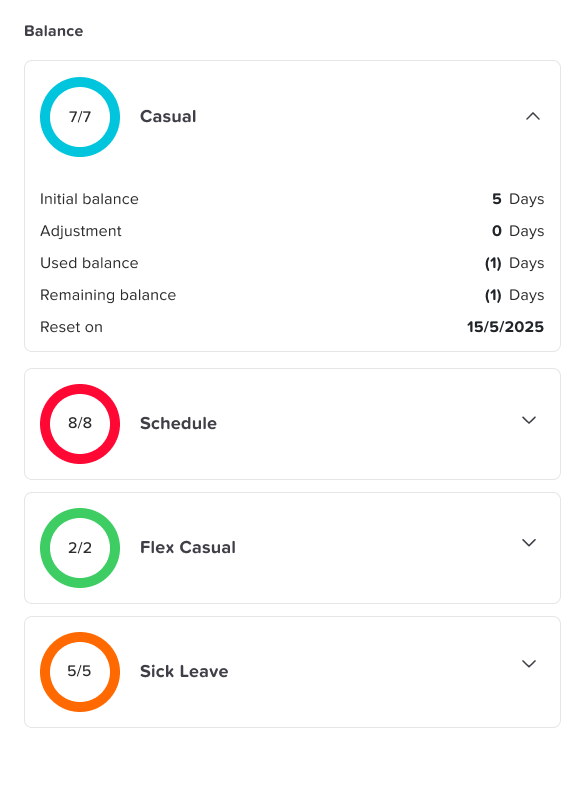
- Understand your balance at a glance
Each leave type displays its remaining balance, helping you quickly assess whether you have enough days available before submitting a new request. This is especially useful when planning upcoming time off. - Click on a leave type for detailed information
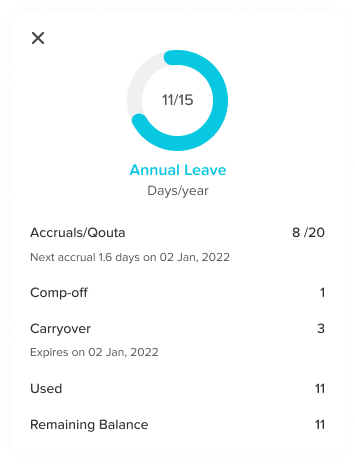
Select any leave type to open a more detailed view. Here, you can see a breakdown of your balance, including used days, remaining balance, and any accruals or adjustments. This helps you better understand how your balance is calculated and updated over time.
To check your leave balance on mobile:
- Open the main menu
From the bottom of the screen, tap on the menu icon to open the main navigation menu. This gives you access to all key sections of the app, including your leave information. - Go to “Balance”
Tap on Balance to open the section dedicated to your leave balances. This page is designed to give you a clear and organized view of all your leave types.
- View your leave balances
You’ll see a list of all your leave types along with the available balance for each one. This allows you to quickly check how many days you have left without needing to navigate through multiple screens. - Tap on a leave type for more details
Select any leave type to view a detailed breakdown. This includes information such as how many days you’ve used, any pending requests, and how your balance has changed over time.
If you have any questions about your leave balance or notice anything that doesn’t look correct, please reach out to your HR administrator for assistance.
Regularly checking your leave balance helps you stay informed, avoid unexpected issues when submitting requests, and plan your time off with confidence.
- Go to “My balance”
-
How do I view or download my invoices?
Admins can easily view their billing history and download past invoices directly from the system.
- Click your profile picture in the top-right corner and select Billing.
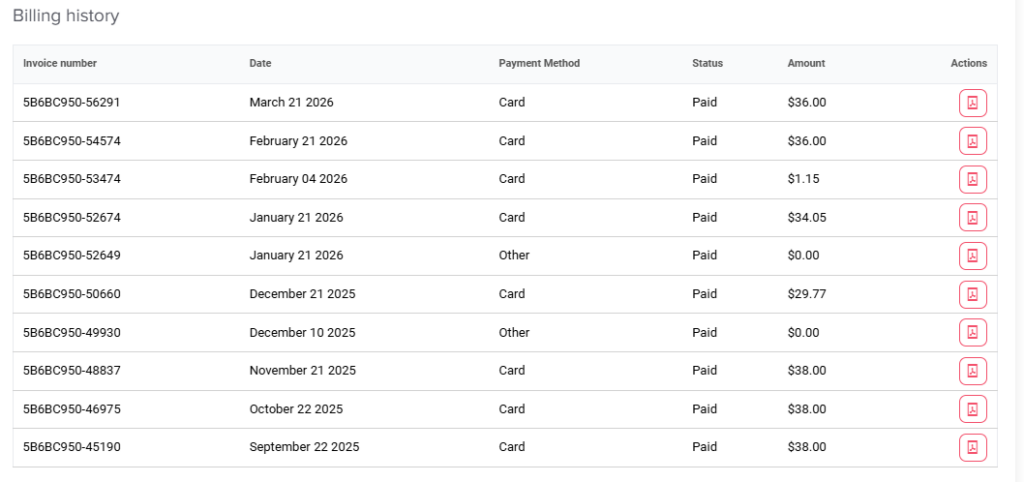
Scroll down to find your Billing History, which shows the list of invoices.
The list shows the invoice number, date, payment method, payment status, and teh invoice amount.
Click the Download icon under the actions column next to the required invoice to download it as a PDF file.