





-
Reports
- Can I customize reports based on my team or leave policy?
- How can I export reports in Day Off?
- How can I filter reports by date?
- How Do I Calculate Billable Hours for a Client?
- How Do I Check How Many Hours an Employee Worked This Month?
- How Do I See Total Hours per Project or Client?
- How do I track employee leave balances through reports?
- How Do I Use Group By in the Time Tracking Summary Report?
- Time Reports vs. Attendance Review vs. Timesheets: Which Should I Use?
- What Time Tracking Reports Are Available in Day Off?
- What types of reports are available in Day Off?
- Who Can See Time Tracking Reports?
- Who has permission to view and export reports?
- Why Don't Clock-In and Clock-Out Hours Show a Project in Time Reports?
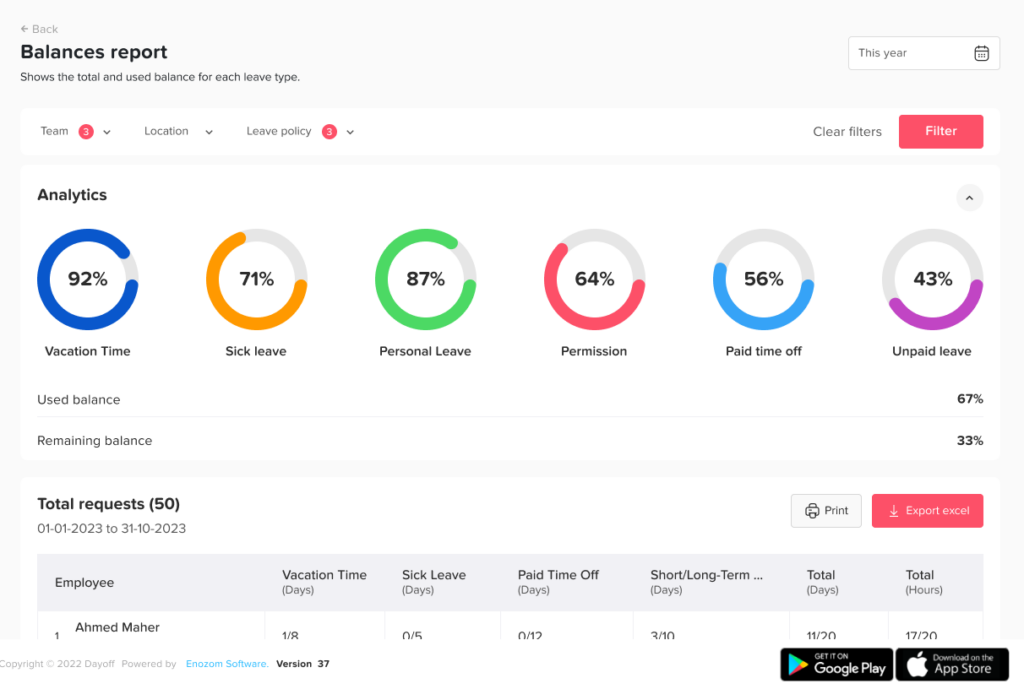
You can track employee leave balances in Day Off through reports. The Balances Report gives you a clear overview of how much leave each employee has used and how much remains.
Using the Balances Report
To track leave balances:
- In the left-hand menu, go to Absence → Reports
- Open the Balances Report
- Apply filters if needed (such as leave policy or team)
What You Can See
Inside the report, you’ll be able to:
- View each employee’s total allocated balance
- See how many days are used vs remaining
- Break down balances by leave type (e.g., vacation, sick leave)
- Check the total used vs total available per employee
This gives you a complete and accurate picture of leave balances across your organization.
Using the Total Report
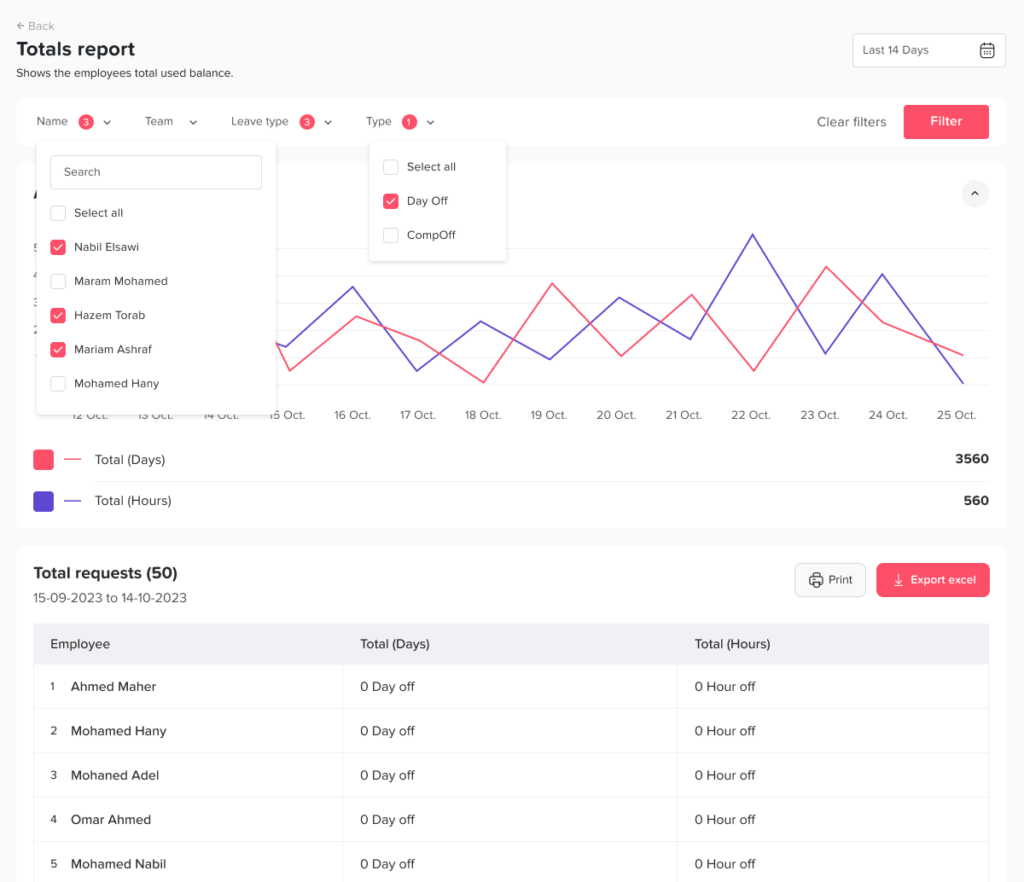
The Total Report helps you track how much leave employees have used over a specific period.
To access it:
- In the left-hand menu, go to Absence → Reports
- Open the Total Report
- Select a date range
What You Can See
- Total number of days or hours used per employee
- Usage summary during a selected period
Why Track Employee Leave Balances
Balances tell you more than just numbers. For instance, they show who has plenty of unused paid time off and who is close to running out. As a result, HR can encourage people to rest before they burn out.
Balances also help with planning. When you know how much leave remains across a team, you can expect busy request periods and plan coverage early.
Tips for Using These Reports
- Review balances regularly, for example once a month.
- Use filters to focus on one team or leave policy at a time.
- Check balances before the end of the year or your reset period.
- Export the report when you need to share it with payroll or leadership.
Managers can also see this information for their own people. Learn whether a manager can view the balances of their team.