





-
Permissions
- Can a manager add requests for their team?
- Can a manager view the balances of their team?
- Can I create a "View-Only" role for our external accountant or auditor?
- How Do I Give a Manager Access to Attendance Review for Their Team Only?
- How Do I Give Someone Access to Time Tracker Reports Without Making Them an Admin?
- How Do I Let an Employee Track Time and Use Timesheets?
- How to change a user's role/permissions?
- How to create different roles and access levels in Day Off?
- What Time Tracker Permissions Can I Give in Day Off?
- What's the Difference Between the Projects and Tasks and Manage Projects Permissions?
- Who Can Change the Time Tracker Settings and Clients?
Yes, you can create a view-only role in Day Off. The app allows you to customize roles by selecting specific permissions, so you can give access without allowing any changes.
Using the Web Version
You can create a limited access role directly from the web platform.
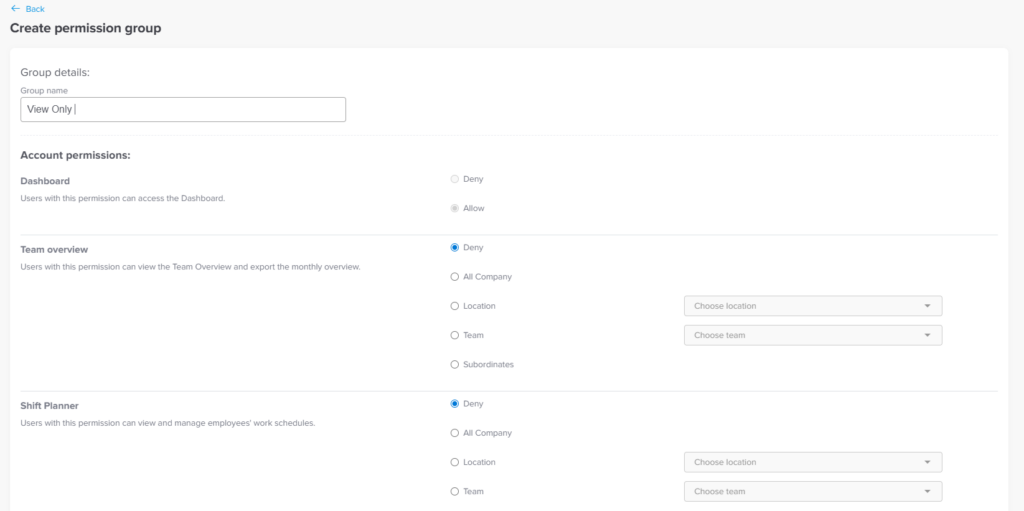
To set up a view only role:
- Go to Settings & integrations → Security
- Go to permissions
- Click Add permission group
- Select only view related permissions from the full Admin permission list
- Avoid enabling any edit, approve, or management permissions
- Assign this role to the view only users
You can allow access to:
- Employee profiles
- Leave balances
- Requests and history
- Teams, policies, and schedules
All without giving the ability to modify anything.
Why Use a View-Only Role
External accountants and auditors often need to check leave records, balances, and policies. For example, during a financial audit, they may review how much paid leave your company owes its staff.
However, they should never be able to edit that data. A read-only role gives them everything they need to review. At the same time, it keeps your records accurate and protects your settings from accidental changes.
Tips for Giving External Users Access
- Give the role a clear name, such as Auditor or External Accountant.
- Double-check that no edit, approve, or management permissions are enabled.
- Share access only for as long as the review lasts.
- When the work is done, change the user’s role or remove their access.
To learn more about custom roles in general, see how to create roles and access levels.
Who Can Create a View-Only Role
Permission groups live under Settings & integrations → Security, so this task is usually handled by an admin. If you cannot see that menu, ask your company admin to create the role for you. Once it exists, they can assign it to any external user in a few clicks.