Archives: Knowledge Base

  • How to prevent overlapping holidays/leave requests?

    Preventing overlapping leave requests is essential to ensure adequate team coverage and avoid operational disruptions. Day Off provides built-in controls to help manage and limit the number of employees who can take time off at the same time.

    How to create a blockout date

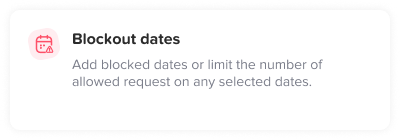
    Creating a blockout date allows administrators to control when employees can (or cannot) request time off. This can be used to fully restrict leave during critical periods or to limit the number of employees who can be off at the same time.

    Step-by-step guide

    • Open the Day Off dashboard
    • Navigate to Settings from the main menu
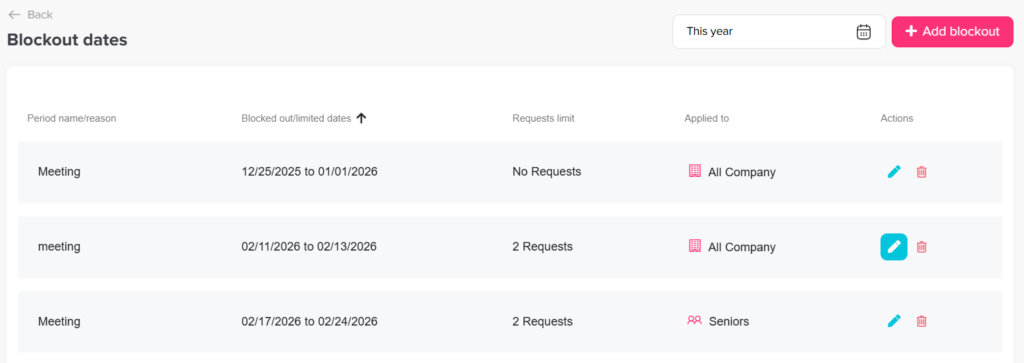
    • Select Blockout Dates to access all existing configurations
    • Click on Add Blockout Date to create a new restriction
    Day Off app feature showing employee leave tracking, PTO management and absence scheduling – Day OffDay Off

    Configure the blockout details

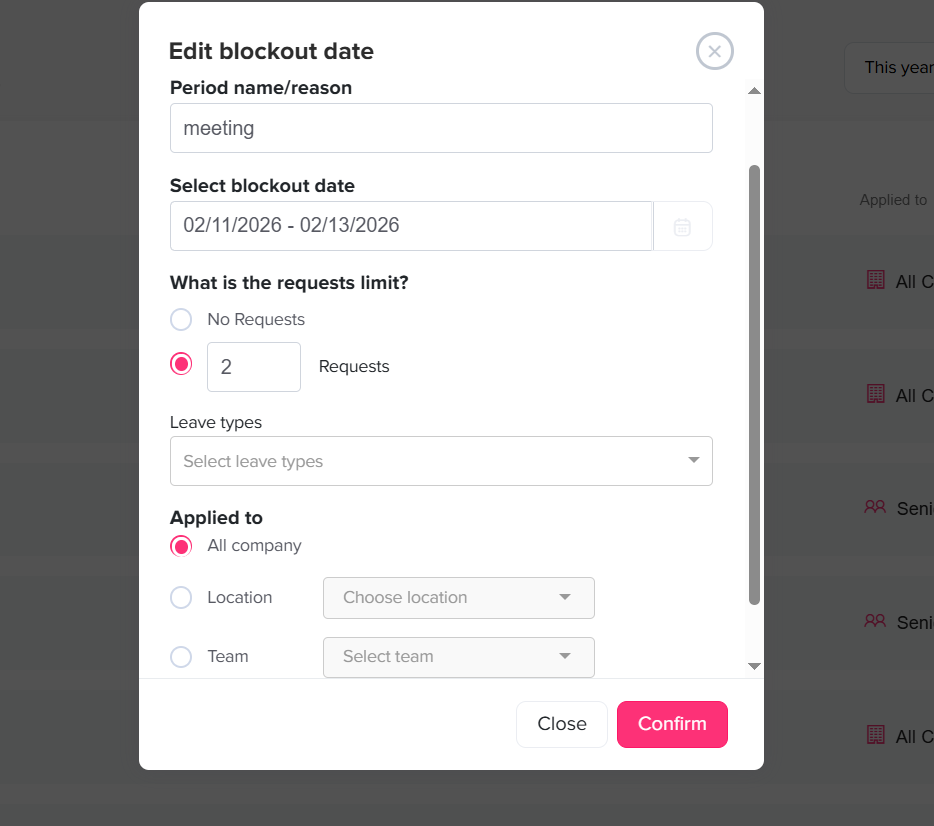
    Once the configuration window opens, you will need to carefully define each field to ensure the blockout behaves exactly as intended:

    Period name / reason

    This field allows you to assign a clear and meaningful name to the blockout period.

    It’s recommended to use descriptive labels such as “Year-End Closing”, “Black Friday”, or “Internal Audit”, as this name will be visible to employees when they view the calendar. A well-defined reason helps employees understand the purpose of the restriction and reduces confusion or unnecessary requests.

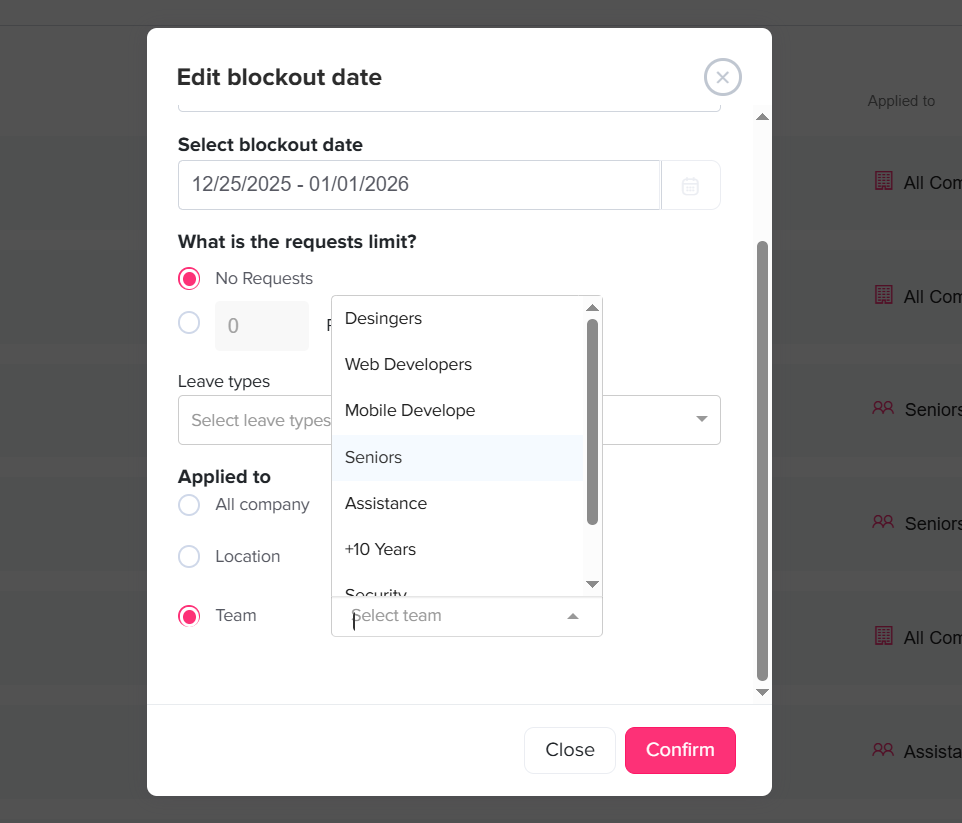
    Select blockout date

    Here, you define the exact date range for the blockout by selecting a start and end date.

    This range determines when the restriction will be active. It can be a single day (e.g., for an important meeting) or span multiple days or weeks (e.g., peak business periods or holidays). Choosing the correct range is important to ensure coverage without being overly restrictive.

    Day Off app feature showing employee leave tracking, PTO management and absence scheduling – Day OffDay Off

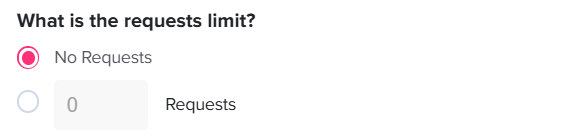
    What is the requests limit?

    This is one of the most important settings, as it defines how strict the blockout will be:

    • No Requests (Fully blocked)
      Selecting this option completely prevents employees from requesting time off during the selected period. These dates will appear as unavailable (grayed out) in the calendar and cannot be selected at all.

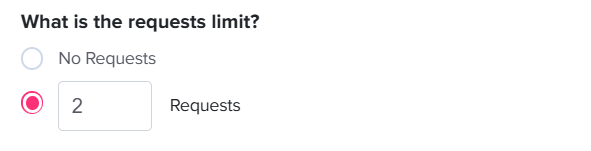
    • Limited Requests (Set a number)
      By entering a specific number, you allow only a limited number of employees to take time off during that period.

      For example, setting the limit to “2” means only two employees can be off at the same time. Once this limit is reached, additional requests will be automatically restricted or blocked.

    This option is particularly useful when you want to maintain minimum staffing levels without fully restricting time off.

    Leave types

    In this section, you can specify which types of leave the blockout applies to.

    For example, you may want to restrict annual leave during busy periods while still allowing sick leave or other urgent leave types. This level of control ensures that essential or unavoidable absences are still permitted while managing planned time off.

    Applied to

    Day Off app feature showing employee leave tracking, PTO management and absence scheduling – Day OffDay Off

    This setting allows you to control who is affected by the blockout:

    • All company: Applies the blockout to every employee across the organization

    • Location: Limits the restriction to a specific office or geographic location

    • Team: Applies only to selected teams or departments

    This flexibility is especially useful for organizations with multiple teams or locations that operate independently or have different peak periods.

    Finalize the setup

    • Review all the configured details to ensure accuracy
    • Click Confirm to save and activate the blockout date

    Once saved:

    • The blockout will immediately appear on the calendar with its visual indicators
    • Employees will see the restriction when selecting dates
    • The system will enforce the defined rules automatically (either blocking or limiting requests)

    By carefully configuring each field, admins can create precise and effective blockout rules that balance operational needs with employee flexibility, ensuring smooth scheduling across the organization.

  • How to set departments/Teams?

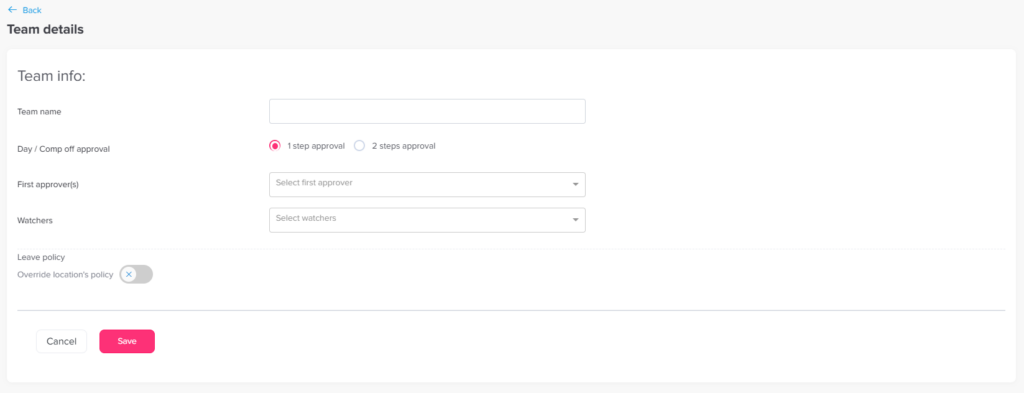
    You can easily create and manage departments or teams in Day Off to organize your employees and streamline approvals.

    Steps to Create a Team

    To add a new team:

    • Go to Company Settings
    • Go to the Teams / Departments section
    • Click on “Add Team”
    • Enter the team name (e.g., Marketing, HR, Engineering)
    • Add the approvers and watchers
    • Click Save
    Day Off app feature showing employee leave tracking, PTO management and absence scheduling – Day OffDay Off

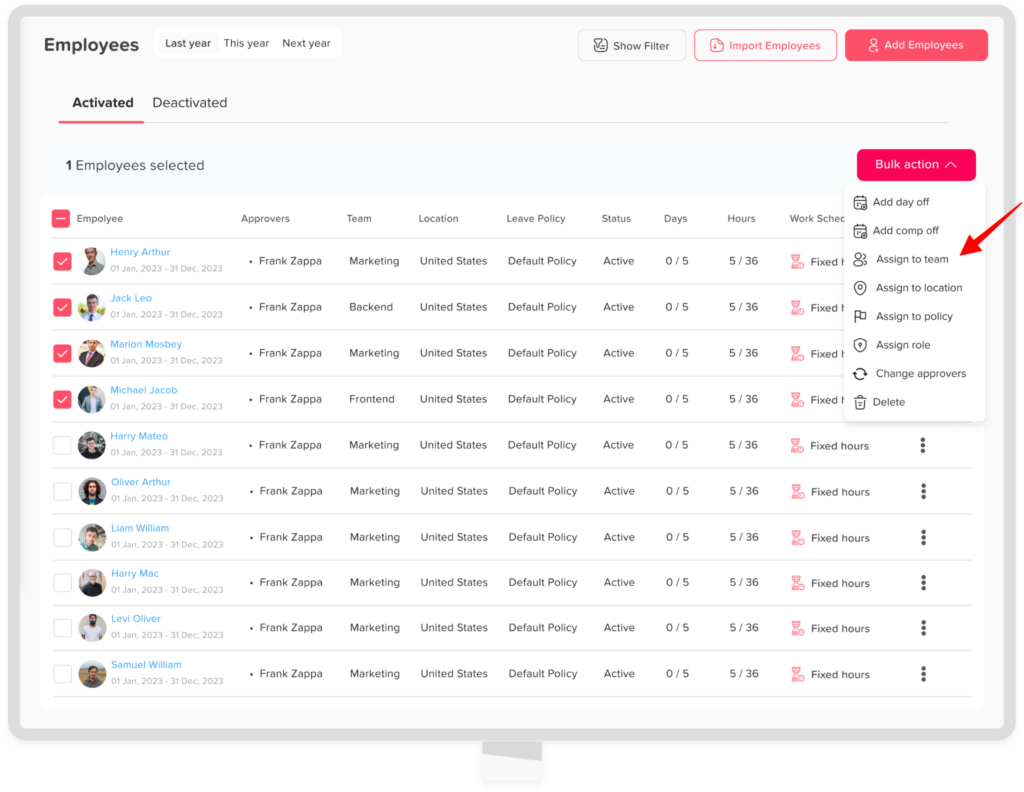
    You can assign employees to specific teams:

    • Go to the employees’ overview 
    • Select the employees you want to assign to same team
    • Click on bulk action
    • Click on assign to team 
    • Choose the team
    • Click confirm 
    Day Off app feature showing employee leave tracking, PTO management and absence scheduling – Day OffDay Off
  • Can employee request time off during blockout dates?

    Employee ability to request time off during blockout dates depends on how each blockout period is configured by administrators. The system supports different levels of restriction, which are clearly reflected in the calendar:

    Fully Blocked Blockout Dates

    Day Off app feature showing employee leave tracking, PTO management and absence scheduling – Day OffDay Off
    • These dates are completely restricted, meaning employees cannot submit any time off requests.
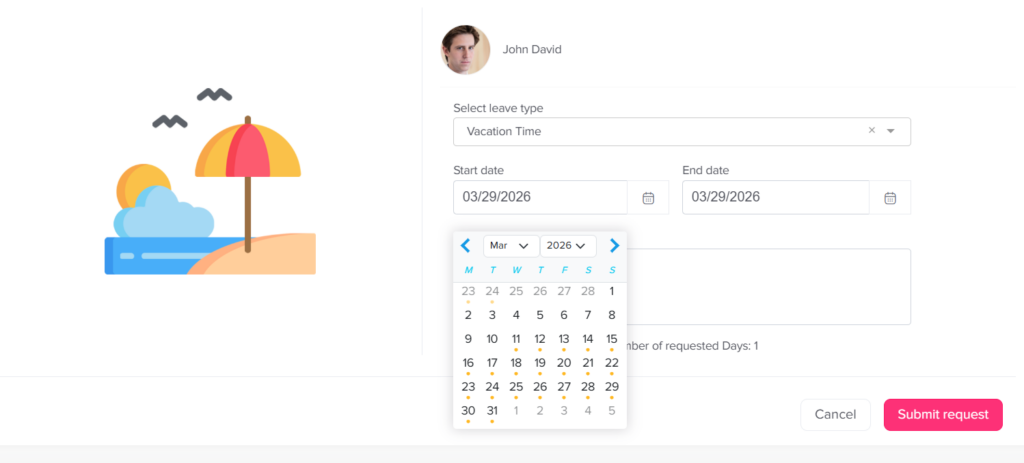
    • They appear in the calendar with a gray dot and are not selectable.
    • This is typically used for critical business periods where full staffing is required (e.g., peak seasons, major events, or deadlines).
    • The system will prevent any attempt to select or submit requests for these dates by an employee.

    Partially Restricted Blockout Dates

    Day Off app feature showing employee leave tracking, PTO management and absence scheduling – Day OffDay Off
    • These dates allow limited availability for time off requests.
    • They are marked with an orange dot in the calendar.

    Employees may still select these dates and submit a request; however:

    • Approval is not guaranteed
    • Requests may be reviewed more strictly
    • Limits may apply based on team capacity or quotas

    System Feedback & Validation

    When selecting dates, the system provides real-time visual indicators (gray and orange dots) to guide employees before submission.

    If a request includes restricted dates:

    • Fully blocked dates will prevent submission entirely
    • Partially restricted dates may trigger a warning message

    Admin Override

    Day Off app feature showing employee leave tracking, PTO management and absence scheduling – Day OffDay Off
    • In special cases, administrators have the ability to override the restriction from their end.
    • Even if a date is fully blocked, an admin can manually create or approve a time off request on behalf of an employee.
    • This ensures flexibility for exceptional situations while maintaining overall control of blockout policies.

    Best Practices for Employees

    • Always check the calendar indicators before submitting a request
    • Plan ahead, especially during known high-demand periods
    • If unsure, consult your manager or HR team for clarification on availability

    This approach ensures transparency while allowing organizations to maintain operational continuity during critical periods.

  • Can admins override blockout dates?

    Yes, administrators can override blockout dates when needed. This feature is designed to handle exceptional situations while still keeping blockout rules in place for general use.

    For Admins

    Admins can override blockout dates by creating a time-off request directly on behalf of employees.

    Day Off app feature showing employee leave tracking, PTO management and absence scheduling – Day OffDay Off

    To override for a single employee:

    • Open the Day Off dashboard
    • Go to the Employees list
    • Click on the employee’s name to open their profile
    • Under the profile picture, click Add Day Off
    • Select the leave type and choose the requested dates
    • If the selected dates fall within a blockout period, the system will display a warning
    • Confirm the action to proceed with the override

    The request will be created successfully despite the blockout restriction.

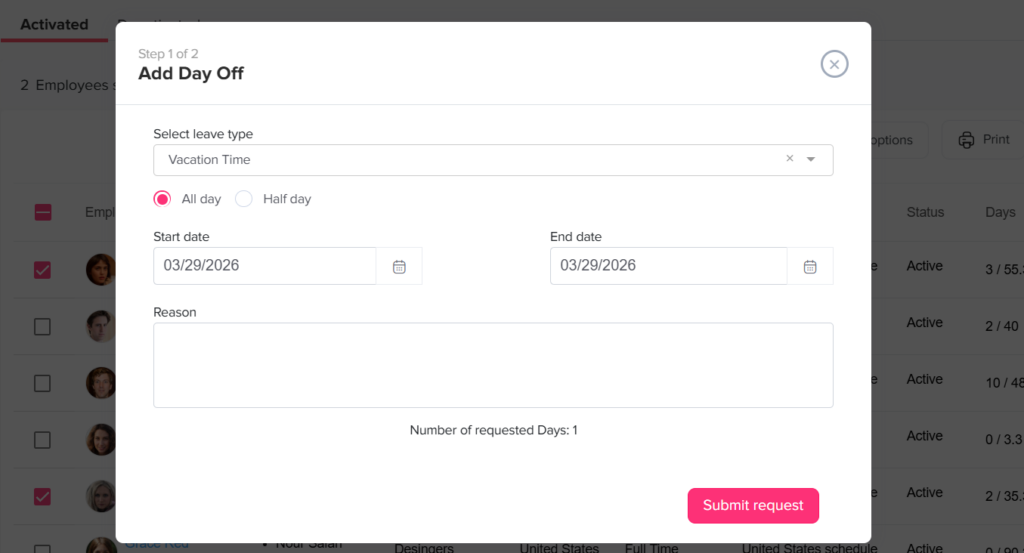
    To override for multiple employees:

    Day Off app feature showing employee leave tracking, PTO management and absence scheduling – Day OffDay Off
    • Open the Employees list
    • Select the checkbox next to each employee you want to include
    • Click on the Bulk Actions button
    • Choose Add Day Off
    • Select the leave type and enter the requested dates
    • If the dates fall within a blockout period, a confirmation message will appear
    • Confirm the action to proceed

    Once completed, the request will be applied to all selected employees, and they will be notified that a day off request has been added on their behalf.

    For Employees

    Employees cannot override blockout dates themselves.

    • If they attempt to request time off during a blockout period, the system will either warn them or prevent submission
    • In such cases, they need to contact an admin or manager to request an exception

    Calendar View (For All Users)

    Blockout dates remain visible in the calendar for transparency:

    • Open the calendar in the Day Off app
    • Blockout dates will appear highlighted
    • Click on any blockout date to view more details
    • Approved overrides may still appear as scheduled time off on those dates

    This flexibility allows administrators to handle urgent or exceptional requests without compromising overall scheduling rules. By keeping blockout dates visible while still permitting controlled overrides, the system ensures both consistency and adaptability in managing time off across the organization.
  • How do I add employees to my team?

    You can easily add employees to your team in Day Off through the web platform, whether individually or in bulk by importing employees.

    Add Employees Individually

    To add a single employee:

    • Go to the Employees Overview
    • Click on “Add Employee”
    • Enter the employee’s details (name, email or phone number, etc.)
    • Assign role, team, location, leave policy and approvers
    • Click Save

    If you add the employee using their phone number, they will not receive an invitation email

    Add Multiple Employees (Import)

    To add many employees in one step:

    • Go to the Employees Overview
    • Click on Import Employees
    • Download the blank Excel template file 
    • Fill in your employees’ details in the file
    • Save the file 
    • Upload the completed file
    • Click Upload

    All employees will be added in one step

    What Happens Next

    • Employees are added with the provided details
    • Employees recieve an invitaion email with a temp. password to activate their account 
    • They can access Day Off
  • Can I apply blockout dates to specific teams or departments?

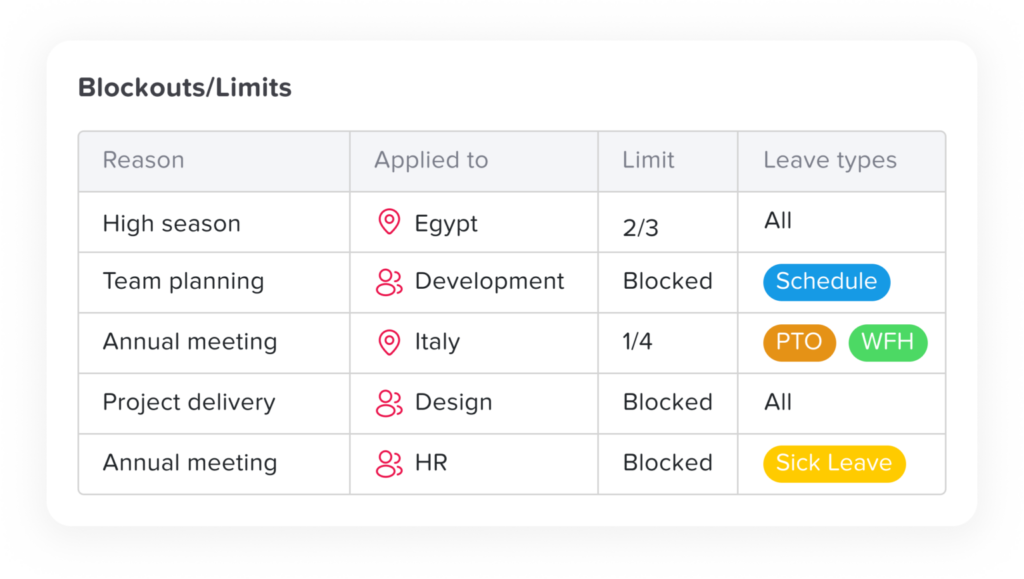
    Yes, Day Off gives administrators the flexibility to assign blockout dates to specific teams or departments instead of applying them company-wide. This is especially useful when certain groups have different operational needs or peak periods.

    For Admins

    Day Off app feature showing employee leave tracking, PTO management and absence scheduling – Day OffDay Off
    • Open the Day Off dashboard
    • Navigate to Settings from the main menu
    • Select Blockout Dates to access all configured restrictions
    • Click Add Blockout Date to create a new one, or select an existing entry to modify it
    • In the configuration screen, choose the team(s) or department(s) that the blockout should apply to
    • Complete the setup and click Save to apply the changes

    Once saved, the blockout date will only impact the selected groups. Other teams and departments will not be affected, allowing for more precise control over time-off policies.

    For Employees

    Employees will only be impacted by blockout dates that are specifically assigned to their team or department, ensuring that restrictions are relevant to their role.

    • Open the Day Off app
    • Go to the Request Day Off section
    • Choose the dates you would like to request

    If a selected date falls under a blockout period for your team, it will be clearly indicated and may restrict your ability to submit the request

    If the blockout does not apply to your team or department, the date will remain available for selection

    This ensures that employees are only restricted when necessary, without affecting others across the organization.
    Leave management screen in Day Off app showing employee time off requests, approvals and absence tracking – Day OffDay Off

    Calendar View (For All Users)

    Day Off app feature showing employee leave tracking, PTO management and absence scheduling – Day OffDay Off

    The calendar provides a clear visual representation of how blockout dates are applied across different teams and departments.

    • Open the calendar within  Day Off dashboard
    • Blockout dates will appear highlighted based on your access and team assignment
    • Select any highlighted date to explore more details
    • A detailed view will display, including which teams or departments the blockout applies to, along with any additional notes or conditions

    By enabling blockout dates at a team or department level, Day Off ensures that scheduling rules remain both flexible and relevant to each group’s needs. This approach helps organizations maintain operational efficiency while giving employees clear visibility into any restrictions that apply to them.

    For any questions or adjustments, you can always reach out to your administrator or HR team to ensure blockout settings align with your team’s requirements.

  • How can I check blockout dates in the Day Off app?

    For Admins

    Admins can easily view and manage blockout dates directly from the settings section of the system. Follow the steps below:

    • Open the Day Off app
    • Navigate to Settings
    • Select Blockout Dates
    • You will see a complete list of all configured blockout dates

    From this section, you can also:

    • Add new blockout dates
    • Edit existing ones
    • Remove dates that are no longer needed

    This allows you to keep blockout periods up to date and aligned with your organization’s policies.

    Day Off app feature showing employee leave tracking, PTO management and absence scheduling – Day OffDay Off

    For Employees

    Employees can easily check blockout dates while requesting time off:

    • Open the Day Off app
    • Go to Request Time Off
    • Select the desired dates
    Day Off app feature showing employee leave tracking, PTO management and absence scheduling – Day OffDay Off

    Blockout dates are visually indicated within the calendar:

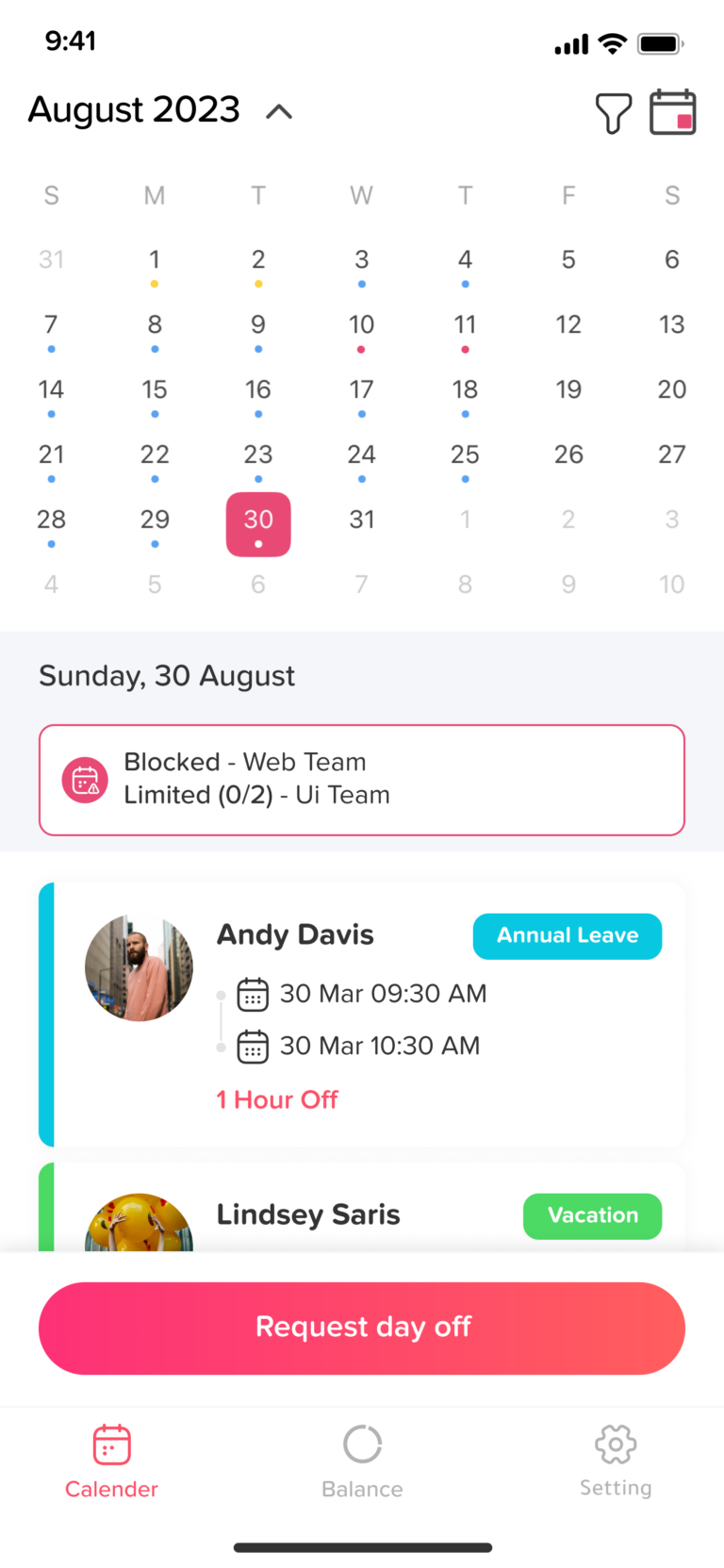
    • Fully blocked dates appear with a gray dot and cannot be selected
    • Partially available dates (with limited availability) appear with an orange dot

    If you attempt to select dates within a blockout period, the app will either display a warning or prevent submission, depending on the level of restriction.

    Calendar View (For All Users)

    Day Off app feature showing employee leave tracking, PTO management and absence scheduling – Day OffDay Off

    Blockout dates are clearly displayed within the calendar, making them easy to identify at a glance:

    • Open the calendar in the Day Off app
    • Blockout dates will be visibly highlighted for quick recognition
    • Click on any blockout date to view more details

    When selected, a detailed view will appear, providing additional information about the blockout period, such as its duration and any relevant notes or restrictions.

    By keeping blockout dates clearly visible and easily accessible, the Day Off helps both admins and employees plan time off more effectively and avoid scheduling conflicts.

    If you need further assistance or notice any discrepancies in blockout dates, please reach out to your system administrator or HR team for clarification.

  • How do I set blackout dates in Day Off?

    A blockout (blackout date) in Day Off allows you to restrict or control leave requests during important periods such as major events, deadlines, or peak business times.

    Day Off app feature showing employee leave tracking, PTO management and absence scheduling – Day OffDay Off

    1. Go to Settings

    Log in to the Day Off dashboard using an account with admin permissions.
    From the main menu, navigate to Settings, then open the Blockout Dates section.

    2. Manage Blockouts

    In this section, you can view all existing blockouts.
    You also have the option to:

    • Create a new blockout
    • Edit any existing blockout
    • Delete blockouts that are no longer needed

    3. Create a New Blockout

    Click on Add Blockout (or a similar button) to start creating a new blockout.

    4. Enter Blockout Details

    Provide the necessary information:

    • Name: Add a clear and descriptive name (e.g., “Annual Meeting” or “Peak Season”)
    • Date Range: Select the start and end dates for the restriction period

    5. Choose the Restriction Type

    Select how leave requests should be handled during this period:

    • No Request: Completely blocks all leave requests
    • Limit Requests: Allows only a limited number of requests during the selected dates

    6. Define Who the Blockout Applies To

    Specify the scope of the blockout:

    • Entire company
    • Specific locations
    • Selected teams

    7. Save the Blockout

    After filling in all details, click Save.
    The blockout will appear in the list, where you can edit or delete it at any time.

    How blockouts appear to employees

    Day Off app feature showing employee leave tracking, PTO management and absence scheduling – Day OffDay Off

    Visual indicator on the dashboard

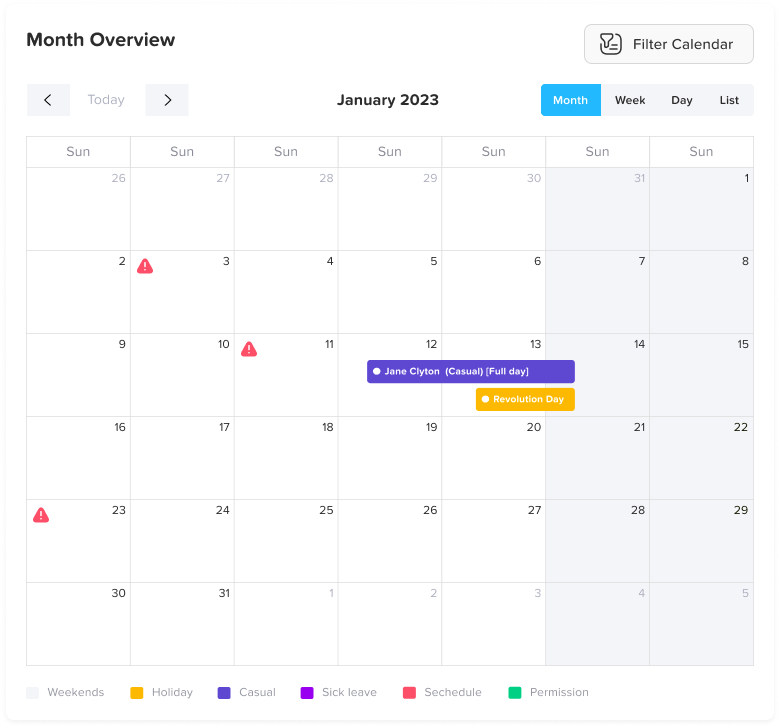
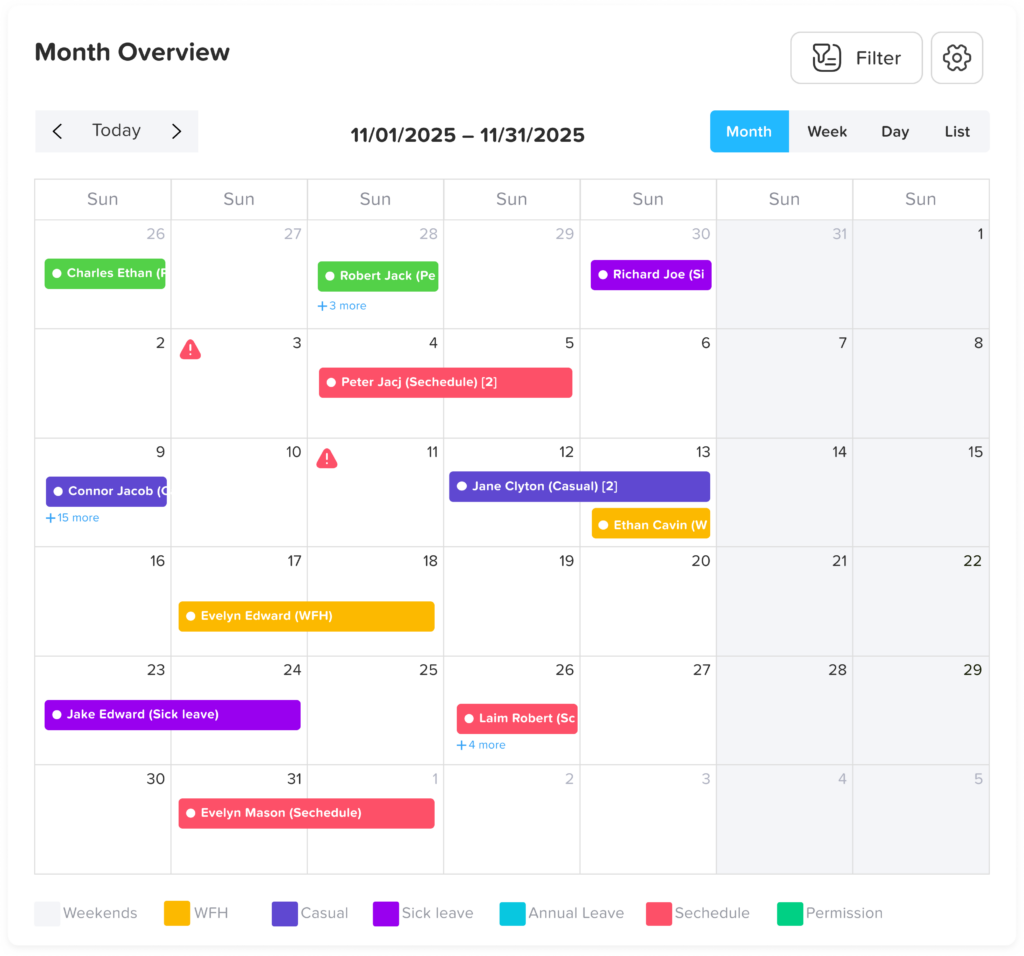
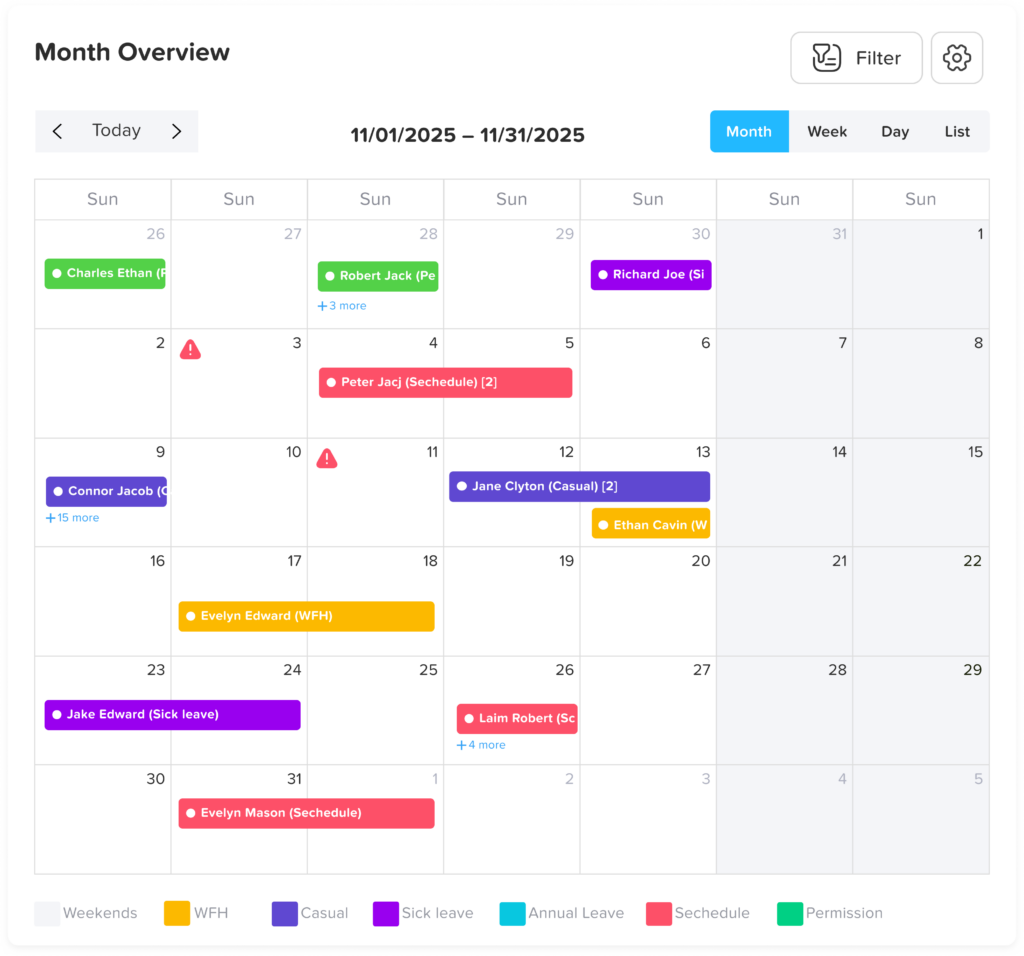
    A warning triangle icon is displayed on the dashboard to highlight dates affected by a blockout.

    This visual cue immediately signals that there are restrictions applied to that specific day or period.

    Visibility during leave requests

    When employees select dates using the date picker while submitting a leave request, any blockout period will be clearly indicated.


    This ensures employees are aware of restrictions before submitting their request.

    Day Off app feature showing employee leave tracking, PTO management and absence scheduling – Day OffDay Off

    Information shown to employees

    When a blockout is present, the system provides the following details:

    • Blockout details: Displays the name or purpose of the blockout (e.g., event, peak period).

    • Number of requests submitted: Shows how many leave requests have already been approved or counted toward the limit.

    • Availability status: Indicates whether the blockout is:

      • Still accepting requests, or
      • Fully booked / completely restricted

    What employees can do

    • If requests are still available: Employees can proceed and submit their leave request normally, as long as the limit has not been reached.

    • If the blockout is full or set to “No Request”: Employees will be prevented from submitting a request for those dates, ensuring compliance with the restriction.
    Day Off app feature showing employee leave tracking, PTO management and absence scheduling – Day OffDay Off

    Admin override capability

    Administrators have the ability to override blockout restrictions when necessary.

    • Override blocked periods: Even if a blockout is set to No Request, admins can still submit or approve leave requests during that time.

    • Exceed request limits: If a blockout has a maximum number of allowed requests, admins can approve additional requests beyond the set limit.

    • Use cases for overrides

      This is useful in exceptional situations, such as:
      • Urgent employee needs
      • Last-minute changes
      • Special approvals from management

    Best practices

    • Plan blockouts in advance and communicate them clearly to employees
    • Use descriptive names so employees understand the purpose of each blockout
    • Regularly review and update blockouts to keep them relevant
    • Use admin overrides sparingly to maintain fairness and consistency
  • What is leave type category?

    When creating a leave type, you need to select a category based on how you want requests to behave. Each category controls how employees can submit requests and how the system handles them.

    Day Off app feature showing employee leave tracking, PTO management and absence scheduling – Day OffDay Off

    1. Leave

    This category allows employees to submit only one request per day for the selected leave type. It is designed for full-day absences where the employee is not expected to work at all during that day.

    This is typically used for:

    • Annual leave
    • Sick leave
    • Any standard day-based time off

    Because only one request is allowed per day, it ensures that the leave is treated as a complete absence rather than being split into multiple partial requests.

    2. Permission

    This category allows employees to submit multiple requests within the same day. It is ideal for situations where time off is needed for only part of the day rather than the entire day.

    This is best suited for:

    • Short absences (e.g., 1–3 hours)
    • Personal errands or appointments
    • Late arrivals or early departures

    This category works especially well with hourly leave tracking, as it provides the flexibility to request and manage partial-day time off.

    3. Work From Home

    This category is used for employees who are working remotely instead of taking time off. Requests under this category typically follow a daily structure, similar to standard leave, but indicate that the employee is still working from a different location.

    It is commonly used to:

    • Track remote work days
    • Maintain visibility on employee availability
    • Differentiate between time off and remote work

    4. Rooms Reservation

    This category is used to book rooms or shared resources within the organization rather than to request time off.

    It can be used for:

    • Meeting room bookings
    • Shared workspace reservations
    • Other internal resources

    Unlike other categories, this is not related to leave balances but helps manage availability and scheduling of company resources.

    How Attendance Is Calculated

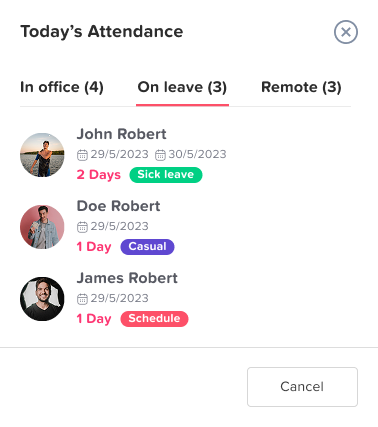
    The Attendance section provides a real-time overview of where employees are during the day. The counts shown here are directly linked to the leave type category selected when requests are created.

    Day Off app feature showing employee leave tracking, PTO management and absence scheduling – Day OffDay Off

    1. On Leave

    Employees who have an approved request under a leave type categorized as Leave will be counted as On leave. This reflects full-day absences where the employee is not working.

    2. Remote

    Employees who have an approved request under the Work From Home category will be counted as Remote. This indicates that the employee is working but not physically present in the office.

    3. In Office

    All remaining employees who are not on leave or on remote requests are automatically counted as in-office. This assumes they are working on-site as usual.

    Important Note

    The attendance summary is dynamically updated based on the category of the leave type, not just the request itself. This ensures accurate visibility into who is absent, who is working remotely, and who is present in the office at any given time.